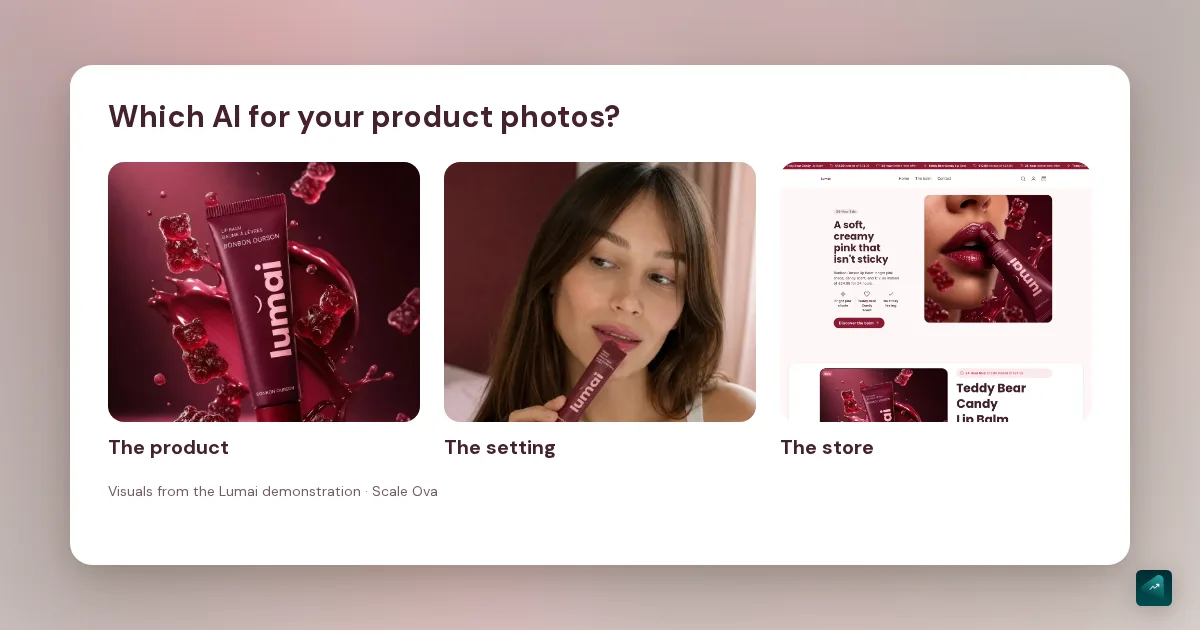
To edit a photo without leaving Shopify, start with its AI editor. For a consistent catalogue, consider Photoroom. To create scenes around a product, compare Claid. To work on images alongside the product page and store theme, consider Scale Ova. The right choice depends on what you need to do after generating the image.
Four tools for different tasks
| Your task | Tool to consider | What to check |
|---|---|---|
| Change backgrounds or lighting inside the admin | Shopify AI editor / Sidekick | Image generation availability on your plan |
| Give multiple photos a consistent style | Photoroom | AI credits, exports and Shopify-compatible plan |
| Explore settings and compositions | Claid AI Photoshoot | Generation mode and fidelity to the original product |
| Create visuals and integrate them into a cohesive store | Scale Ova | Design work uses the Scale Ova theme |
This comparison covers functions documented on November 11, 2026. We make Scale Ova. We have not run an identical image-quality test across all four tools here: these recommendations concern workflows, not a ranking of their image quality.
Shopify: edit images inside your store
Shopify’s file editor can replace backgrounds or transform an image from a prompt. It is a practical starting point when your listing already exists and you want to change a photo’s setting. Its current documentation lists Sidekick media generation for Basic, Grow, Advanced and Plus plans. Shopify image generation documentation.
Photoroom: edit multiple images and send them back to Shopify
Photoroom offers background removal, AI backgrounds, shadows and batch editing. Batch editing lets you apply a shared presentation across multiple images. Photoroom batch features.
Its Shopify connection imports catalogue images and sends edits back to the store. According to its documentation, publishing back to Shopify requires Max, Ultra or Enterprise; AI generation uses credits. Choose a plan for that complete workflow, rather than access to the editor alone. How Photoroom for Shopify works.
Claid: control the setting and composition
Claid AI Photoshoot starts with a product image and a scene description. Precise mode aims to preserve the original placement and product representation; Creative allows more freedom in the composition. That distinction helps when choosing between a descriptive listing image and an experimental campaign visual. Check the vendor’s fidelity claims against your own product. Claid AI Photoshoot features.
Scale Ova: work on the image, product page and store together
Ova lets you generate and edit visuals in the same project as your store’s copy, sections and layout. For example, you can request a setting for your product, then work on its position within the page and how it fits the theme’s colours. Ova also operates on the Shopify catalogue; its scope extends beyond images.
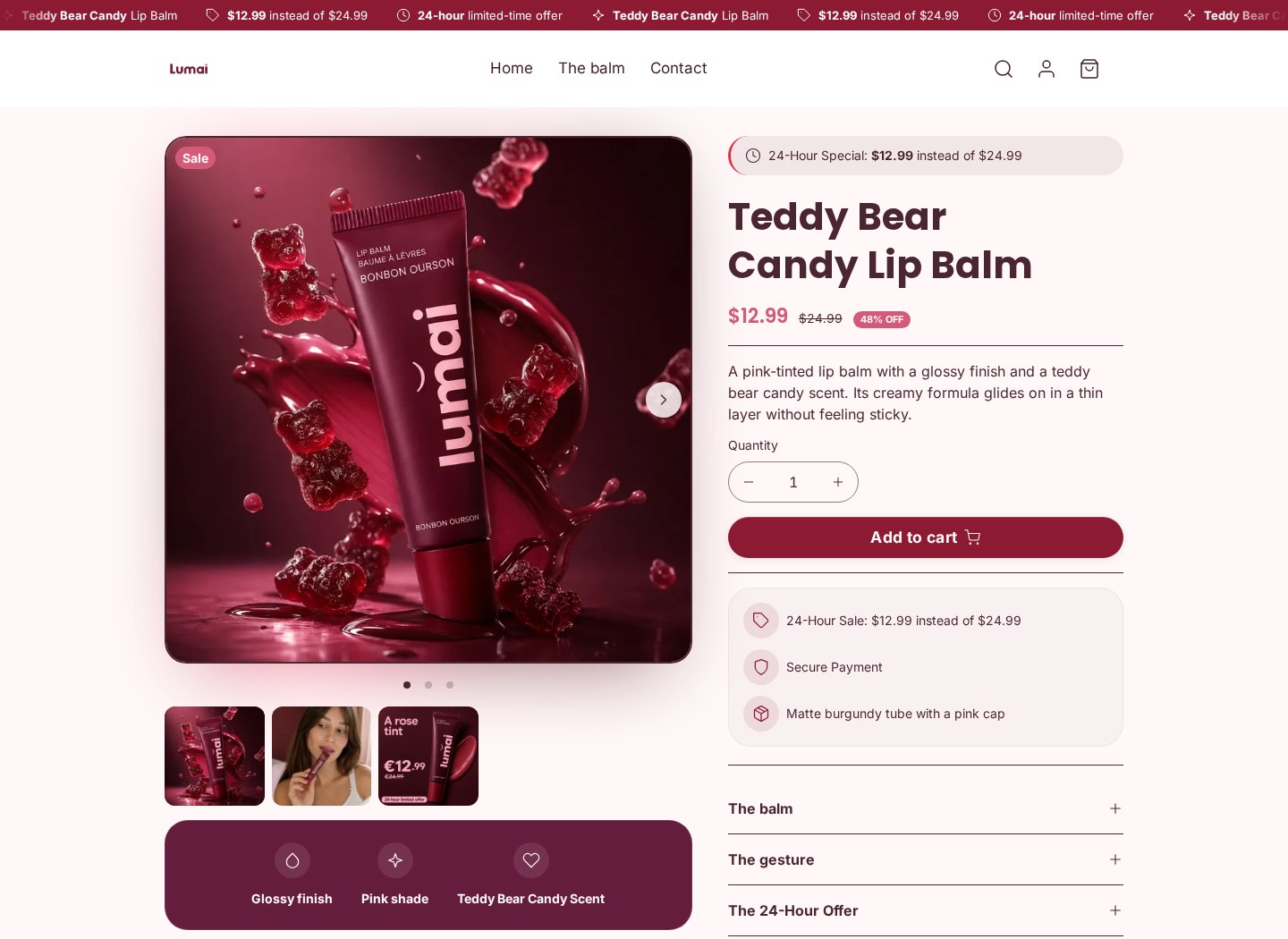
Design work requires the Scale Ova theme. You can try creating a store for free; publishing it to Shopify requires a subscription. The Ova product page generator shows a real Lumai product page, with its visuals in the demonstration store.
To turn product visuals into ads, Ova Ads is a specialist agent: it develops the selling point and composition using the product and brand, then supports edits and format variations. Download the images for Facebook and Instagram. Access requires an active subscription, and creations use AI credit. The Ova Ads workflow explains how it works.
What do you need for a usable product photo?
Start with a clear photograph of your actual product. Keep it beside the result and compare the logo, wording, colour, proportions and included accessories. A beautiful image is not useful if it represents a different product.
Here is a starting prompt to adapt:
Using this photo, place the product on a matte beige surface with soft light from the left. Preserve its shape, colour, logo and wording. Do not add accessories absent from the reference photo.
The prompt states the intended result; it does not guarantee fidelity. Before importing, choose a consistent aspect ratio for your store’s grid. The Shopify product image size guide covers that step.