You add your products one by one and your collection page looks like a staircase. One card is tall and the one next to it is square. That isn't a pixel size problem. It's a shape problem, and it takes two minutes to fix in your theme. This article gives you Shopify's numbers first, then shows you how to even out your grid. To fill in the rest of the product page, how to add a product on Shopify walks through the admin section by section.
The size Shopify recommends
| Criterion | What the Shopify Help Center says (checked October 29, 2026) |
|---|---|
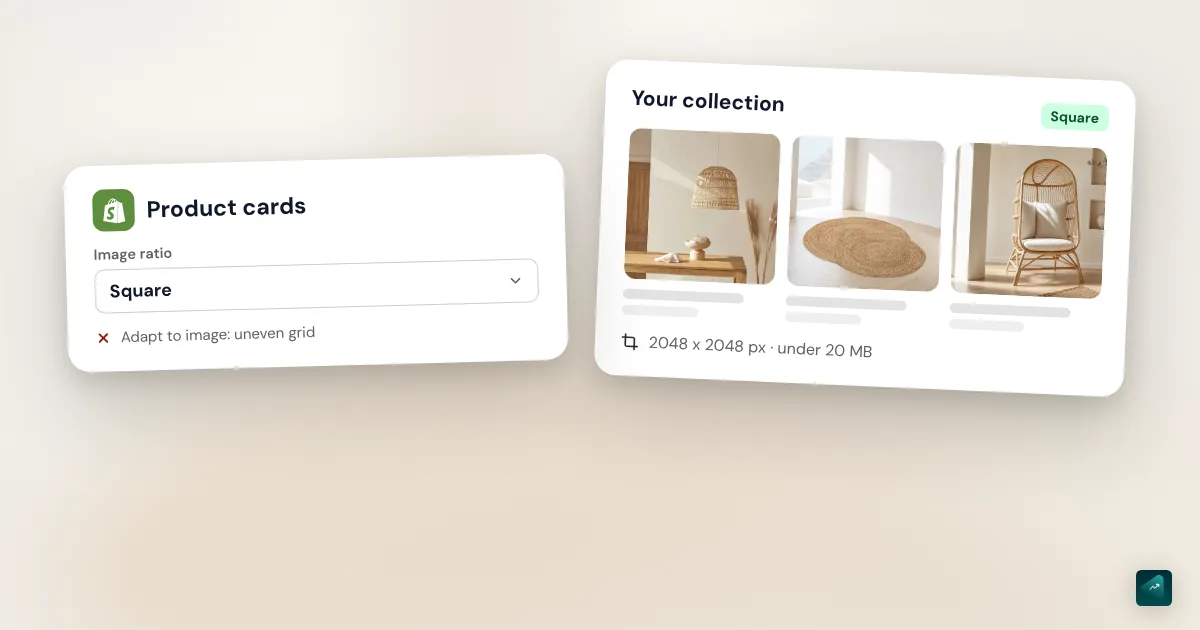
| Recommended size | 2,048 x 2,048 px for a square photo |
| Maximum file size | Under 20 MB per file |
| Maximum resolution | 20 or 25 megapixels depending on the page (see right below) |
| Accepted formats | JPEG, PNG, WebP, HEIC, GIF, TIFF, BMP, and SVG |
| Accepted proportions | Between 100:1 and 1:100 |
| Number of media items | 250 per product, videos and 3D models included |
2,048 px is plenty. Shopify automatically creates several sizes of every image you upload. The large version is used on the product page, where your customer looks at the details. A smaller version is used in collections. So your customer never downloads your full original file.
The opposite is the real problem. Shopify never enlarges an image beyond its original size. A 600 px photo stays at 600 px, and the browser stretches it on a big screen. Upload your photos at 2,048 px wide and you're covered.
20 or 25 megapixels?
The Help Center page on product media allows up to 5,000 x 5,000 px, or 25 megapixels. The page on files also says 25 megapixels. The "Uploading images" page recommends 5,000 px too. A few lines further down, it still sets the limit at 20 megapixels. Shopify's developer documentation says 20 megapixels, or 4,472 x 4,472 px at most.
Shopify doesn't settle it. The safe choice is to stay under 20 megapixels, where no page can block you. A 2,048 x 2,048 px photo is just over 4 megapixels. So the question only comes up with a raw photo straight from a camera. To check yours, multiply its width by its height and divide by one million.
Why your product photos aren't the same size in the grid
Your grid isn't uneven because of pixels. It's uneven because of the aspect ratio, which is the relationship between width and height. A 1,000 x 1,000 px photo and a 2,048 x 2,048 px photo share the same 1:1 ratio. They display at the same size in a collection. A 1,000 x 1,500 px photo is taller, and its card gets taller too.
The Shopify Help Center says it plainly. For your product images to display at the same size in a collection, they need the same aspect ratio. The typical case is supplier photos. One is square, another is portrait, and a third has a white strip at the bottom.
You have two ways out. The first is to crop all your photos to the same shape. The second is to have the theme display every card in the same shape. The theme then crops each photo to fit its card. It's faster, but the edges of a photo with the wrong shape get cut off.
Setting the product card format in your theme
In Dawn
- From your Shopify admin, go to Online Store.
- Click Edit theme.
- Click the Home page drop-down menu at the top, then select your collection template.
- Click the Product grid section.
- In the Image ratio setting, choose Square or Portrait.
- Click Save.
By default, Dawn is set to Adapt to image. Each card then takes the shape of its product's first photo. That's exactly what creates the staircase. The same setting exists in other sections that show cards. Featured collection on the home page has it, and so does Related products on the product page. The Search results page has it too. Set them all the same way, or your store will change shape from one page to the next.
In Dawn's code, Portrait means a 4:5 format. The card fills that frame and crops the photo from its center.
In Horizon
Horizon keeps the setting inside the card itself. Open your collection page in the theme editor. Click the product card in the grid, then the block for its image. The setting is called Aspect ratio. It offers Auto, Portrait, Square, and Landscape.
Here the default is Portrait, in a 4:5 format. A square photo therefore has to fit in a frame slightly taller than itself. Horizon uses the image's focal point to decide what stays visible.
On the product page
The product page gallery has its own settings. In Dawn, the Product information section shows each photo in its original shape. A photo that's taller than the others changes the height of the gallery. In Horizon, the Product media block has its own Aspect ratio, set to Auto by default.
Square or portrait?
Square is the safest choice if you're starting out. It works for almost any object that sits on a surface, like a lamp or a watch. It's also the only shape Shopify gives an exact size for. Shopify's image editor even has a dedicated button to crop to a square.
Portrait works for products that are taller than they are wide. A worn garment or a bottle gets more room that way. At the same width, a portrait card also takes up more of a phone screen. If you pick it, aim for the 4:5 format Dawn and Horizon use. A 2,048 x 2,560 px photo keeps the width Shopify recommends.
Landscape rarely works for a product. It leaves a lot of empty space around an upright object. In the end, the shape matters less than sticking to it. A grid that's all portrait is just as clean as a grid that's all square.
Cropping your photos without leaving Shopify
Shopify has a built-in image editor. For a simple crop, you don't need any software.
- In your admin, go to Content > Files.
- Click the photo's thumbnail to open the editor.
- Click Crop and transform.
- Click Square, then position the frame over your product.
- Click Apply, then click Save.
You can also open the editor from your product's Media section. For another shape, Freeform lets you drag the edges of the frame by hand. The editor has no 4:5 button. For an exact portrait, crop your photo before you upload it.
An edit made in Files applies everywhere the image is used. To keep the original untouched, choose Save as new from the Save menu. A bad crop can also be undone with Revert to original, even after saving.
Don't confuse cropping with resizing. The Resize button changes the image's size, not its shape. If you uncheck Lock aspect ratio, your photo gets distorted.
A focal point doesn't replace cropping. It keeps one area of the image in frame when a section crops it. Horizon uses it in its product cards. In Dawn's code, the card always crops from the center and ignores the focal point.
The background: plain and the same everywhere
The Shopify Help Center page on product photography recommends a pure white background. Your product then stays the only subject of the image. The real gain comes from consistency. The same background on every product gives you a calm grid, even with very different products.
Do your supplier photos all have different backgrounds? You can remove them. Shopify's image editor removes or replaces the background with Shopify Magic. Dedicated tools like remove.bg, Photoroom, or Canva do it too. Always check the result by zooming in on the edges. Fine edges like hair or glass are the trickiest.
An edited photo still has to show the real product. If the color changes between the photo and the parcel, your customer has a good reason to send it back.
File size, compression, and WebP
Shopify doesn't compress your images when you upload them. It keeps the original to preserve its quality. Compression happens when your theme serves the image to a customer. Shopify's developer documentation on the image_url filter confirms it. Shopify detects which formats the customer's browser supports, such as WebP or AVIF. It then picks the format that gives the best quality for the smallest file.
So you don't need to convert your photos to WebP before uploading them. You don't need a compression app to get started either. A 2,048 px JPEG exported at good quality is enough. Shopify's blog gives a benchmark of around 300 KB per product photo.
JPEG or PNG? Here again, two Help Center pages don't agree. The page on product media lists PNG first. The page on images recommends JPEG for products. For a photo, go with JPEG, which stays light with no visible loss. Keep PNG for a cut-out product on a transparent background.
One last detail is color. Shopify removes the color profile from your images when it displays them. A photo exported in a profile other than sRGB can therefore shift in tone online. Export your photos in sRGB, the profile browsers assume by default.
The alt text for each photo
- In Products, click the product name.
- Click a photo to open the Preview media page.
- Click Add alt text.
- Write your description, then click Save alt text.
Shopify accepts 512 characters but recommends 125 or fewer. Describe what you see, for example "Camel leather tote bag worn on the shoulder." The image editor can also suggest AI-written text that you accept or edit. That text is read by screen readers and helps your SEO. The Shopify SEO guide puts it alongside the other settings that matter for Google.
One photo per color
If your product has variants, each color can have its own photo. Your customer then sees the right image when they switch colors. Keep the same shape for these photos as for the others. Otherwise the gallery changes height with every click. The Shopify product variants guide shows where to assign each photo to its variant.
The traps that keep coming up
- The grid looks like a staircase. Your theme fits each card to its photo. Set the Image ratio to Square or Portrait.
- The top or sides of the product are cut off. The card is cropping a photo that doesn't match its shape. Crop the photo to the card's format.
- The photo is blurry when zoomed. It's too small, and Shopify won't enlarge it. Upload it at 2,048 px wide.
- Shopify rejects your photo. It probably goes over 20 MB or 20 megapixels. Bring it down to 2,048 px wide before uploading it.
- The message "Aspect ratio must be between 100:1 and 1:100" shows up. Your image is far too stretched. Crop it.
- The colors changed online. Your photo had a profile other than sRGB. Export it again in sRGB.
- The collection shows the wrong photo. It always shows the product's first photo. Drag the right one to the first position in Media.
Before you publish, open your collection page on your phone and scroll through the grid. Every card should be the same height. The product should stay whole in each one. For the rest of the product page, the Shopify product page that converts covers which photos to show and in what order.
Doing it in one sentence with Ova
If your store is built with Scale Ova, Ova adds photos to your products directly in your Shopify admin. It writes their alt text and puts them in order. It also assigns each photo to its color. It can remove a photo's background without redrawing it, or create a product photo from yours. In the theme, it sets your product cards to the shape you choose. For example, you write this.
Remove the background from the Lina bag photos and add them to its product page with alt text. Also set the product cards to square.
You then check your grid on your phone before publishing. Generating and editing your store with Scale Ova is free, and a subscription unlocks publishing to Shopify.
FAQ
What is the best size for a Shopify product image?
What is the maximum image file size on Shopify?
Why aren't my product photos the same size on Shopify?
What aspect ratio should I use for Shopify product images?
Should I convert my images to WebP for Shopify?
Does Shopify resize images automatically?
How do I crop a product photo on Shopify?
Sources
- Shopify Help Center, Product media types: 2,048 x 2,048 px, 5,000 x 5,000 px or 25 megapixels, under 20 MB, accepted formats, sizes created automatically, checked October 29, 2026
- Shopify Help Center, Uploading images: 20 megapixel and 20 MB limit, compression and WebP or AVIF delivery, JPEG for products, color profiles, focal points, cropping by sections, checked October 29, 2026
- Shopify Help Center, Uploading and managing files: 20 MB, 25 megapixels, proportions between 100:1 and 1:100, editing files, checked October 29, 2026
- Shopify Help Center, Adding product media: 250 media items per product, main media, save as new, aspect ratio error, checked October 29, 2026
- Shopify Help Center, Using the media editor: same aspect ratio for the same size in a collection, cropping, resizing, background with Shopify Magic, suggested alt text, checked October 29, 2026
- Shopify Help Center, Adding alt text to media: steps, 512 characters maximum, 125 recommended, checked October 29, 2026
- Shopify Help Center, Taking product photographs: white background, checked October 29, 2026
- Shopify.dev, Product media: 4,472 x 4,472 px or 20 megapixels, 2,048 x 2,048 px recommended, checked October 29, 2026
- Shopify.dev, image_url Liquid filter: automatic WebP or AVIF selection, no enlarging beyond the original, checked October 29, 2026
- Dawn theme code on GitHub: Image ratio setting and 4:5 card format, center cropping, product page gallery, checked October 29, 2026
- Horizon theme code on GitHub: Aspect ratio setting for cards and gallery, Portrait by default, focal point, checked October 29, 2026
- Shopify Blog, website image size guidelines: benchmark of around 300 KB per product photo, checked October 29, 2026