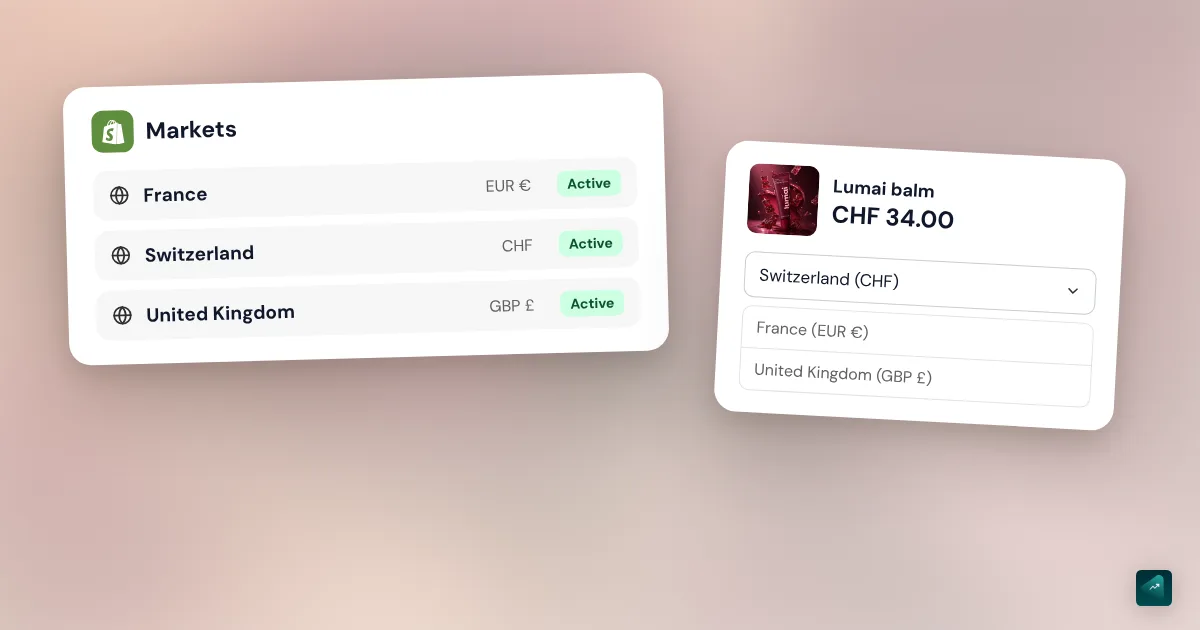
You found a theme you like better than yours, and you're afraid of breaking everything when you publish it. Shopify actually splits your store in two. The admin holds your catalog and your pages. The theme decides how all of that is displayed. Changing themes only replaces that second half. The real work is redoing in the new theme what you had set up in the old one. If you haven't picked one yet, start with the comparison of the best Shopify themes.
What stays and what doesn't carry over when you change themes
The Shopify Help Center is clear on this. What's managed in the admin isn't changed or deleted when you switch themes. What you set up with the theme editor belongs to a single theme instead.
| Stays in place | Doesn't carry over, redo it on the new theme |
|---|---|
| Products, variants, prices and inventory | Colors, fonts and other theme settings |
| Collections | Home page sections and their settings |
| Pages and the text in their Content box | Text and images placed in the theme editor |
| Blog posts | Button and image links inside sections |
| Navigation menus | App blocks and app embeds |
| Store policies | Code added by hand to the theme |
| Domain | Page and product templates |
| Installed apps | Logo and favicon |
| SEO titles and meta descriptions of your pages | Theme text edited in the language editor |
So a page has two parts. The text in its Content box stays attached to the page and follows you from one theme to the next. The sections you added around it in the editor stay with the old theme. Your home page is built entirely in the editor. That's why it will take you the most work.
1. Back up your current theme
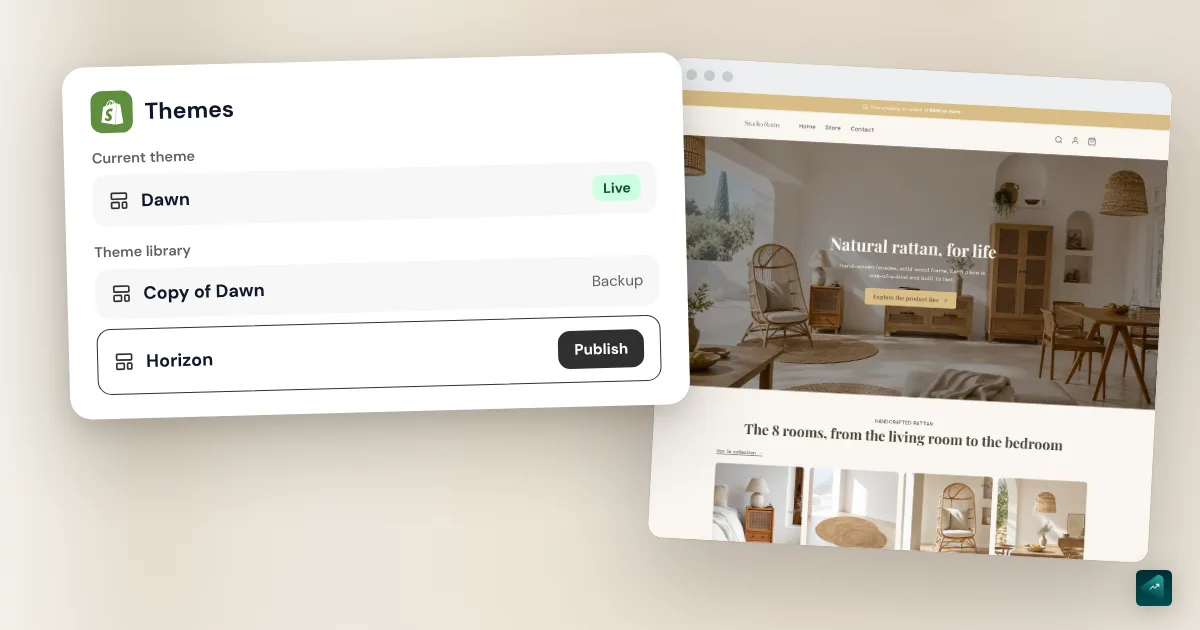
Before you touch anything, make a copy of your published theme. Shopify recommends this before any customization. You keep an untouched version to go back to.
- In your Shopify admin, go to Online Store.
- Next to your theme, click the … button to open the actions menu.
- Click Duplicate.
The copy shows up on the Themes page. Its name starts with Copy Of, followed by your theme's name.
You can also keep a backup outside Shopify. In the same actions menu, click Download theme file. Shopify then emails you the theme as a .zip file, at the address tied to your staff login. That file holds the theme only. Your products, your pages and the images in Content > Files aren't part of it.
The download is mostly useful when your theme library is full. You can then delete an old theme without losing it for good.
2. Add the new theme
An added theme doesn't replace the live one. It lands in the Draft themes section, and your customers don't see it. There are three ways to add it.
A free theme from the Theme Store
- In Online Store, scroll down to the Discover themes section.
- Click Visit theme store to see every theme.
- Click the name of the theme you like.
- Click Add.
Free themes are developed by Shopify. So Shopify's support helps you customize them.
A paid theme
On a paid theme's page, click Try theme. It lands in your drafts with a Theme trial label. You can set it up with your products, and your settings are kept if you buy it. Shopify lets you try up to 19 paid themes at the same time. During the trial, you can't edit its code.
A theme on trial can't be published. You first have to buy it with the Buy button, in Draft themes. Its license then only covers the store where you bought it. For questions about a paid theme, contact its developer, not Shopify.
A .zip file
A theme bought outside the Theme Store comes as a .zip file. So does your old theme if you downloaded it.
- In Online Store, go to the Draft themes section.
- Click Import theme > Upload zip file.
- In the Import theme dialog, click Choose File and select your file.
- Click Upload.
All the theme's files have to fit in a single .zip file. You can also generate a theme with AI instead of picking one. The different paths are compared in the AI Shopify theme guide.
3. Prepare the new theme before you publish it
This is the step that prevents breakage. As long as the theme stays a draft, you can set everything up without your customers seeing a thing. Click Edit theme next to it to open the editor.
To see it as a customer would, open its … menu and click Preview. The theme then shows on your store with a preview bar. That bar lets you create a link to share for feedback. This preview link expires 2 days after you create it.
Here's what you need to redo, starting with what shows the most.
- Logo, colors and fonts. You set them in the theme settings, with the gear icon.
- The home page. Add your sections, then put your text and images back. Also check where the buttons go, because their links are saved in the section.
- Templates. If a page or a product used its own template, recreate it in the new theme.
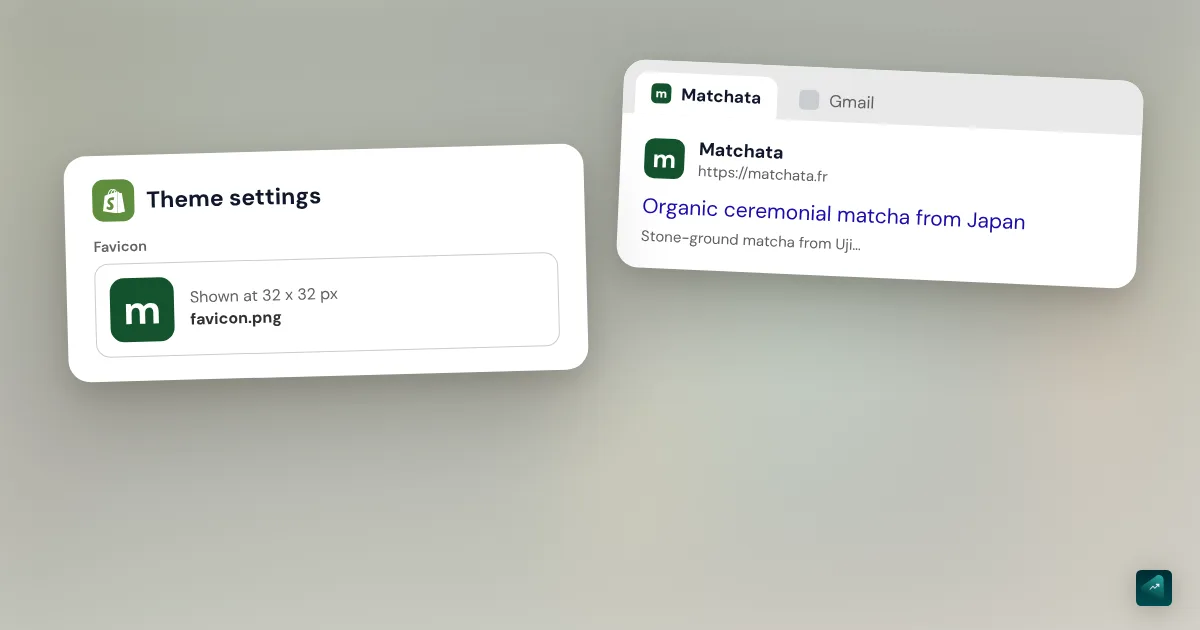
- The favicon. It's part of the theme settings and doesn't carry over. The step-by-step is in the Shopify favicon guide.
- Apps, hand-added code and translations. These are the most common oversights, covered just below.
Your apps stay installed, but not displayed
Your apps stay installed on your store when you change themes. How they display still goes through the theme, though. The Shopify Help Center separates two cases.
- An app block shows in a specific spot on a page, like reviews under a product page. In the editor, click Add block or Add section. Then pick your app in the Apps part.
- An app embed floats over the store or adds invisible code. A chat bubble or a tracking tool are examples. In the editor, click the App embeds icon. Then turn the app on with the toggle next to its name.
List your apps before you publish. Then go through each one in the new theme to put it back in the right place. Some sections don't accept app blocks. The theme's documentation will tell you which ones do.
Some apps also inject their code straight into the theme files. That code stays in the old theme, because Shopify files it with the code customizations that belong to each theme. Ask the app's support team to install it on the new one.
Code added by hand
If you or a freelancer edited the theme's code, those edits stay in the old theme. Write them down before you switch. Then check whether the new theme already offers the same thing in its settings. If not, add that code to the new theme.
Translated text
If your store runs in several languages, check the theme's text as well. Shopify lists content edited in the language editor among the things unique to each theme. The sections you rebuild on the new theme are also new text, with no translation yet. In the preview bar, use View as to go through the theme in each language before you publish. How to translate that text is covered in the guide to translating your Shopify store.
4. Publish the new theme
When the preview looks right, you can publish. Two paths lead to the same result.
- In Online Store, go to the Draft themes section.
- Find your new theme.
- Click Publish.
From the theme editor, click Publish in the top bar. Then confirm in the Publish... window.
Your old theme then moves to Draft themes with all its settings. Shopify states that none of your theme changes are lost. Publishing doesn't change your store's access either. A store in private mode stays private after you publish.
On a phone, the Shopify app follows the same path. In Sales channels, tap Online Store and then Manage all themes.
5. Check your store right after
Open your store in a private browsing window and walk through it like a customer. Go from the home page to the cart through a product page. Then do the same walk on your phone.
Next, take care of templates. A page's Theme template menu only offers the templates of the published theme. So now is when you can attach your pages to the templates you recreated. Open each page involved in Online Store > Pages. In the Online store section, pick the template from the Theme template drop-down menu, then click Save. On a product, the drop-down sits in the Theme template section.
What about SEO?
The URLs of your products, collections, pages and blog posts don't change with the theme. They come from the admin. A plain theme switch doesn't call for any redirect. The SEO titles and meta descriptions you filled in stay in place too. Your home page's are set in Online Store > Preferences, outside the theme.
The theme does decide how it writes those titles into the page's code, though. After you publish, look at the title of a few pages in the browser tab. Also click the buttons in your new sections. A button that points to a deleted collection shows a 404 error page.
Going back to your old theme
The new theme doesn't work for you, or an app no longer shows. Your old theme is waiting in Draft themes, just as you left it. Click Publish next to it. It goes live again with all its settings, and the new one goes back to drafts.
Only the changes made in the admin in the meantime don't roll back. If you deleted a page for the new theme, the old one won't get it back. The admin is shared by all your themes.
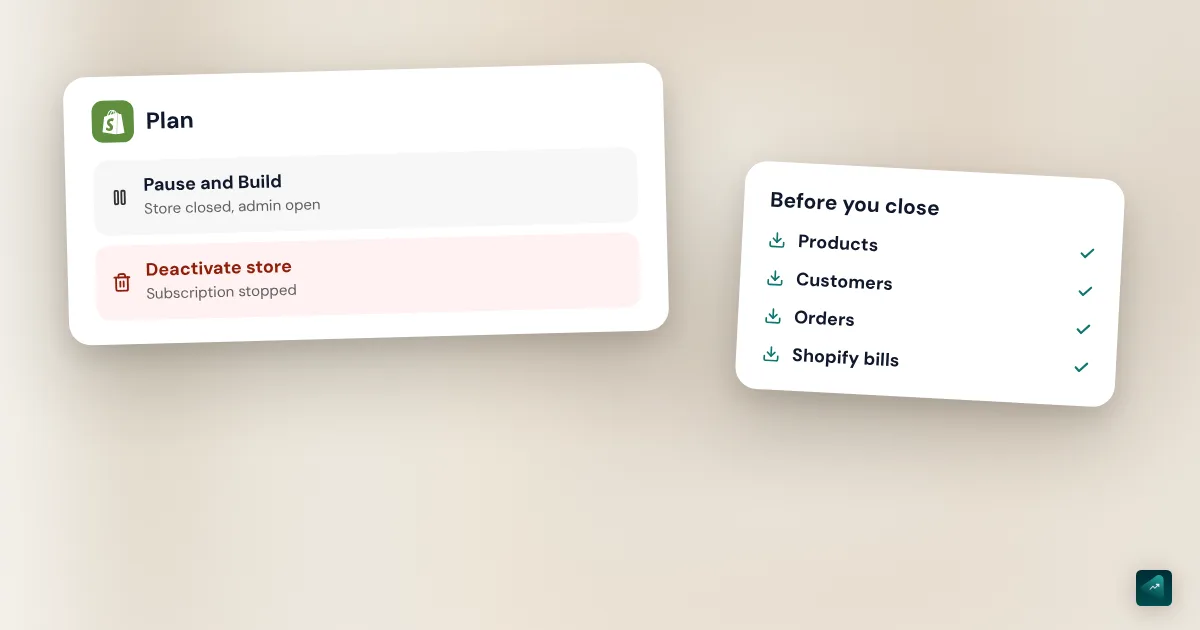
That's also why you shouldn't delete the old theme right away. Deleting a theme is permanent. Keep it as a draft until you're sure about the new one.
How many themes you can keep
Your theme library has a limit that depends on your plan. Here are the limits as checked on October 29, 2026.
- Starter: only the Spotlight theme. So you can't change themes on this plan.
- Basic, Grow and Advanced: up to 20 themes.
- Shopify Plus: up to 100 themes.
Copies count toward that limit. Once you reach it, you have to delete a theme before you can add or duplicate another one. Download it first if you want to be able to upload it again someday.
To delete a draft theme, open its … menu and click Delete. Confirm in the Delete... window. The published theme can't be deleted. You have to publish another one in its place first.
The traps that keep coming back
- Editing the live theme directly. Every setting you get wrong shows up right away for your customers. Work on a copy or on the new theme as a draft.
- Publishing before you put your apps back. Reviews then vanish from your product pages. Go through your apps in the editor before you click Publish.
- Deleting the old theme the same day. It's your only way back, and deleting is permanent.
- Forgetting the favicon and the logo. The new theme starts from its own settings, without your icon or your logo.
- Spending hours on a paid theme during its trial. It can only be published after you buy it. Check its price before you set it up in detail.
- Sharing a preview link too early. It expires after 2 days. Make a new one when you actually need feedback.
Rebuilding your store with Ova
Maybe you're changing themes because your store isn't selling. The theme isn't necessarily the only problem then. Ova Recraft starts from your current Shopify store. It reads your theme, your images and your structure, then tells you what makes your buyers hesitate. It then prepares a new version on the Scale Ova theme, which you edit by talking to it. For example: "Keep my green and my photos, and add an FAQ to the product page."
Ova doesn't copy over your old theme's settings. It starts from what it read. So your apps still need checking on the new theme, as explained above. Your old theme stays in your Shopify theme library. The analysis and the redesign are free, and a subscription unlocks publishing to Shopify. The details are on the Shopify store redesign page.
FAQ
Will I lose my products if I change my Shopify theme?
What happens when you change your Shopify theme?
How do you duplicate a Shopify theme?
How do you publish a Shopify theme?
Does changing themes hurt SEO?
Can you go back to your old Shopify theme?
Can you change themes on the Starter plan?
Sources
- Shopify Help Center, Adding, previewing, and buying themes: limits by plan, Theme Store, trying 19 paid themes, zip upload, what's tied to the theme, preview and 2-day link, checked October 29, 2026
- Shopify Help Center, Publishing themes: publishing from the admin and the editor, old theme moved to drafts, private mode, checked October 29, 2026
- Shopify Help Center, Duplicating themes: backup copy, name of the copy, 20-theme limit, checked October 29, 2026
- Shopify Help Center, Downloading themes: .zip file sent by email, excluded content, checked October 29, 2026
- Shopify Help Center, Deleting themes: permanent deletion, published theme, checked October 29, 2026
- Shopify Help Center, Understanding licensing and transferring themes: one license per store, checked October 29, 2026
- Shopify Help Center, Apps in your theme: app blocks, app embeds, injected code, checked October 29, 2026
- Shopify Help Center, Templates: Theme template menu, templates of the live theme, checked October 29, 2026
- Shopify Help Center, Adding keywords: home page title and meta description in Preferences, checked October 29, 2026
- Dawn, layout/theme.liquid template: the theme writes the title tag and meta description, checked October 29, 2026