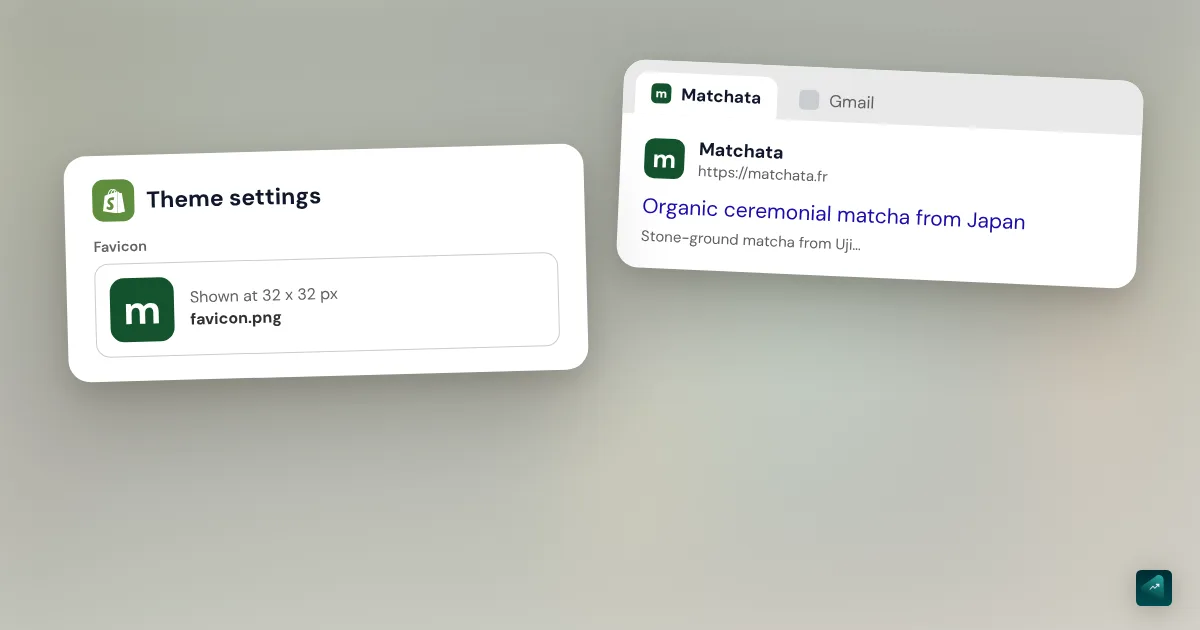
A favicon is the small icon that shows next to your store's name in the browser tab. You'll also see it in bookmarks. Google can show it next to your site in search results too. The setting takes two minutes on Shopify. The longest part is preparing an image that stays readable at a tiny size.
Where to set the favicon on Shopify
The favicon isn't in your store settings. It's a theme setting, which you change in the theme editor. So it only applies to the theme you set it on.
- In your Shopify admin, go to Online Store.
- Find your published theme and click Edit theme.
- Click the gear icon to open Theme settings.
- Click Logo or Favicon, depending on your theme version.
- In the Favicon image section, click Select image.
- Pick an image you've already uploaded to your admin. For an image on your computer, click Add images.
- Check the image and click Done.
- Click Save.
You can also give your favicon alt text. Click Edit in the Favicon image section. The Preview and edit dialog opens with an Alt text field. Your brand name is enough, then click Save.
On a phone, the Shopify app follows the same path. In Sales channels, tap Online Store and then Manage all themes. The rest works the same way as on a computer.
The setting's name in Dawn and Horizon
The Help Center says Logo or Favicon because the layout changes from one theme to another. In Dawn, the favicon sits in the Logo group of the theme settings. The field is simply called Favicon, with the note "Displayed at 32 x 32px." In Horizon, the group is called Logo and favicon. The Favicon field comes right after the logo settings.
In another theme, start with the group that holds your logo. That's where Shopify puts the favicon in its two most recent free themes. If you can't find it, the theme's documentation will tell you.
What size and format for a Shopify favicon
Shopify gives two ideal sizes, 16 x 16 and 32 x 32 pixels. A larger image is accepted, and Shopify shrinks it to 32 x 32 pixels when you upload it. The code of Dawn and Horizon points the same way. Both themes send your favicon to the browser as a 32 x 32 pixel PNG.
The shape matters more than the size. The theme asks for a square, and Shopify crops a non-square image from the center. That's the default setting of its image filter. A wide logo then loses both of its ends.
For the format, PNG is the simplest choice. It's the type Dawn and Horizon declare in their code. You don't need to make an .ico file, since the theme writes the favicon tag itself.
Making a favicon from your logo
Your full logo will rarely make a good favicon. At 32 pixels, a name written out in full turns into a small gray smudge. Keep a single part of the logo, its symbol or your brand's initial.
- Put that symbol in the middle of a square.
- Give the square a solid background color.
- Export the image as a square PNG of at least 32 x 32 pixels.
- Look at the image shrunk to the size of a tab. If you still recognize your brand, it's ready.
If you don't have a logo yet, a generator will do. Shopify suggests searching the internet for "free favicon generator." A site like favicon.io, for example, makes an icon from a single letter. And if you're still looking for a name, sort that out before the icon. The guide on how to name your online store helps you pick a short one that fits in a logo.
Why your favicon isn't showing
You saved, and the tab still shows the old icon. The causes go from the simplest to the rarest.
- You're looking in the theme editor. The favicon never shows there, because the editor is part of the admin and doesn't show your live store. Open your store in a new tab.
- Your browser remembers the old icon. Open the store in a private window or in another browser. If the favicon shows there, your setting works. Your usual browser will catch up eventually.
- You edited a theme that isn't published. The favicon belongs to the theme. If you set it on a copy, your live store keeps the old one. Check that the published theme is the one you edited.
- You're on the Starter plan. That plan doesn't let you add a favicon to your online store. You need the Basic plan or higher.
- The favicon is missing at checkout or in customer accounts. That's expected, because those pages don't show a favicon outside Shopify Plus. And even on Plus, it's set through the Branding API or Checkout Blocks, not in the theme editor.
Your favicon in Google search results
Google can show your favicon next to your site in its results. It's neither instant nor guaranteed, as the Shopify Help Center points out when citing Google. Even if you follow every guideline, Google may not show it.
Here are Google's guidelines as read on October 29, 2026.
- The favicon must be square and at least 8 x 8 pixels. Google recommends more than 48 x 48 pixels so it looks good.
- Google supports the BMP, GIF, ICO, PNG, JPEG, PPM, and TIFF formats.
- Googlebot must be able to crawl your home page. Googlebot-Image must be able to crawl the favicon file.
- The favicon's URL must stay stable.
- The icon must represent your brand. Google replaces an image it deems inappropriate with a default icon.
- Google keeps one favicon per hostname. So every page on your domain shares the same one.
You'll often read that it has to be a multiple of 48 pixels. Google's page as read on October 29, 2026 doesn't ask for that. It sets a minimum of 8 pixels and recommends going above 48. Dawn and Horizon serve a 32 pixel favicon. That's above Google's minimum, but below its recommendation. Changing that size means editing the theme code, and it isn't needed to be eligible.
As for timing, Google has to come back to your home page. Its documentation says this takes several days to several weeks. You can ask it to come back sooner. In Google Search Console, request indexing of your home page with the URL Inspection tool. Shopify also recommends submitting your sitemap to Google. Both settings are covered in the guide to Shopify SEO.
A store that's still password protected won't get a favicon in Google. Google can't see any of its pages, and the home page is one of them. So your favicon can only reach the results after launch. What changes the day you remove the password is explained in the Shopify store password guide.
The traps that keep coming back
- A wide logo used as is. Shopify crops it from the center to make a square. Make the square yourself so you choose what stays.
- A transparent background. A dark icon on a transparent background almost disappears in a dark-mode tab. A colored background avoids the problem.
- A 16 x 16 pixel image. It works in the tab, but it's far from the 48 pixels Google recommends. Go for at least 32 x 32.
- A favicon changed every month. Each new image gets a new URL, and Google asks for a stable one. Pick your icon once and keep it.
- A favicon lost when you switch themes. The new theme starts from its own settings. Set your favicon again in its theme settings before you publish it. Everything else that doesn't carry over is listed in the guide to changing your Shopify theme.
Your favicon with Ova
If your store is built with Scale Ova, you can send your icon to Ova in the chat. For example: "Here's my icon, make it the store's favicon." Ova sets it in the favicon setting of the Scale Ova theme, without going through the editor. If Ova draws your logo, it prepares the favicon along with it. It places the logo's symbol on a square in your accent color. For the rest of the store, the complete guide to building a Shopify store walks through every setting in order.
FAQ
Where is the favicon setting on Shopify?
What size should a Shopify favicon be?
Why isn't my Shopify favicon showing?
Why isn't my favicon showing on Google?
Can you add a favicon on the Starter plan?
Does the favicon show on the checkout page?
Sources
- Shopify Help Center, Adding a favicon to your store: steps, ideal size, Starter plan, theme editor, checkout and customer account pages, Google results, checked October 29, 2026
- Google Search Central, Define a favicon to show in search results: minimum and recommended size, formats, crawling, stable URL, one favicon per hostname, timing, checked October 29, 2026
- Shopify.dev, image_url Liquid filter: center crop by default, checked October 29, 2026
- Dawn, English settings translation file: Favicon field in the Logo group, "Displayed at 32 x 32px" note, checked October 29, 2026
- Dawn, layout/theme.liquid template: favicon served as a 32 x 32 pixel PNG, checked October 29, 2026
- Horizon, English settings translation file: Logo and favicon group, checked October 29, 2026
- Horizon, layout/theme.liquid template: favicon served as a 32 x 32 pixel PNG, checked October 29, 2026