Your store is in English and you want to sell to customers in France, Germany, or Mexico. You're wondering whether you need a paid app, whether automatic translation is good enough, and what it does for Google. The good news is that Shopify handles most of it for free. There are a few settings to know, and some content you'll still translate yourself.
Before you start
Your plan caps the number of languages. The Basic, Grow, and Advanced plans let you sell in up to 20 languages. Shopify Plus goes up to 30.
Your theme has to support several languages. Every free Shopify theme does. For a theme bought elsewhere, ask its developer. You also need a language selector so customers can switch languages themselves. In Dawn, that's the Language selector checkbox in the Header section.
Finally, finish your content in your main language before translating. Every sentence you change afterward will need translating again. Your product pages, collections, and pages should be ready.
How to add a language, step by step
- In your Shopify admin, go to Settings > Languages.
- Click Add language.
- In the Add language dialog, pick the language from the list, then click Next.
- Turn on the domains where the language should be available, then click Done.
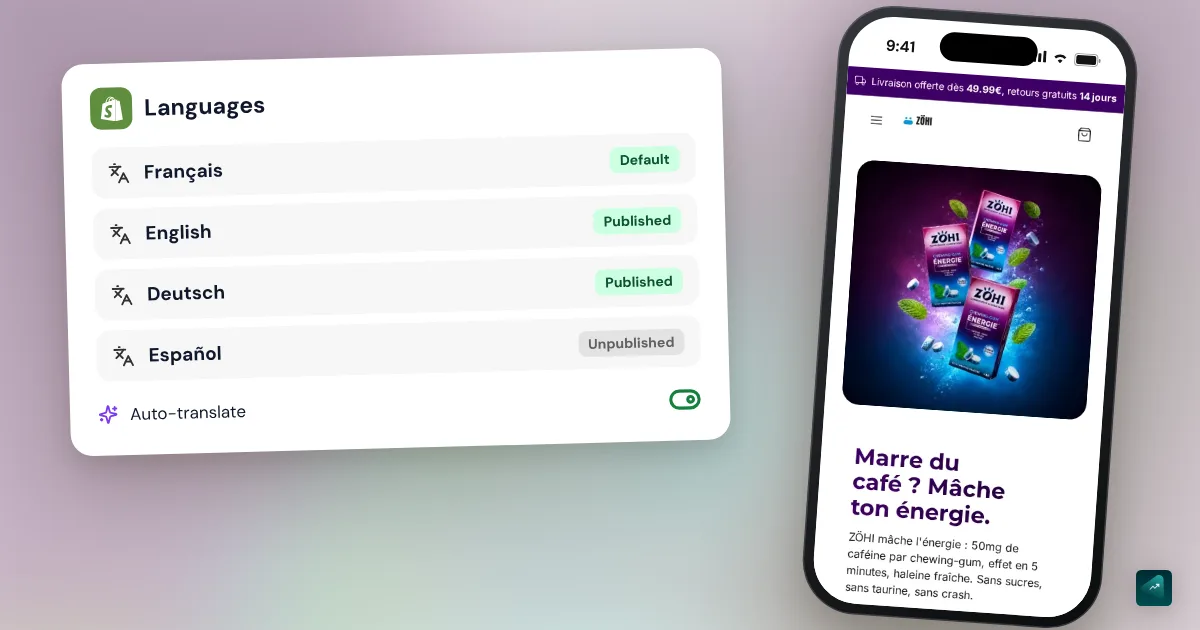
The language is now added, but your customers can't see it yet. You have to translate it first, then publish it. The Translate & Adapt app installs itself when you add a new language.
Translating with Translate & Adapt
Translate & Adapt is the translation app made by Shopify. It's free and showed 4.4 out of 5 on 1,395 reviews on October 29, 2026. It translates all your store content, from product pages to theme text. You can translate by hand or let Shopify's AI do it.
Automatic translation
What you're allowed to do depends on your store's country. Stores in fourteen countries can auto-translate up to 8 languages on top of their main language. The list includes the United States, the United Kingdom, Canada, and Ireland. Everywhere else, the limit drops to 2 languages.
- In your admin, go to Apps > Translate & Adapt.
- Pick the language to translate.
- Click Translate now.
- If a confirmation dialog opens, click Translate. You can check Publish [language] after translation so the language goes live as soon as it's ready.
You get an email when the translation is done. On a large store, it can take a few hours.
That translation only runs once. If you add a product later, it won't be translated on its own. For that, turn on Auto-sync translations for each language. Shopify then translates your new content once a week, on the same day and at the same time. The first sync can take up to a week.
Two rules deserve your attention. Every auto-translated language counts toward your limit of 8, and removing a language doesn't give the slot back. So choose your languages before you click. And automatic translation never overwrites a translation you edited by hand.
What you still translate by hand
Legal policies aren't auto-translated. Shopify even suggests a professional translator for those pages. Your terms of sale and your return policy are binding, so don't hand them to an AI without a review. What each one must include is covered in Shopify legal pages for selling in France.
Other content doesn't go through Translate & Adapt at all. Product images aren't translated, which is a problem if your visuals contain text. Product tags and collection filters stay in your original language. So do forms built with Shopify Forms and manual payment instructions. Content from some third-party apps also stays untranslated.
Read through at least your selling pages before you publish. The Help Center asks you to check any automatic translation. A mistake on a product page costs more than a mistake on a help page.
Publishing the language
- Go to Settings > Languages.
- In the languages table, click the icon next to the language.
- Click Publish.
Then open your store, use the language selector, and go through a product page to the cart. If you publish a language without translations, your store only shows the default theme and checkout text in that language. Everything else shows in your main language.
Checkout follows on its own. Once the language is published, checkout shows in the language the customer is browsing in. Shopify provides checkout translations for 49 languages. Customer emails are translated in Settings > Notifications. You open the notification, then click Localize.
Languages, markets, and URLs
When you publish a language, Shopify creates a version of every page with the language code in the address. If your domain is mystore.com, French lives at mystore.com/fr and German at mystore.com/de. You can also use subdomains, like de.mystore.com, or a domain per country.
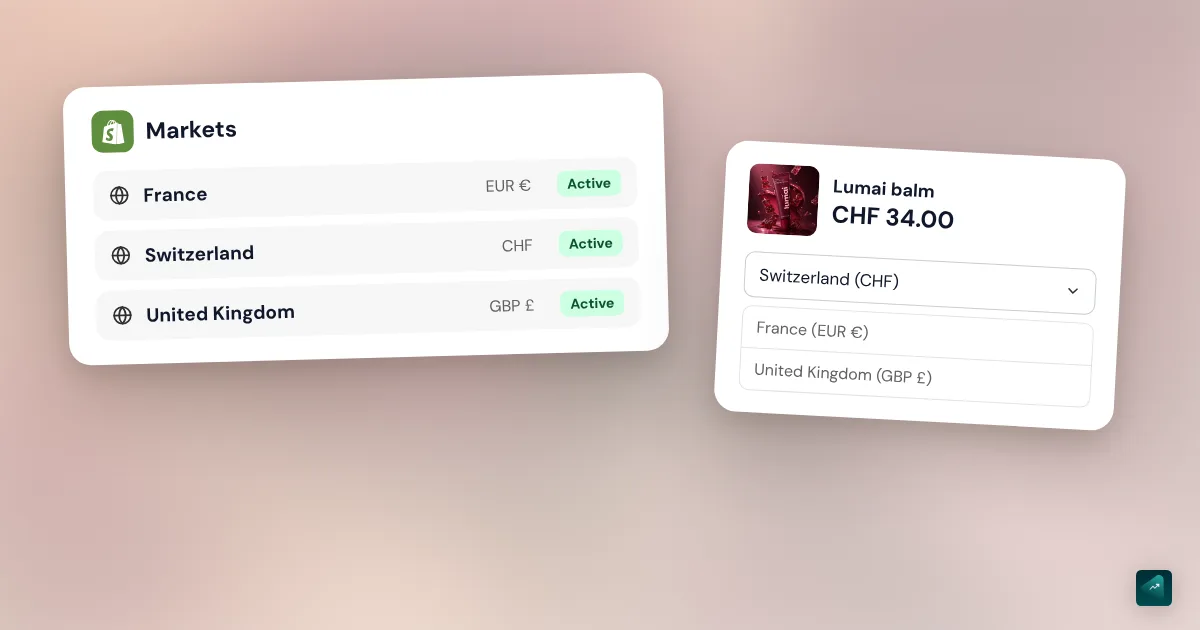
Languages are attached to domains, and each market uses a domain. A market is a group of countries you serve with its own settings, such as currency. To set each market's currency and its fees, follow the Shopify multi-currency guide. A market with its own subfolder, like mystore.com/en-ca, can have its own languages. Without that setup, all your markets share the same languages.
Each domain has a default language that customers see on their first visit. If language redirection is turned on, Shopify shows their browser's language instead when the domain has it. Don't forget to turn on the country in your markets too. A customer in a country outside your markets can't place an order, even on a translated store. The guide to setting up shipping and payments on Shopify shows how to check your Markets page.
What it does for SEO
Shopify handles the technical heavy lifting. Hreflang tags are added automatically on every language URL. They tell Google which version to show to which audience. Every published language also goes into the sitemap. This setting is managed in Online Store > Preferences.
Three points still need your attention. First, page addresses aren't translated by default. You can turn /products/vanilla-candle into /products/bougie-vanille in Translate & Adapt, but the word products never changes. Second, if you wrote a custom SEO title and meta description, you have to translate them too. With the default settings, Shopify reuses the translated product title and description.
Third, a translated page isn't an optimized page. A German customer doesn't necessarily type the word-for-word translation of your English query. For your most important pages, look at what people actually search for in each language. The other settings that matter are covered in the roundup of AI SEO tools for Shopify.
Paid translation apps
Translate & Adapt is enough for most stores. A paid app becomes useful beyond 8 automatic languages, or to translate content from other apps. Some also add a glossary to keep your product names intact. Here are three common apps, with prices checked on the Shopify App Store on October 29, 2026.
| App | Free plan | First paid plan | App Store rating |
|---|---|---|---|
| Weglot | Yes | $17 a month | 4.5 from 827 reviews |
| Langify | Yes, up to 5 languages | $17.50 a month | 4.7 from 728 reviews |
| Transcy | Yes, 1 language | $29 a month | 4.5 from 2,565 reviews |
Their limits change often, so check the pricing page before installing. Think about the day you switch tools, too. Translations made with Translate & Adapt stay in Shopify if you uninstall the app. With another app, ask what happens to your translations if you leave.
The traps that keep coming back
- Unpublishing a language breaks its links. Every address in that language then returns a 404 error. Set up redirects before you unpublish.
- Deleting a language erases its translations. If you add it back later, you start over. Unpublish rather than delete if you're unsure.
- Changing your main language removes the old one. It disappears from Settings > Languages. To keep it as a secondary language, add it back and assign it to a domain.
- Translations marked "Outdated." You changed the original text after translating. Translate the resource again or turn on Auto-sync.
- A product image stays in English. Images aren't translated. Keep text out of the image or plan one image per language.
Doing it in one sentence with Ova
If your store is built with Scale Ova, you can ask Ova to translate it. For example: "Translate my store into French and German." Ova adds the languages in your Shopify admin and translates the whole store in the background. It only publishes each language once its translation is complete, so no customer lands on a half-translated page. After that, every change you ask Ova for is translated into every language. Still read through your legal policies. For the rest of the store, the complete guide to building a Shopify store walks through every setting in order.
FAQ
How do you translate a Shopify store for free?
Is Shopify's automatic translation free?
How many languages can a Shopify store have?
Is a multilingual Shopify store good for SEO?
Is checkout translated on Shopify?
Can Shopify auto-translate legal policies?
Sources
- Shopify Help Center, Localization and translation: overview, checked October 29, 2026
- Shopify Help Center, Requirements and considerations for selling in multiple languages: 20 languages on Basic, Grow, and Advanced, 30 on Plus, compatible themes, URL slugs, checkout in 49 languages, checked October 29, 2026
- Shopify Help Center, Managing your store's languages: adding and publishing, language URLs, hreflang and sitemaps, markets and domains, checked October 29, 2026
- Shopify Help Center, Add language translations using the Translate & Adapt app: automatic install, manual or AI translation, checked October 29, 2026
- Shopify Help Center, Requirements for the Translate & Adapt app: unsupported content, translations kept after uninstalling, checked October 29, 2026
- Shopify Help Center, Translating content automatically using Translate & Adapt: 8 or 2 languages depending on the country, weekly Auto-sync, legal policies excluded, checked October 29, 2026
- Shopify Help Center, Translating checkout and email notifications: checkout in the customer's language, Localize button, checked October 29, 2026
- Translate & Adapt on the Shopify App Store: free app made by Shopify, rating and reviews, checked October 29, 2026
- Dawn, English settings translation file: header Language selector setting, checked October 29, 2026