You want to stop your Shopify store, and above all you don't want another charge next month. Shopify rarely refunds a subscription, and some fees still land when the store closes. So it pays to do things in the right order.
This guide compares the three ways to stop. It lists what to save before you click, then what happens once the store is closed.
Close, pause, or delete: three different things
In the Shopify Help Center, closing your store is called deactivating it. Deactivation cancels your plan and cuts your admin access at the end of the paid cycle. Your data still stays with Shopify for 2 years. Truly deleting the store takes one more step, which erases that data for good.
| Option | What your customers see | What you pay | Your data |
|---|---|---|---|
| Private mode (password) | A page asking for a password | Your usual plan and your apps | Intact, the admin stays open |
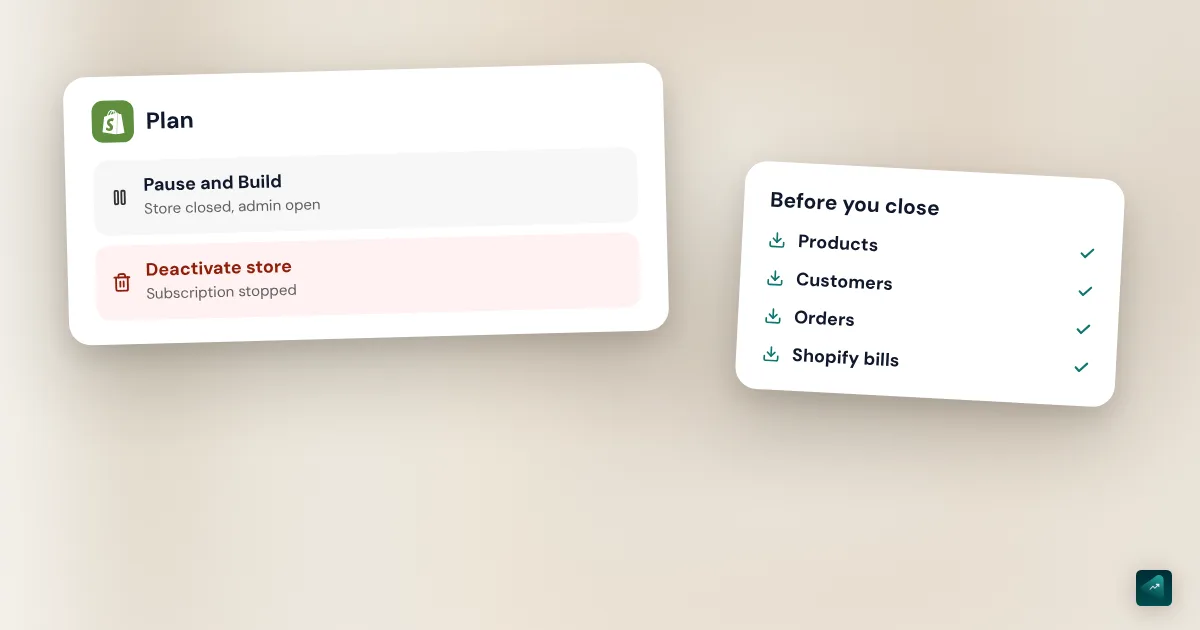
| Pause and Build plan | Your products, with no way to buy | A reduced plan, plus your apps | Intact, the admin stays open |
| Deactivation | No store, your domain is disconnected | Nothing after the cycle ends, except pending charges | Kept 2 years, you can reopen |
| Data erasure | Nothing | Nothing | Erased within 14 days, no way back |
Private mode isn't a real pause. The Shopify Help Center says your subscription and other recurring charges keep being billed. It fits a few days of work on the store, not months off. The Shopify store password guide shows how to turn it on.
Before you close: what to save
Once the cycle ends, you lose access to your admin. So do these exports while the store is still running. Each export gives you a CSV file that opens in a spreadsheet.
- Your products. Go to Products and click Export. Choose all products, then click Export products. This file also lets you rebuild your catalog in another Shopify store.
- Your customers. Go to Customers and click Export. Choose All customers, then click Export customers. Past 50 customers, the file arrives by email.
- Your orders. On the Orders page, click Export. In the Export orders window, choose the orders to keep and click Export orders. Past 50 orders, the file arrives by email too.
- Your Shopify bills. They're under Settings > Billing. Shopify keeps them viewable after the store closes, but save a copy on your side anyway.
- Your theme, if you paid for it. A theme license only covers the store you bought it for. Download a backup of the theme, then ask Shopify Support to move the license to another store you own.
Also check what you still owe your customers. Shopify warns that you might need to settle unused gift cards. Their CSV file exports from the admin, with what you need to resolve them. Preorders and active subscriptions should be fulfilled or refunded before you close. Your customers keep access to the status of their past orders.
Your apps and their subscriptions
When the store closes, Shopify uninstalls all your apps and charges whatever is still owed. The trap is apps that bill you outside Shopify. Their subscription doesn't show on your Shopify bill, and uninstalling the app doesn't stop it. For those apps, cancel the subscription in their own settings or contact the developer.
Unpaid usage charges go on the final bill. So do transaction fees and shipping labels. To see the amount before you close, open your current bill under Settings > Billing.
Your domain name
It all depends on where you bought it.
Domain bought through Shopify. Its renewal isn't canceled with the store. It can even fall between your cancellation and the end of the cycle. If you want to keep the domain, transfer it to another provider before you close.
- Go to Settings > Domains and click the domain name.
- Click Domain settings > Transfer to another provider.
- Click Confirm. An authorization code shows up on the domain's page.
- Give that code to your new provider.
The transfer can take up to 7 days. A .com, .net, or .org domain can't move during the 60 days after you bought it. That's an ICANN rule, and it applies at every provider. If you don't want to keep the domain, turn off its automatic renewal instead.
Already closed without transferring? Shopify still lets you transfer from an inactive store, without paying an overdue bill first. When you log in to your admin, you land on an address that contains /access_account. Replace that ending with /access_account/domains and the domains page opens.
Domain bought elsewhere, at GoDaddy or Namecheap for example. It's already yours, since you pay for it at your registrar. Remove it from the store under Settings > Domains with Delete domain. If it's your primary domain, pick another primary domain first. At your registrar, turn off automatic renewal if you won't use it anymore.
Either way, a Shopify security policy stays active on your domain for 90 days. If you point it at a site without HTTPS, visitors see a browser warning during those 90 days. A host that uses HTTPS causes no problem. The Shopify domain name guide covers buying and connecting a domain.
How to close your Shopify store, step by step
Only the store owner can close the store. Shopify Support can't do it for you, for security reasons. On the Shopify Plus plan, you go through Plus support.
- From your Shopify admin, go to Settings > Plan.
- Click Cancel plan. During the free trial, the button is called Cancel trial.
- Shopify first offers other choices, including a cheaper plan and the Pause and build plan. Skip them if you really want to close.
- Review your Shopify domains and your pending charges. Then select Cancel my plan and uninstall all apps and click Continue.
- Pick the reason you're leaving and click Continue. A comment is possible but optional.
- If you think you'll come back, check Save payment details to reopen your store faster.
- Enter your password, then click Cancel plan or Cancel trial.
You then get an email confirming the store is deactivated. The store keeps running until the end of the cycle you've paid for. Shopify gives the example of a cycle that ends on November 25. In that case, the store closes on November 25. The Shopify app follows the same path, through Settings and then Plan.
Shopify also asks for your two-step authentication during the process. If you've lost your phone, log in with your backup method or a recovery code.
Changed your mind before the cycle ends? Go back to Settings > Plan and click Reactivate plan.
Closing during the free trial
If you haven't picked a plan, Shopify doesn't require anything else. When the trial ends, your store is suspended until you choose a plan. App charges from the trial still land on the first bill that follows. So uninstall your paid apps before you leave.
If you picked a plan during the trial, it's a different story. That plan gets billed when the trial ends, unless you close the store yourself. Pausing won't help here, because you need to be past the trial to use it. So follow the closing steps above.
The same goes for a reduced launch offer. If you close during that period, the amounts already paid aren't refunded. Any remaining balance is billed after the store closes. Trial details and the current offer are in is Shopify free.
Pause your store instead of closing it
The Pause and Build plan lets you stop selling without taking everything down. Your store stays online and customers can see your products, but they can't buy them. You keep your admin to edit your products during the pause. Shopify suggests it for a seasonal store or one that only opens at certain times.
The Help Center page on pausing talks about a reduced monthly fee without giving the amount. Its page on closing for vacations puts it at $9 USD a month (checked on October 29, 2026). The admin shows you the plan details before you confirm.
You need to meet three conditions.
- Be the store owner.
- Be past the free trial.
- Be on a paid plan. The Shopify Plus plan isn't eligible.
During the pause, here's what stops.
- Checkout, on every sales channel, POS included.
- Discounts and gift cards.
- Abandoned checkout recovery.
- Publishing your products to Facebook or Google.
To switch to the pause, follow these steps.
- Go to Settings > Plan.
- Click Cancel plan and enter your password.
- Click Cancel plan again to see every option.
- Select the Pause and build plan.
- Read the plan details, then click Switch to Pause and build.
The first trap is timing, because the change only takes effect at the end of the current cycle. Until then, your store still takes orders. Shopify suggests turning on private mode in the meantime, then setting the store back to public.
The second trap is your apps. They stay active during the pause, and their subscriptions keep running. Uninstall the ones you don't need, right before or right after the pause.
To reopen, go to Settings > Plan and click Pick a plan. Then click Choose plan under the one you want, and click Subscribe. Your old plan is no longer valid, so this is a new subscription.
What happens after you close
Closing doesn't shut everything off at once. Here's what keeps going, and what stops.
- At the end of the cycle, you lose access to your admin. Your custom domain is disconnected from the store.
- Your pending Shopify Payments payouts still reach your bank account. If one fails, you'll need to reopen the store to fix it.
- A customer can still dispute an old payment with their bank. To answer that chargeback, you'll also need to reopen the store.
- Bills can still arrive, for third-party charges or for another store in your name.
- Credits on your Shopify account stay usable for 60 days, then they expire.
- Your customers can still see the status of their past orders.
- Shopify keeps your store's information for 2 years.
Does Shopify give refunds?
Usually not. Shopify has a no-refund policy for its plans, set out in section 5.10 of its Terms of Service. Canceling your plan doesn't give back the days you've already paid for.
Support still reviews some requests case by case. It mainly mentions billing errors and duplicate stores. The request has to come in within a set window (checked on October 29, 2026).
| Bill type | Window to ask for a review |
|---|---|
| Monthly subscription | 7 days after the bill date |
| First bill after the trial | 30 days after the bill date |
| Annual subscription | 30 days after the bill date |
| SEPA Direct Debit | 14 days after the bill date |
Meeting these windows doesn't guarantee a refund. Third-party apps are refunded by their developer, never by Shopify. A purchased theme isn't refundable.
Delete your store and your account for good
After you close, your data stays with Shopify for 2 years. You can ask for it to be erased sooner. Only do it when you're sure you won't come back.
Your store's data. Only the owner can ask Shopify Support to erase the data of a store that's already closed. The data is erased within 14 days. During those 14 days, you can still contact Support again to stop it. After that, the store can never reopen.
Your account and merchant data. That's a separate request, and it erases your personal information across all your stores. You first need to close every store tied to your email address. Then open the Shopify Privacy controls and click Erase my data. Shopify can take up to 30 days to process the request.
Before you erase anything, make sure you kept your exports. Your obligations as a seller last longer than your store.
"Remove store from organization" doesn't close anything
Under Settings > General, you might come across Remove store from organization. That button only takes the store out of a group of stores. The store keeps running, and so does its billing. Shopify even asks you to add a payment method after the removal, so billing isn't interrupted. To close the store, the only path is still Settings > Plan.
Records to keep after closing
Closing your store doesn't end your obligations as a seller. How long you must keep invoices depends on your country. In France, Service-Public sets customer and supplier invoices at 10 years after the end of the financial year. Tax records, VAT included, are kept 6 years there. In the US, the IRS says to keep the records behind a tax return for 3 years in most cases. Some cases call for longer. Service-Public last reviewed its page on July 1, 2024. We read both sources on October 29, 2026.
That's why the order export matters before you close. The file doesn't replace your invoices, but it keeps a trace of every sale. If an app generated your invoices, download them before you uninstall it.
Your business structure and tax status can change these rules. Check your situation with your accountant or your tax office. This guide isn't legal advice.
Reopen your store or start over
You can reopen a closed store for up to 2 years. Log in as the store owner and click Re-open . Pick a plan and enter your payment details in the Review and Subscribe section, then click Subscribe. Everything is still there, so you have nothing to rebuild.
If you forgot your store's address, the Forgot Your Store? tool finds it. Once the store is open again, reconnect your domain. Go to Settings > Domains, click Connect existing domain, and follow the prompts. If you reopen during a cycle you've already paid for, Shopify doesn't bill you again before your usual date.
Would you rather start over? Your new store can have the same name, but not the same myshopify.com address. Each myshopify.com address stays tied to a single store. Your product export can be imported into the new one.
Ova, the Scale Ova assistant, doesn't close stores and doesn't manage your Shopify subscription. If you start a new project later, it can build the new store with you.
FAQ
How do I permanently delete a Shopify store?
How do I close my Shopify store without paying?
Does Shopify refund my subscription if I close?
How do I pause my Shopify store?
How long does Shopify keep my data after I close?
How do I delete my Shopify account?
What happens to my domain if I close my store?
Can Shopify Support close my store for me?
Sources
- Shopify Help Center, deactivating and reactivating your Shopify store: steps, end of cycle, apps uninstalled, domains, 90-day HSTS, 2-year retention, reopening, accessed October 29, 2026
- Shopify Help Center, pausing your store: Pause and Build plan, conditions, features turned off, steps, reopening, accessed October 29, 2026
- Shopify Help Center, closing for vacations: charges continue in private mode, Pause and Build price, accessed October 29, 2026
- Shopify Help Center, billing considerations before pausing or deactivating your store: November 25 example, 60-day credits, payouts, chargebacks, erasure within 14 days, accessed October 29, 2026
- Shopify Help Center, refund policy for subscription plans: section 5.10, review windows, third-party apps, themes, accessed October 29, 2026
- Shopify Help Center, free trial: closing without a plan, app charges on the first bill, accessed October 29, 2026
- Shopify Help Center, erase your data: customer data of a deactivated store, merchant data, Erase my data, 30 days, accessed October 29, 2026
- Shopify Help Center, remove a store from an organization: Settings > General, billing continues, accessed October 29, 2026
- Shopify Help Center, transferring Shopify-managed domains: transfer to another provider, 7 days, 60-day rule, transfer from an inactive store, accessed October 29, 2026
- Shopify Help Center, removing third-party domains: Delete domain, primary domain, accessed October 29, 2026
- Shopify Help Center, exporting products, importing and exporting customer lists, and exporting orders: export labels, email delivery past 50 rows, accessed October 29, 2026
- Shopify Help Center, uninstalling apps: external charges not canceled by uninstalling, accessed October 29, 2026
- Shopify Help Center, viewing your Shopify bills: Settings > Billing, billing history viewable after closing, accessed October 29, 2026
- Service-Public, record retention periods for businesses (in French): invoices 10 years, tax records 6 years, last reviewed July 1, 2024, accessed October 29, 2026
- IRS, how long should I keep records: 3 years in general, longer in some cases, accessed October 29, 2026