Your store sells in US dollars and a customer in Canada asks what they'll really pay. Or you want to try the UK and Switzerland without opening a second store. One Shopify store is enough for that. Shopify calls it markets. This guide walks you through the settings in order, what it costs, and the traps people usually find after their first order.
Store currency vs. selling currency
Your store has a single base currency. It's the currency of your admin, your product prices, and your reports. For a store created in the US, that's the dollar.
Selling currencies are what your international customers see and pay. Each market can have its own. With Shopify Payments, there's also a payout currency. That's the one that lands in your bank account.
So you almost never need to change your store currency. You keep your prices in your base currency and add a selling currency per market. Changing the base currency is a separate setting with more risk, covered further down.
What a Shopify market is
A market is a group of customers you serve with its own settings. To sell abroad, it's a country or a group of countries. Each new market inherits your store's default settings. You then change what needs changing for that country, like the currency or the prices.
When you create your store, Shopify sets up two markets for you. The domestic market holds your home country. The international market groups countries Shopify suggests, but it's inactive by default. Plenty of beginners think they sell abroad when that market was never turned on.
One rule matters more than the rest. Only customers in a country that belongs to an active market can check out. A visitor from anywhere else can browse your store, but can't pay. They get your backup region experience, set in Settings > General. By default, that's your home country.
Creating a market costs nothing. Country markets are included on every plan, and so is a currency per market. Only theme customization per market requires the Advanced plan or Plus.
Before you start
You need Shopify Payments first. It's what charges a customer in their own currency. With another payment provider, every customer pays in your store currency, even in a market set to pounds. The Help Center also mentions Adyen, but a small store goes through Shopify Payments.
You also need a shipping rate for every country in the market. Shopify only activates a market for countries you ship to. The guide on setting up shipping and payments on Shopify shows how to create those zones.
Finally, check that the currency you want is supported for your store's location. The list of accepted currencies depends on where your store is based. When a country's currency isn't supported, customers there see prices in their market's base currency.
How to create a market, step by step
- In your Shopify admin, go to Markets.
- Click Create market.
- In the Name section, give it a name, such as "Canada."
- Next to the name, pick Draft to check things before opening, or Active to open right away.
- In the Includes section, click Add condition, select Regions, then pick the country.
- Review the Inherited section. To change a setting, click the icon next to it. It then moves to the Customized section.
- Click Save.
To open a draft market, click it on the Markets page. Change its status from Draft to Active, then click Save.
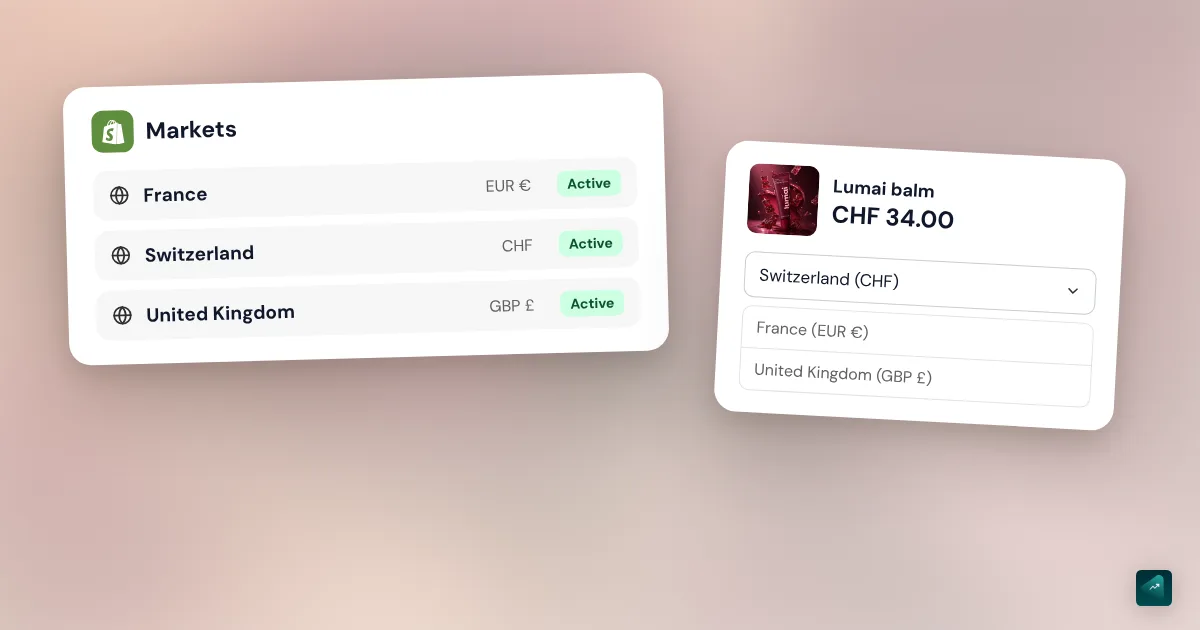
Create one market per country if you want a currency or prices specific to that country. For several countries you treat the same way, one market is enough. In a multi-country market, Shopify turns on local currencies. Each country then sees its own currency, converted from the market's currency.
How to pick a market's currency
A single-country market picks that country's currency on its own. A "Canada" market shows Canadian dollars without you touching anything. You can still change the currency or the exchange rate.
- Go to Markets and click the market.
- Click the icon next to Currency.
- Pick the currency.
- Pick the rate. Dynamic converts at the market rate, updated regularly. Manual applies a fixed rate you enter yourself.
- Turn on Rounding if you want clean price points.
- Click Done, then Save.
Without rounding, a converted price often lands on odd cents. Rounding pushes it up to the nearest clean price, with the Round up to the nearest {value} option. Shopify picks the rule for each currency, and you can't change it. Rounding also applies to your converted shipping rates, but not to gift cards.
A manual rate keeps prices steady from one week to the next. In exchange, keeping it current is your job. If exchange rates move a lot, your price in pounds can drop too low without you noticing.
What conversion costs
Shopify Payments charges a conversion fee when a customer pays in a currency other than your payout currency. For a store in the United States, the fee is 1.5% of the payment. For a store in France and every other Shopify Payments region, it's 2%. Rates checked against the Shopify Help Center on October 29, 2026.
With the dynamic rate, Shopify adds that fee to the displayed price. So your customer pays it without seeing it. Picture a $30 product that's worth £22.00 at today's rate. With a 1.5% fee, your UK customer sees £22.33 before rounding. With a manual rate, the displayed price stays the one you set. The fee comes out of your payout instead.
If your customer pays with PayPal through Shopify Payments, in the US or France, the conversion fee goes up to 3%. These fees come on top of your regular payment processing fees. You don't get them back when you refund an order.
Refunds hide another cost. They're calculated at the exchange rate on the day you refund, not the day of the order. If your currency strengthened in between, you hand back more than you received.
On the Basic, Grow, and Shopify plans, everything is paid out in your home currency. Getting pounds or euros into a dedicated bank account requires the Advanced plan or Plus. For a store that's just starting, home-currency payouts are plenty.
How to set your own prices per country
Automatic conversion is fine to start with. Later you may want your own clean price, like £25 instead of a converted one. Shopify does this with a catalog, on every plan.
- Go to Markets > Catalogs.
- Click Create catalog and fill in the Title field.
- Click Add a market to attach it to the market you want.
- In the Pricing section, pick the currency in Set prices in.
- To raise every price at once, enter a percentage in Price adjustment.
- In the Products section, enter a Price for each product you want to fix.
- Click Save.
A price you enter by hand wins over the percentage adjustment. The adjustment is handy to cover pricier shipping to that country. A catalog also removes a product from a country with Exclude from catalog. A customer there who lands on that product page gets a 404.
The country selector in your theme
To sell in local currencies, your theme needs a country selector. It's what lets customers pick their country, and so their currency. In Dawn, check Country/region selector in the Header or Footer section.
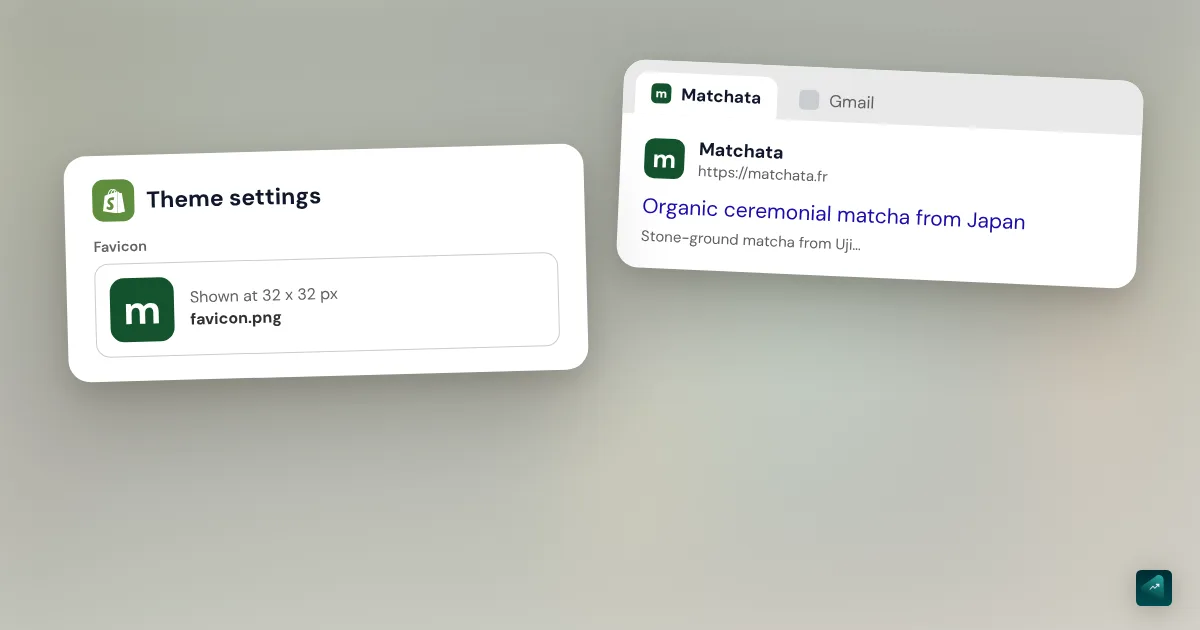
You can also show the currency code next to prices. Go to Online Store > Themes, then click Edit theme. Open Theme settings > Currency format and check Show currency codes. It helps when two currencies share a symbol, like US and Canadian dollars.
Shopify can also show each visitor the right country on its own. That automatic redirection setting lives in Online Store > Preferences. It has one limit in Europe. To comply with local law, Shopify doesn't redirect an EU customer who lands on an EU country domain like a .fr. On a .com domain, they can be.
Domains, subfolders, and international SEO
Each market can have its own address. The simplest is a subfolder of your domain, like yourstore.com/en-ca for Canada. You can also use a subdomain or a domain per country. You set it in the market, with the icon next to Domain / language.
Shopify recommends subfolders for most stores. They share your main domain's authority and cost nothing extra. A domain per country sends the strongest local signal, but you have to buy it and connect it in Settings > Domains. The Shopify domain name guide explains how.
Shopify then adds hreflang tags automatically, based on your markets and languages. They tell Google which version to show to which country. If you ever deactivate a market that uses a subfolder, its URLs return a 404. Set up redirects in Content > Menus > URL redirects.
What about languages?
A currency doesn't translate anything. A customer in Quebec will see Canadian dollars on a site in English. Languages are added separately, then attached to the market's domain or subfolder. The guide to translate your Shopify store covers it all, from automatic translation to SEO.
Taxes and customs in other countries
Every destination country has its own import rules. Here are three that beginners run into often.
- United Kingdom. For a consignment of £135 or less sold to a consumer, the seller charges UK VAT at the point of sale. Above that, normal VAT and customs rules apply at import.
- Switzerland. Switzerland collects VAT on imports, except on small consignments where the tax is CHF 5 or less. If your small consignments to Switzerland pass CHF 100,000 in turnover a year, you must register for Swiss VAT yourself. You then need a tax representative there.
- Shipping into the United States. A parcel worth $800 or less is no longer exempt from duties. US Customs made that suspension indefinite on June 24, 2026, for shipments outside the postal network.
Shopify can collect an estimate of duties at checkout. Your customer then gets no surprise fees on delivery. The setting lives in the market, with the icon next to Duties and taxes. For an accurate estimate, each product needs an HS code and a country of origin.
That same setting decides whether your prices include tax. With Dynamic tax display, a customer in Europe or the UK sees a tax-inclusive price. A US customer sees tax added at checkout, as they expect. All of this is general information. Before selling in volume abroad, check your situation with an accountant.
Changing the store currency itself
Sometimes you really do want to change the base currency. That's the case if your store was created in the wrong currency by mistake. Only the store owner can do it.
- In your admin, go to Settings > General.
- In the Store defaults section, under Currency display, click … then Change store currency.
- Pick the new currency from the list.
- Click Save.
Read what changes before you click. The amount of your prices stays the same, only the currency changes. A product at 20 USD becomes 20 CAD with no conversion. Your shipping rates don't update, so you delete them and add them again. Gift cards with a balance in the old currency stop working. And without Shopify Payments, all your markets switch to the new currency.
Settle pending payments before switching. Also check that your apps support the new currency. Shopify also advises talking to a tax advisor, since selling in a currency other than your country's can have tax consequences.
Test before you open
Go to Markets and click the market you want to test. Then click More actions > View online store. You see your store the way a customer in that country does. Click through a product page to the cart and check the price, shipping, and country selector. Finally, place a test order to follow the currency all the way to checkout.
The traps that keep coming back
- The international market never turned on. Shopify creates it inactive. As long as it stays that way, its countries can't check out.
- A currency converter app. Some show a converted price, then checkout switches back to your store currency. The customer feels tricked at the last step. Shopify markets convert all the way to checkout, without an app.
- A fixed-amount discount. It's created in your store currency and converted at checkout. So a $10 code isn't a clean £10.
- Reports stuck in your store currency. Shopify reports only exist in your store currency. Don't look for your revenue in pounds.
- Post-purchase offers. Apps that offer a product after payment only work in your store currency. A customer paying in pounds doesn't see the offer.
- A customer who changes country at checkout. If they browse in dollars and ship to the UK, checkout switches to pounds. Shopify tells them their price changed.
Opening a country with Ova
If your store is built with Scale Ova, you can ask Ova for all of this in one sentence. For example: "Open the store to Switzerland and the UK, in Swiss francs and pounds." Ova creates the markets in your Shopify admin and gives each one its currency. It shows you the list of changes and waits for your confirmation before writing anything. It can also set up shipping to those countries and add fixed prices in a market's currency. Two things stay in the Shopify admin. Shopify Payments has to be active, or Shopify refuses any other currency. And the store's base currency is changed by hand.
FAQ
How do I add multiple currencies on Shopify?
Do I need an app for Shopify multi-currency?
How much does Shopify multi-currency cost?
Can I sell in multiple currencies without Shopify Payments?
How do I change my Shopify store currency?
Why can't my international customers check out?
Can I set different prices per country on Shopify?
Sources
- Shopify Help Center, Creating and activating markets: domestic and international markets, creation and activation steps, accessed October 29, 2026
- Shopify Help Center, Requirements and considerations for using markets: Shopify Payments or Adyen, shipping rates, features by plan, fixed-amount discounts, post-purchase apps, accessed October 29, 2026
- Shopify Help Center, Backup region in Markets: unmatched visitors, setting in Settings > General, accessed October 29, 2026
- Shopify Help Center, Setting up currencies for markets: currency per market, dynamic or manual rates, multi-country markets, refunds, accessed October 29, 2026
- Shopify Help Center, Fees and costs: 1.5% conversion fee in the US, 2% in France and other regions, 3% with PayPal through Shopify Payments, accessed October 29, 2026
- Shopify Help Center, Rounding prices: round up, fixed rules, gift cards excluded, accessed October 29, 2026
- Shopify Help Center, Accepted currencies: currencies accepted through Shopify Payments, accessed October 29, 2026
- Shopify Help Center, Guidelines and restrictions for selling in local currencies: converter apps, reports in store currency, market prices without Shopify Payments, accessed October 29, 2026
- Shopify Help Center, Creating catalogs for markets: fixed prices, percentage adjustment, excluding products, accessed October 29, 2026
- Shopify Help Center, Managing multi-currency payouts with Shopify Payments: Advanced and Plus plans only, accessed October 29, 2026
- Shopify Help Center, Formatting how currency displays to your customers: currency codes in theme settings, accessed October 29, 2026
- Shopify Help Center, Automatic redirection: setting in Online Store > Preferences, EU country domain exception, accessed October 29, 2026
- Shopify Help Center, Assigning domains and languages to markets: subfolder, subdomain, or separate domain, hreflang, redirects after deactivation, accessed October 29, 2026
- Shopify Help Center, International SEO for markets: subfolders recommended for most stores, accessed October 29, 2026
- Shopify Help Center, Setting up duties and taxes for markets: tax display, duty collection, HS codes, accessed October 29, 2026
- Shopify Help Center, Understanding checkout restrictions: currency matched to the shipping address, accessed October 29, 2026
- Shopify Help Center, Testing your multiple currency setup: preview per market with More actions, accessed October 29, 2026
- Shopify Help Center, Changing your store currency: steps and consequences, accessed October 29, 2026
- Dawn, English settings locale file: Country/region selector setting in the header and footer, accessed October 29, 2026
- Swiss Federal Tax Administration, Mail-order trade and platform taxation: CHF 100,000 small consignment threshold, CHF 5 import tax, tax representative, page updated September 22, 2026, accessed October 29, 2026
- GOV.UK, VAT and overseas goods sold directly to customers in the UK: seller charges VAT up to £135, page updated May 13, 2022, accessed October 29, 2026
- Federal Register, Indefinite Suspension of the De Minimis Exemption: US Customs rule effective June 24, 2026, shipments of $800 or less outside the postal network, accessed October 29, 2026