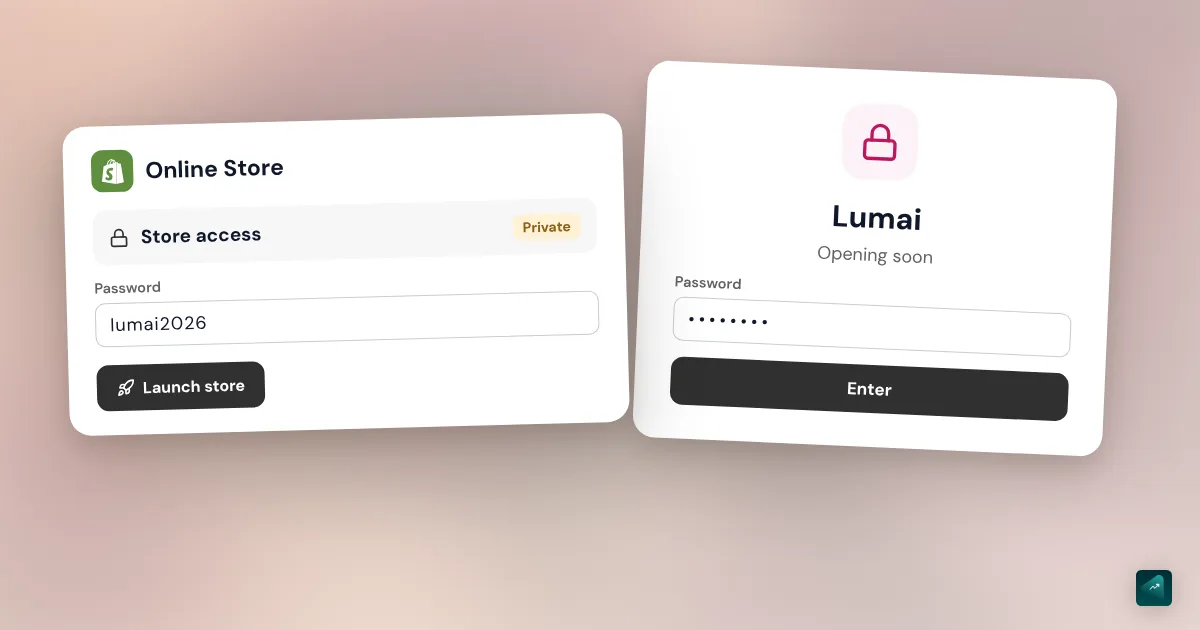
You open your store's address and land on a page asking for a password. Nothing is broken. Shopify closes every new store to the public while you get it ready. That closure is called private mode, and the page you see is the password page.
This guide shows you where to find that password and how to change it. It also explains what to set up before you can remove it.
Why your Shopify store has a password
In private mode, every page of your store is hidden from visitors. They're hidden from search engines too. In their place, Shopify shows a landing page with a password field. Anyone who knows the password gets into the store like a customer.
When you sign up for a Shopify plan, your store starts in private mode. During the free trial, the Shopify Help Center describes two possible cases. Either the store is in private mode, or it's visible but its checkout is inactive. Either way, nobody can buy yet.
This password has nothing to do with the one you use to log in to your admin. It doesn't protect your account. It just keeps the storefront door shut.
Where to find your store password
The password is saved in your online store preferences. That's where you read it and change it.
- In your Shopify admin, go to Online Store > Preferences.
- Scroll down to the Store access section.
- Private mode is on. The Password field right below it holds the store password.
- To change it, type the new one in that field.
- Click Save.
You can also go through the Online Store page. Its access menu shows the Private label while the store is closed. Click it to update the password, then click Update.
In the Shopify app, open Online Store under sales channels. Then tap Preferences in the Password protection section.
Shopify gives one piece of advice about this field. Don't reuse your admin account password. You'll be sharing the store password, so pick one you can hand out safely.
How to remove the password from your Shopify store
Removing the password means launching your store. Shopify blocks the launch until three conditions are met.
- A paid plan. If you pick it during the free trial, it isn't billed before the trial ends.
- Your store address, filled in under Settings > General, in the Business details section.
- A payment method set up, with test mode turned off.
Once those three are done, you have several ways to open the store. The most direct one goes through preferences.
- Go to Online Store > Preferences.
- In the Store access section, turn off Private mode.
- Click Save.
The access menu does the same thing. On the Online Store page, click Private and select Public. Then click Launch store. A Launch store button also shows up on the admin home page and in the theme editor.
Before you click, look at your store through a customer's eyes. On the Online Store page, the Preview store button opens it in a new tab. Also place at least one test order to check payment and shipping. The Shopify test order guide covers the three ways to do it.
Can you remove the password during the free trial?
Yes, as long as you pick a paid plan. The plan turns on your store's checkout, which lets you launch it. According to the Shopify Help Center, billing only starts when the trial ends. The work you did during the trial is kept.
Without a plan, you can't open the store. And if the trial ends with no plan, Shopify pauses your store until you choose one.
Keep one trap in mind. If you pick a plan and then change your mind, you have to pause or deactivate the store yourself. Otherwise the plan gets billed when the trial ends. Trial length and plan prices are in is Shopify free.
Private mode and Google
As long as the password is on, Google can't see your store. Shopify hides the pages from search engines as well as visitors. So no page can show up in the results.
That's the point while you're building. Nobody stumbles onto a half-finished store. But it also means your SEO only starts at launch. The day you remove the password, the first thing to do for Google is to add your store to Search Console. The next settings are in the guide to Shopify SEO.
Share access with a friend for testing
That's exactly what the storefront password is for. Shopify expects you to give it to visitors so they can get in while private mode is on. Send your store address and the password to whoever is testing. They type the password on the landing page and browse like a customer.
Ask them to try it on their phone too, to see the mobile version. When testing is over, change the password in preferences. Anyone who had the old one can no longer get in.
Never give out your admin account password for this kind of test.
Customize the password page
The password page is part of your theme. So you edit it in the theme editor, like the other pages.
- Go to Online Store.
- On the theme you want to edit, click Edit theme.
- Open the Home page drop-down menu at the top of the editor, then pick Password.
- Click a section to change its settings. You can also add sections and blocks.
- Click Save.
The available sections depend on your theme. Shopify's themes usually have a header and a footer of their own for this page. They often add an email signup banner. That banner collects the emails of curious visitors so you can tell them on launch day.
The text visitors see is set somewhere else. Go to Online Store > Preferences and fill in the Message to your visitors field. Write something useful, like your opening date or what you're going to sell. Leave the field blank if you don't want any message.
The page's colors and fonts follow your theme settings. If you change them, the rest of the store changes too.
Your Shopify account password is a different thing
Many searches for a "Shopify password" are actually about logging in to the admin. That password protects your account. It has no effect on whether the store is open.
If you forgot it, go to the Shopify login page and click Forgot password?. Shopify emails you a link to choose a new one. You need access to the account's email address. If you're already logged in, click your store name at the top of the admin, then your profile and Security. The Shopify Help Center page on resetting passwords also covers the case where you've lost access to your email.
Close your store again
You can put the password back at any time, for a vacation or a redesign. On the Online Store page, click Public and select Private. Then click Update. You can change the password in the same window.
Think about money before closing for a long time. In private mode, your Shopify subscription and other recurring charges keep being billed. For a long break, the Shopify Help Center points to the Pause and Build plan instead. With that plan, the store stays visible but checkout is turned off. If you want to stop for good, closing or pausing your Shopify store explains each option.
What Ova does before launch
Ova doesn't remove your store password, and it doesn't pick your Shopify plan. Those two steps stay in your admin. What Ova can do is work on your theme's password page. It sets your logo, your colors and the email signup there. You could type "On the password page, put my logo on a cream background and keep the email signup". It also finishes the rest of the store before launch, from product pages to shipping zones. Generating and editing your store with Scale Ova is free, and the subscription unlocks publishing to Shopify.
If you're not there yet, the complete guide to building a Shopify store puts the launch where it belongs. It comes right after the test order.
FAQ
Where is my Shopify store password?
How do I remove the password from my Shopify store?
Why can't I remove my store password?
Can I remove the Shopify password without paying?
Is my store visible on Google in private mode?
How do I change my Shopify store password?
Can I password protect a single page or collection?
I forgot my Shopify account password. What do I do?
Sources
- Shopify Help Center, restricting access to your online store: private mode, Password field, Message to your visitors, customizing the page, accessed October 29, 2026
- Shopify Help Center, preparing your store for launch: required steps before launch, Preview store, Launch store, accessed October 29, 2026
- Shopify Help Center, free trial: private mode or inactive checkout during the trial, billing when the trial ends, pause without a plan, accessed October 29, 2026
- Shopify Help Center, closing for vacations: charges continue in private mode, Pause and Build plan, accessed October 29, 2026
- Shopify Help Center, resetting passwords: account password, Forgot password, accessed October 29, 2026
- Shopify Help Center, client transfer stores: private mode can't be turned off before transfer, accessed October 29, 2026