To sell three products together at a discount, create a fixed bundle in Shopify Bundles, then set its price or apply a discount to the bundle’s parent product. For a product-specific discount code or automatic discount, select the bundle itself: selecting only its components is not enough. Shopify documents this rule in its bundle guide.
Which app can create a three-product bundle?
Shopify Bundles is Shopify’s free app for fixed bundles and multipacks. A fixed bundle contains products you select in advance, such as an armchair, a lamp and a rug. A multipack contains several units of the same product.
If customers need to build their own bundle from a catalogue, you need a mix-and-match solution: Shopify Bundles does not support that use case. Bundles are not compatible with subscriptions. Shopify bundle requirements and limitations.
Create the bundle in Shopify Bundles
Your products must already exist in Shopify. Install the app, then:
- Open Apps > Bundles > Create bundle.
- Name the bundle, select its products and set the quantities and included variants.
- Click Save and continue, then complete the bundle’s product details and price.
- To sell it, change its status from Draft to Active, select the relevant sales channels, then click Save.
These labels and steps come from the Shopify Bundles guide, checked on November 11, 2026.
Reduced price or discount code: choose one starting discount
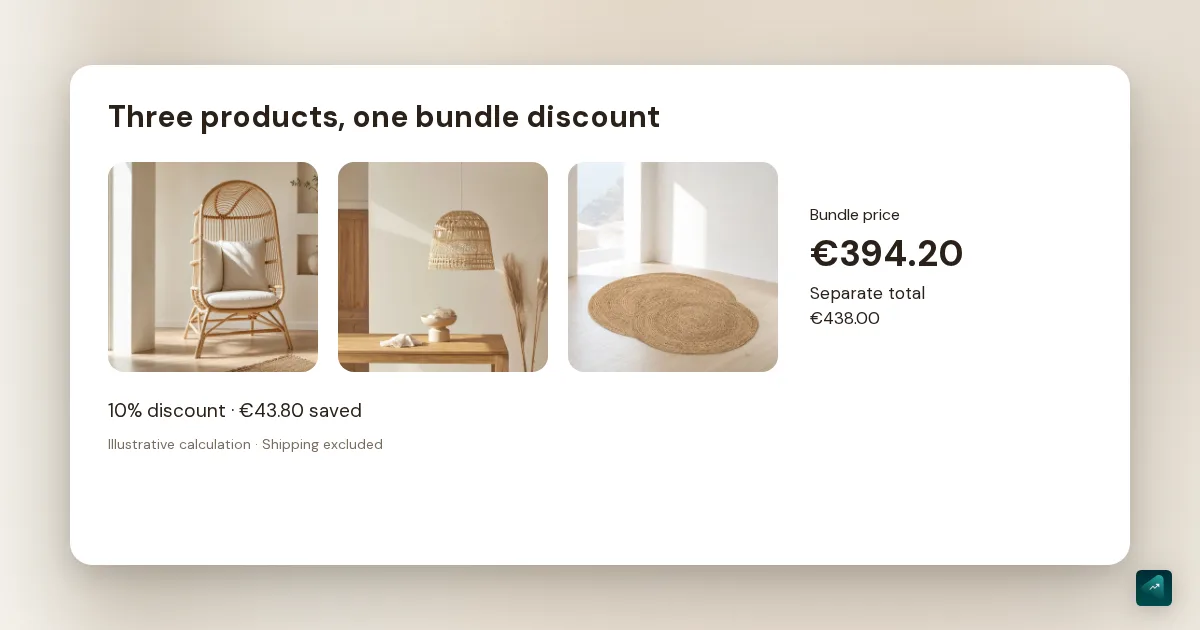
Illustrative example, excluding shipping: a €250 armchair, a €139 lamp and a €49 rug cost €438 separately. A 10% reduction gives a bundle price of €394.20, a difference of €43.80.
You can set the bundle’s price directly to €394.20. Customers pay that price without a code. Alternatively, keep the price at €438 and create a 10% discount under Discounts, choosing Amount off products. Select a code or automatic discount, then select the bundle’s parent product among the eligible products. Set dates and conditions before saving. Shopify’s discount procedure.
Avoid accidentally applying both: another 10% off €394.20 gives €354.78, which is 19% below the original total. For dates, combinations and usage limits, see the Shopify discount code guide.
The bundle price does not automatically change when its components’ prices change. Review it when you update prices. How bundle pricing works.
Can Sidekick prepare the discount?
Yes. Shopify documents creating codes and automatic discounts with Sidekick, its AI assistant. Once your bundle exists, you could ask:
Prepare a 10% discount on the “Living room bundle” product, valid November 20–27. Target only this bundle and disable combinations with other discounts.
This is an example prompt, not a test report. Check the targeted product, dates and combinations before clicking Save. Shopify’s documentation says the discount is not saved until you take that action. Create the bundle itself in Shopify Bundles using the steps above. Shopify’s guidance on Sidekick discounts.
Check inventory and checkout
Bundle availability depends on each component’s available inventory and the quantity required. With one of each product per bundle, 8 armchairs, 12 lamps and 5 rugs allow 5 bundles, provided inventory is tracked and selling when out of stock is disabled. Bundle inventory calculation.
Before promoting the offer, add the bundle to your cart and proceed to checkout. Check products, variants, quantities and the discounted amount. Also try buying a component on its own to check that it does not receive a discount intended for the bundle. If the amount differs from your calculation, check the selected product and other active discounts first.
To work on your product page’s copy, images and layout with AI afterwards, explore product page creation with Ova in the Scale Ova theme.