You're getting your store ready and you want to give your first customers something. It could be 10% off as a welcome, free shipping above an amount, or a free item when they buy two. Shopify does all of that without an app. The hard part isn't creating the code. It's picking the right settings, so the code works and doesn't eat your margin.
Discount code or automatic discount
Shopify separates two things. The type says what the discount gives, and the method says how the customer gets it.
| Method | How the customer gets it | When to use it |
|---|---|---|
| Discount code | They type the code at checkout, or open a link that applies it | An offer you give to some people (newsletter, influencer, cart recovery) |
| Automatic discount | It applies on its own in the cart when the conditions are met | An offer open to everyone (a sale, free shipping over the holidays) |
The Help Center is blunt about it. A code feels exclusive, but a customer who forgets it may abandon the cart. An automatic discount makes checkout smoother, but the customer doesn't always notice they're getting it. For an offer reserved for your email list, use a code. For a sale everyone should see, go automatic. You can have up to 25 automatic discounts active at the same time.
One detail trips people up. The type and the method can't be changed once you save. If you got them wrong, you have to delete the discount and create it again.
How to create a discount code on Shopify, step by step
Let's take the most common case, a 10% welcome code on the whole order.
- In your Shopify admin, go to Discounts.
- Click Create discount.
- In the Select discount type menu, pick Amount off orders. To target a product or a collection, pick Amount off products instead.
- Under Method, select Discount code.
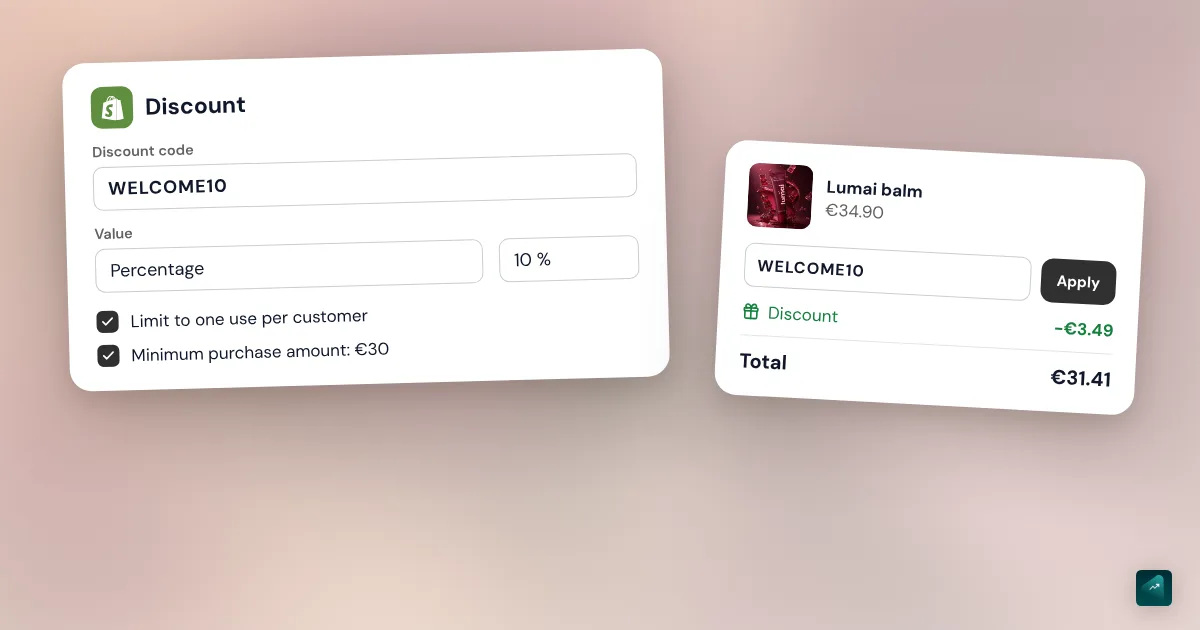
- Type the code name, for example WELCOME10. You can also click Generate code to get a random one.
- In Value, pick Percentage and type 10. For a discount in dollars, pick Fixed amount.
- If you want a minimum, go to Minimum requirements. Pick Minimum purchase amount or Minimum quantity of items.
- In Eligibility, leave All customers or narrow it to Customer segments, Specific customers, or Markets.
- In Maximum discount uses, check Limit to one per customer if it's a welcome code.
- In Combinations, check the discounts this code can combine with. Leave everything unchecked if you want no stacking.
- In Active dates, set the start date. Click Set end date if the offer should stop.
- Click Save.
The code then shows up in the list on the Discounts page. Avoid special characters in its name. Shopify recommends this because the code can end up in your checkout page address.
For an automatic discount, the steps are the same. Under Method, you pick Automatic discount, and the code field becomes a Title. The customer sees that title in the cart. Write something clear like "Winter sale 20% off."
The four discount types
Percentage or fixed amount
This is the type people use most. On products, the discount hits the items or collections you choose. On orders, it hits the whole subtotal. Either way, it never touches shipping costs.
The fixed amount has a catch. On specific products, it applies by default to every eligible item in the cart. A $5 code on a T-shirt is therefore $15 off when the customer buys three. Check Only apply discount once per order to prevent that.
Buy X get Y
This type covers offers like "buy a T-shirt, get a cap free." You set what the customer has to buy in Customer buys. Then you set what they receive in Customer gets, free or at a reduced price.
The trap is simple. The free item is never added to the cart automatically. The customer has to put the cap in the cart themselves for the discount to apply. Say so clearly on the product page and in the cart, or your customer pays without getting the offer.
Free shipping
The Free shipping type covers shipping costs, by code or automatically. You can limit it to some countries in the Countries section. You can also check Exclude shipping rates over a certain amount. That way nobody gets expensive express shipping for free.
There's another way to offer free shipping. You create a $0 shipping rate that only shows above an order amount. That's the right method for a permanent threshold like "free shipping over $50." The free shipping code is better for a one-off offer. Setting up the rate is covered in setting up shipping and payments on Shopify.
Discounts through apps
Shopify doesn't handle tiered discounts on its own, such as 10% off two items and 15% off three. You need an app from the Shopify App Store for that. For bundles and tiers, the guide to increasing average order value on Shopify compares the options.
The conditions that matter
Minimum purchase
The Minimum purchase amount counts product prices only. Shipping and taxes never count. If your discount targets a collection, only the items from that collection count toward the minimum. A customer with $60 in the cart may not qualify for your "over $50" code if $20 of it comes from another collection.
Dates
The discount starts at midnight in the time zone set in your admin. If your store's time zone doesn't match where your customers live, your Black Friday sale starts at the wrong hour for them. Check it before you launch a dated offer. Without an end date, the code never expires. For a one-day offer, use the same day for start and end.
One use, per customer or in total
In Maximum discount uses, you get two boxes. Limit to one per customer tracks the email address or phone number. Limit number of times this discount can be used in total sets a cap across all your customers. For a code that works once for one person only, check the total limit and type 1.
Keeping a code for new customers
People ask for this a lot, and it has a limit. You can target a segment of customers who have never ordered. But a brand-new visitor doesn't have a customer profile in your store yet. Shopify says they only join the segment after their first order. For a welcome code, Limit to one per customer stays the simplest safeguard.
Combining several discounts
Shopify sorts every discount into three classes. There are product discounts, order discounts, and shipping discounts. A discount only combines if each of the discounts involved allows it in its Combinations section.
Every merchant can combine an order or product discount with free shipping. They can also combine two discounts on different products. Other combinations depend on your store. Two discounts on the same item, for example, require the Shopify Plus plan.
The limits are fixed. A customer can use at most 5 product or order codes and 1 shipping code on the same order. When two discounts can't combine, Shopify applies the one that's better for the customer.
Percentage order discounts add up on the original subtotal. A 10% code and a 20% code on $100 therefore take off $30, not $28. Do the math before you allow stacking.
Sharing your code
A code nobody knows about is useless. Shopify can create a link that applies the discount by itself. Open the discount in Discounts, click Promote, then Get a shareable link. You choose the landing page, then copy the link or download the QR code.
That link saves you from the customer who forgets to type the code. It works well in a story, an email, or an ad. You can also put a code in an abandoned cart email. Save it for the last reminder, as the guide to Shopify abandoned cart recovery explains.
Why a discount code doesn't work
- The code field doesn't show at checkout. Your store needs at least one active code. A customer paying with Shop Pay has to be logged in to see the field. An app that changes prices can also hide it.
- "Enter a valid discount code." The code doesn't exist, hasn't started yet, or has expired. Check the spelling and the dates.
- The code isn't valid for the items in the cart. The discount targets a collection or products the customer didn't pick.
- The code shows as already used with no order. An unfinished checkout is still holding the code. The fastest fix is a replacement code with the same conditions.
- The free item isn't free. In a Buy X get Y offer, the customer has to add it to the cart.
- No strikethrough price on the product page. A discount applies in the cart and at checkout, not on the product page. For a strikethrough price, you need a compare-at price on the product or an app.
One last check applies to every promotion. Work out what's left after the discount, shipping, and fees. A 20% discount on a product with a 30% margin leaves you very little. The Shopify profit margin calculator runs the numbers with your figures. Then place a test order with the code before you send it to anyone.
Doing it in one sentence with Ova
If your store is built with Scale Ova, you can ask Ova for the code instead of filling in the form. For example: "Create a WELCOME10 code for 10% off the whole order over $30, valid until December 31." Ova creates the code in your Shopify admin, limited to one use per customer. It can also create a free shipping code with a minimum. Automatic discounts and Buy X get Y offers still go through the admin, with the steps above. For the rest of the store, the complete guide to building a Shopify store walks through every setting in order.
FAQ
How do you create a discount code on Shopify?
What's the difference between a discount code and an automatic discount on Shopify?
How do you offer free shipping with a code on Shopify?
How do you create a single-use discount code on Shopify?
Can customers combine two discount codes on Shopify?
Can you edit a discount code after creating it?
Is there a promo code to pay less for Shopify?
Sources
- Shopify Help Center, Discounts: overview, checked October 29, 2026
- Shopify Help Center, Discount methods: codes and automatic discounts, checked October 29, 2026
- Shopify Help Center, Automatic discounts: up to 25 active automatic discounts, checked October 29, 2026
- Shopify Help Center, Discount codes: special characters, time zone, checked October 29, 2026
- Shopify Help Center, Amount off discounts: steps and labels, minimum purchase, checked October 29, 2026
- Shopify Help Center, Buy X get Y discounts: the free item must be added manually, checked October 29, 2026
- Shopify Help Center, Free shipping discounts: countries, excluding high rates, checked October 29, 2026
- Shopify Help Center, Combining discounts: classes, limits of 5 codes and 1 shipping code, how percentages add up, type and method can't be changed, checked October 29, 2026
- Shopify Help Center, Managing and editing your discounts: shareable link and QR code, segments, checked October 29, 2026
- Shopify Help Center, Discount codes FAQ: error messages, code already used, hidden field, new customers, strikethrough prices, checked October 29, 2026
- Shopify, pricing: 3-day trial then €1/month for 3 months, as shown in Europe, checked October 29, 2026