You sell a T-shirt in four sizes and two colors. You don't need to create eight products. On Shopify, it's one product with eight variants, and your customer picks theirs on the same page. This guide starts from a product that already exists. If you don't have one yet, start with how to add a product on Shopify, then come back here.
Option, value, and variant
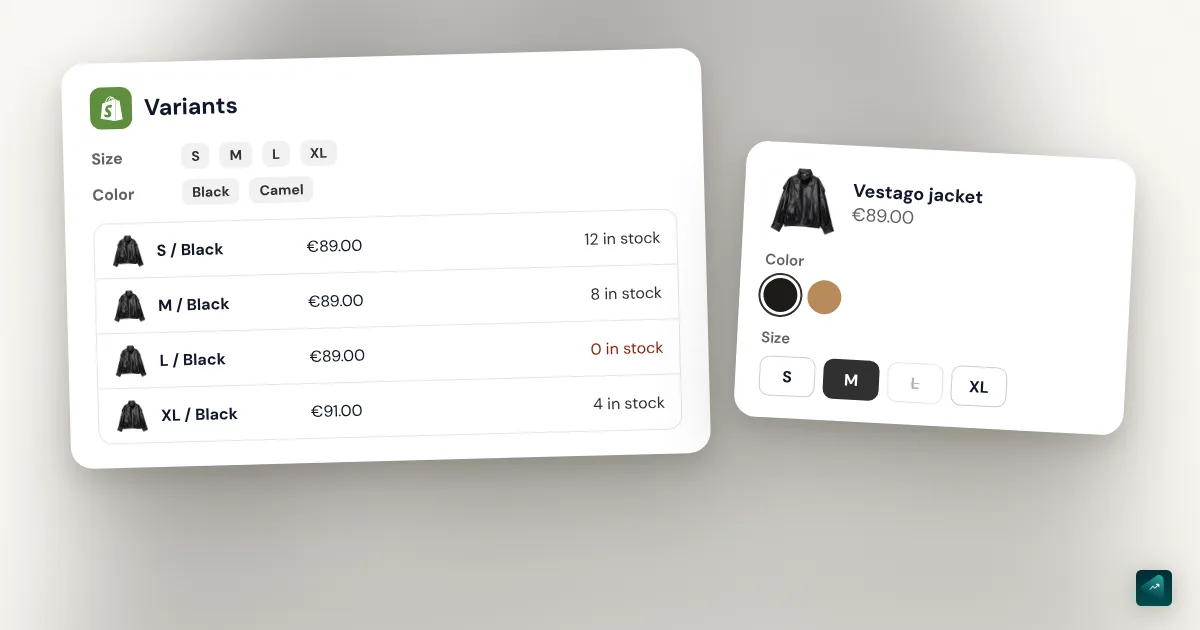
Shopify uses three words that sound alike. An option is a question you ask the customer, such as the size or the color. The values are the possible answers to that question, such as S or XL. A variant is one exact combination of values, such as the black T-shirt in M.
So the number of variants is a multiplication. Four sizes and two colors make eight variants. Add three materials and you're at twenty-four. That math matters because you set up each variant on its own afterward.
How to add variants to a Shopify product, step by step
- In your Shopify admin, go to Products.
- Click the product you want to edit.
- In the Variants section, click + Add options like size or color.
- In the Option name field, type the name your customer will see, for example "Size."
- In Option values, enter each value one at a time, starting with S.
- For a second option like color, click + Add another option.
- Click Done, then click Save.
Shopify then generates every combination at once. After you save the variants, you can give them prices. The option name and its values show up exactly as typed for your customers. So write "Black" the way you want them to read it, with the capital letter.
In the Shopify app, the path is the same. The button is called + Add options like color, size, etc and you finish with Save.
If your product has a category, Shopify may also suggest a category metafield when you add the option. Color on a clothing item is one example. That choice is what powers color swatches, covered further down.
Adding a size or a color later
Your product already has variants and you're launching a new color. You don't have to start over.
- In the Variants section, click Edit next to the "Color" option.
- In the Add another value field, enter the new color.
- Click Done, then click Save.
Shopify creates that color in every size at once. Adding yellow to a T-shirt sold in three sizes therefore creates three yellow T-shirts.
Adding a whole option works a little differently. You click + Add another option, then enter its name and a default value. That value applies to every variant that already exists. A T-shirt sold in three sizes that gets a "Material" option with the value "Cotton" keeps its three variants. They are now all in cotton.
Not every combination always exists. Maybe your XL is only made in black. In that case, click Add variant to create variants one at a time. One of their values has to be new, because Shopify won't save a variant that already exists. You can also generate every combination and then delete the white XL.
To save time, you can copy a variant. Click it, then click Duplicate, and change at least one value. Shopify can also duplicate several variants in bulk. That helps when your new color has the same price and warehouse as an existing one.
A price, inventory, and SKU for each variant
As soon as a product has variants, price and inventory are no longer set on the product. They're set on each variant, and so is shipping. That's what lets you charge a different price per variant. Your XL can cost $2 more than your S on the same product page.
- In the Variants section, click the variant you want to edit.
- Change its price, inventory, or weight.
- Click Save.
To go faster, the product page lets you make three changes without opening each variant. Click a variant's price in the list and type the new price. Click its image to change it. For inventory, first pick a location with the All locations filter, then adjust the quantity.
Watch out for groups. Shopify groups variants by the first option, for example by color. The "Black" row at the top of the group isn't a variant. If you change its price, you change the price of every black variant. Open the group to target a single size. You can also change the grouping with Group by.
For a lot of variants, check them in the Variants section and click Bulk edit. The table that opens works like a spreadsheet. Each row is a variant and each column is a field like price or SKU. The Columns button adds the fields that are missing. One limit applies to inventory. For a product with variants, you can only bulk edit inventory from the Inventory page.
The SKU is a code you make up for each variant, like TSHIRT-BLACK-M. It quickly becomes useful if a supplier packs your orders. Put the color and the size in the code. You'll know what's shipping without opening the product. If you're starting a fashion brand, how to start an online clothing store covers the rest of the project.
Does your screen not quite match these steps? Shopify is gradually rolling out a redesigned product page. With it, you edit every variant from the product page, with no separate variant page. A table view then shows all your variants with their price and inventory.
One image per variant
Your customer picks "Black" and still sees the white T-shirt. It's the most visible flaw of a product page with variants. You fix it by assigning an image to each variant.
- In the Variants section, click the image icon next to the variant.
- Pick one of the product's images, or click Add image to upload one.
- Click Done, then click Save.
To go faster, check all the black variants. Open the actions menu and click Add images. They all get the same photo in one go. The button becomes Edit images if they already have one.
A variant only takes one image. It doesn't take videos or 3D models. The image comes from the product's media, which holds up to 250 items. To show several photos of one color, the Shopify Help Center suggests a trick. Put each color's photos next to each other in the product gallery. Assign the first one to the variant. When your customer picks the color, they see that photo and then scroll through the rest.
Shopify's limits: 3 options and 2,048 variants
As of October 29, 2026, the Shopify Help Center says a product can have up to 3 options and 2,048 variants. For a long time the limit was 100 variants. Shopify raised it to 2,048 on October 15, 2025. Many threads on the Shopify forum still talk about 100 variants. They're simply from before the change.
Going past 100 variants still calls for a check. The Help Center warns that some third-party themes don't support more than 100 variants. Some apps and sales channels don't either. If your product goes past that mark, open it on your store and test several combinations. If something breaks, contact the theme or app developer.
More than 3 options on a product
The fourth choice is often a personalization, like an engraving or an embroidered name. That isn't really a variant, because it changes neither the inventory nor the image. The Help Center offers two routes. The first is a product options app from the Shopify App Store. The second is a theme code change that adds a field the customer fills in on the product page. Their answer then travels with the order.
You can also merge two related choices into one option. "Body color" and "Lid color" then become a single "Colorway" option, with values like "Black and wood" for each pair. On Shopify Plus, the Shopify Combined Listings app adds up to 3 options on top of each product's own options.
Showing colors as swatches
Shopify calls them color swatches. They come from a variant option connected to the color category metafield. You also need a theme that supports swatches.
- In the Category section of the product page, pick a category with a color attribute, such as a T-shirt category.
- In the Variants section, click + Add options like size or color.
- Select the suggested color metafield. The values fill in with the field's colors.
- For a color of your own, click Edit, then Add new entry.
- Click Save.
Does your product already have a plain-text "Color" option? Click the option, then the dynamic source icon ⛁, and pick the color metafield. In the Shopify app, a message warns that existing values will be cleared. So check your variants right after.
On the theme side, swatches show up on their own if your product page has a Variant picker block. To change their shape, go to Online Store and click Edit theme. Open a product page and click the Variant picker block. Then choose Circle, Square, or None. With a vintage theme, you'll need to edit the code or hire a Shopify Partner.
This setup has another upside. You rename a color once, and the new name applies everywhere it's connected. With the Search & Discovery app, those colors can also become a swatch filter in your collections. Once your variants are in place, the Shopify product page that converts shows how to present the rest of the page.
Showing each color as its own product
In a collection, Shopify shows one card per product. Some merchants would rather show one card per color. Shopify has an official answer for that, called combined listings.
The Shopify Combined Listings app connects separate products through a shared option, like color. Each color keeps its own title and description. It also keeps its own URL and photo gallery. On your store, they still display as the variants of a single product. A combined listing holds up to 60 products and 2,048 variants. The catch is the plan. On October 29, 2026, the app was only available on the Shopify Plus and Enterprise plans.
On a regular plan, the other route is one product per color. Your customer then loses the color choice on a single page. Your reviews also get split across several products. Shopify itself argues for the single page, which keeps your SEO and your ads pointed at one URL. For a beginner, one product with variants is still the right place to start.
Hiding a variant without deleting it
A color that's out of stock for a long time doesn't need to be deleted. You can unpublish a single variant from a sales channel. It disappears from that channel but stays in your admin, with its history.
In the Variants section, the Publishing column shows each variant's channels. Click it, uncheck the channel, and save. A new variant is published by default. If you unpublish every variant from a channel, the whole product disappears from it. You also can't schedule a publishing date for a single variant.
Deleting variants
To delete a variant, click it in the Variants section. Then click Delete variant and confirm. To delete several, check them and use a bulk action. To remove a value, click Edit next to the option and then the trash icon.
Want to go back to a product with no variants? Delete every option and all their values, including the default one. Otherwise the selection menu stays visible to your customers.
The traps that keep coming up
- The whole group changed price. You edited the top row of a group instead of a variant. Open the group and fix each variant.
- The image doesn't follow the color. The variant has no image assigned. Add it from the image icon in the Variants section.
- A variant can't be bought. It's unpublished from the channel, or its tracked inventory is at zero.
- The product page breaks past 100 variants. Your theme or an app doesn't handle the new limit. Test with an up-to-date free Shopify theme to find out where the problem comes from.
- Sizes show up in the wrong order. Click Edit next to the option and drag the values with the ⋮⋮ handles. The options themselves are reordered the same way.
- The option is named in another language. An imported product can keep its supplier's words. Click Edit next to the option and rename it.
Before you publish, open the product on your phone and tap each value. The image and the price should change with every choice. Then add a variant to the cart to check the price at checkout.
Doing it in one sentence with Ova
If your store is built with Scale Ova, Ova creates and edits variants directly in your Shopify admin. It adds the options and sets the price of each variant. It also assigns the right image to each color. For example, you write this.
Add sizes S to XL in black and white to the T-shirt, with the XL at $2 more. Put the black photo on the black variants.
It can also rename an option without recreating the variants, so your inventory stays put. That helps when a supplier named your option "Talla" instead of "Size" for example. You then review the product on your phone before publishing it. Generating and editing your store with Scale Ova is free, and a subscription unlocks publishing to Shopify.
FAQ
How do you add variants on Shopify?
How many variants and options can a Shopify product have?
How do you set a different price for each variant on Shopify?
How do you add a different image to each variant?
How do you get more than 3 options on a Shopify product?
How do you show colors as swatches on Shopify?
How do you show variants as separate products in a collection?
Sources
- Shopify Help Center, Variants: options and values, checked October 29, 2026
- Shopify Help Center, Adding variants: 3 options, 2,048 variants, 250 media items, more than 100 variants, adding values, duplicating, checked October 29, 2026
- Shopify Help Center, Editing variants for an existing product: price and inventory per variant, groups, bulk edit, display order, deleting, checked October 29, 2026
- Shopify Help Center, Search, filter, and group variants: grouping, location filter, redesigned product page, checked October 29, 2026
- Shopify Help Center, Adding images to product variants: one image per variant, bulk images, gallery trick, checked October 29, 2026
- Shopify Help Center, Bulk editing: columns, inventory for products with variants, checked October 29, 2026
- Shopify Help Center, Publishing and unpublishing product variants: unpublishing a variant per channel, checked October 29, 2026
- Shopify Help Center, Adding color swatches using category metafields: category, Variant picker block, Search & Discovery filter, checked October 29, 2026
- Shopify Help Center, Combined listings: Plus and Enterprise plans, 60 products, 2,048 variants, checked October 29, 2026
- Shopify Changelog, product variant limit raised to 2,048: announced October 15, 2025, previous limit of 100, checked October 29, 2026
- Shopify Blog, 2,048 product variants: one URL per product, checked October 29, 2026