You just opened your store and the Products page is empty. Adding a product takes ten minutes when everything is ready. It takes an hour when you're hunting for photos and a package weight halfway through.
This tutorial follows the order of the sections in the admin. It says what each field does and which ones you can leave empty. To write a description that makes people buy, the Shopify product page that converts takes over. Here we stick to where to click.
What you need before you start
Put everything in one folder before you open the admin.
- The photos, at least three per product, and one per color if you offer several.
- The selling price and what the product costs you.
- The packed weight, measured on a scale with the box.
- The list of sizes or colors, with the stock for each.
- A description already written, not the supplier's.
Weight is the one people forget most. Yet it sets the shipping cost whenever your shipping rate depends on weight.
How to add a product in the Shopify admin, step by step
1. Open a blank product
From your Shopify admin, go to Products. Click Add product. A blank product opens, split into sections you fill in from top to bottom.
On your phone, the Shopify app works the same way. Open the products tab, tap +, then Add product.
Shopify is gradually rolling out a new version of this page, mostly for variants. If a button isn't exactly where this tutorial puts it, look for the same label a little further down.
2. Title and description
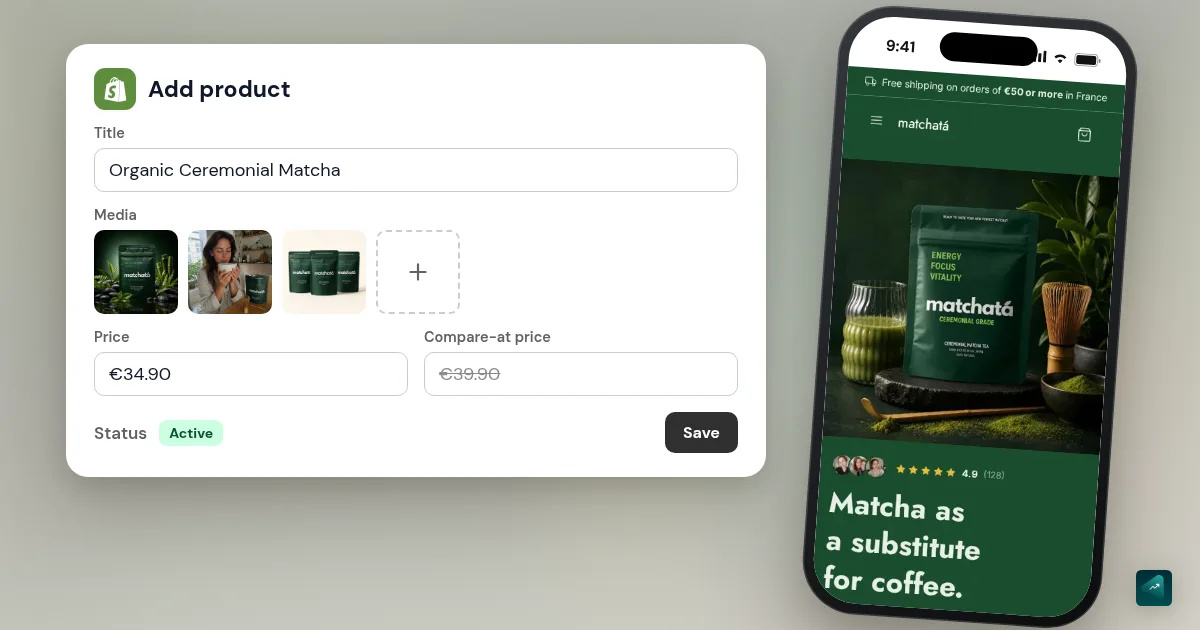
The Title is the name your customer sees. Say what it is, then what sets it apart, for example "Embroidered coffee cup sweatshirt in organic cotton". Keep the supplier's brand name out of the title.
The Description supports formatting such as lists and bold. Shopify points this out in its help center. If you resell a product, don't paste the manufacturer's description, because your page needs to be unique for search engines.
3. Photos and videos
In the Media section, click Upload new. You can also drag your images straight into the section. The first image becomes the main photo, the one shown in collections. Drag the thumbnails to change the order.
A product accepts up to 250 media items. You don't need that many. Five good photos beat twenty supplier photos. For the right size and photos that line up in your grid, see the Shopify product image size guide.
4. Category
The Category field comes from a standard Shopify list. Shopify often suggests one, which you accept or change. This choice unlocks attributes that fit the product, like size or fabric for clothing. It also helps you sell on Google and Facebook, which ask for a standard product type.
5. Price, compare-at price and cost
The Price field is what your customer pays.
The Compare-at price shows crossed out next to the price. In the EU, a crossed-out price must be the lowest price you charged in the 30 days before the sale. Fill in this field only during a real sale, then clear it. The rule is explained in the product page that converts.
Cost per item is what the product costs you, before shipping. Shopify uses it to show your margin right on the product. For a sweatshirt sold at $45 that costs you $18, it shows 60%. If the margin looks thin, the Shopify profit margin calculator adds the other costs of a sale, from shipping to ads.
6. Inventory and SKU
In the Inventory section, turn on Track quantity if you hold your own stock. Then enter the number of units in the Available field. When that number hits zero, customers can no longer buy the product. If you want to take orders anyway, open Sell when out of stock and pick Continue selling when out of stock.
The SKU is an internal code you make up, for example SWEAT-COFFEE-M-BLACK. It's optional. It quickly becomes useful once you have several variants or a supplier to pass orders to. Shopify advises keeping each one unique for clean sales tracking.
Doing dropshipping? The product often arrives through an app that fills in these fields for you. The DSers tutorial shows how.
7. Weight and shipping
In the Shipping section, keep Physical product turned on for anything you ship in a parcel. The Weight field then appears. Enter the packed weight, not the bare product. Shopify uses it to calculate shipping rates, so a wrong weight gives wrong shipping costs.
For a downloadable file or a service, turn Physical product off. Your customer then pays no shipping on that product. Zones and rates themselves are set elsewhere, in shipping and payments on Shopify.
8. Variants for sizes and colors
A variant is a version of the product your customer picks before buying. A sweatshirt in three sizes and two colors gives six variants.
- In the Variants section, click + Add options like size or color.
- In Option name, type the word your customer will see, for example "Size".
- In Option values, enter each value one by one, for example S then M then L.
- For a second option like color, click + Add another option.
- Click Done, then Save.
Shopify then creates every combination. Each variant keeps its own settings, from price to weight. Depending on your admin version, you set them in the variants table or on each variant's page. Also attach a photo to each color. Your customer will see the right image when they switch colors.
Shopify allows three options per product and up to 2,048 variants. Beyond that you need an app or theme code. If you sell the same item in two sizes, create a variant rather than a second product. Shopify recommends the same. For an image per color, swatches, or more than 3 options, the guide to Shopify product variants goes further.
9. Status, sales channels and collection
This is where "is my product live?" gets answered. The Status offers three useful choices.
- Active means the product is for sale. It's the default status for a new product.
- Draft keeps the product hidden while you finish it.
- Unlisted means the product can be bought, but only by someone with the direct link. It doesn't show in your collections or in Google.
Just below, the Publishing section lists your sales channels, like your online store. They are all selected by default. Unselect a channel if you don't want to sell this product there.
In Product organization, the Collections field puts your product in a collection. That's what makes it show up on your "Sweatshirts" or "New in" page. To create the collection itself, see how to create Shopify collections. Type and Vendor mostly help you sort your catalog in the admin. Tags are keywords. They help your store search and can fill an automated collection.
10. Search engine listing
At the bottom, the Search engine listing section shows what Google will display. Click the pencil to edit it. The Page title is the clickable link, and the Meta description is the gray text under it. Shopify warns that past 70 characters for the title and 320 for the description, your text may get cut off.
The URL handle is the end of the address, for example /products/embroidered-coffee-sweatshirt. Shopify builds it from the title. Shorten it when you create the product if needed, then leave it alone. Changing the address of a page Google already knows costs it its ranking.
Finally, click Save, then Preview to see the product as your customer will.
Adding several products faster
Duplicate a similar product. Open a product, click More actions, then Duplicate product. You give it a new title, choose what to copy and set its status. Videos and 3D models aren't copied.
Import a CSV file. From Products, the Import button loads a spreadsheet file with one product per row. Shopify caps the file at 15 MB. Download Shopify's CSV template first, or the columns won't match.
Use a supplier app. In dropshipping, DSers or a similar app imports the product with its photos and variants. Read everything afterward, especially the title and description.
Why your product doesn't show up in your store
This is the question that comes up most on the Shopify forum. Check these points in order.
- The status is Draft or Unlisted. Set it to Active.
- The "Online Store" channel is unselected in the Publishing section.
- The product isn't in any collection. It does exist at its address, but no page of your store links to it.
- Inventory is at zero with tracking on and out-of-stock selling off.
- Your store is still password protected. Visitors then only see the password page. To remove it, follow the Shopify store password guide.
Before you publish your first product
Open the Preview on your phone, not just your computer. Most of your customers will buy on mobile. Check that each variant switches the photo and the price. Also check that a compare-at price is there only if you're running a real sale.
Then add the product to the cart and go all the way to checkout. The shipping cost you see tells you whether your weight and shipping rates are right. To go all the way through without paying, place a Shopify test order.
Or ask Ova to do it
If your store is connected to Scale Ova, Ova creates and edits your products right in your Shopify admin. It also handles variants and inventory, and puts the product in its collection. You'd type something like this.
Add an embroidered coffee sweatshirt at $45 in S, M and L, in black and in beige, with 10 units per variant. Keep it as a draft and put it in the Sweatshirts collection.
You then read the product over before setting it to Active. Generating and editing your store with Scale Ova is free, and the subscription unlocks publishing to Shopify.
If you're starting from scratch, the complete guide to building a Shopify store puts this product back in the order of every other step.
FAQ
How do I add a product on Shopify from my phone?
How many variants can a Shopify product have?
How do I show a sale price with a crossed-out price on Shopify?
How do I give each size a different price?
How do I add a product to a collection on Shopify?
Should I create one product per color or use variants?
My product is added but doesn't show up. Why?
Sources
- Shopify Help Center, adding and updating products, accessed October 29, 2026
- Shopify Help Center, product details page: fields, Active as the default status, weight, publishing, accessed October 29, 2026
- Shopify Help Center, adding variants: 3 options, 2,048 variants, 250 media items, accessed October 29, 2026
- Shopify Help Center, adding media to products, accessed October 29, 2026
- Shopify Help Center, setting up inventory tracking, accessed October 29, 2026
- Shopify Help Center, importing products with a CSV file: 15 MB limit, accessed October 29, 2026