To import products from another store into Shopify, export your catalog as a CSV, adapt it to Shopify’s template, then open Products > Import in the destination store. A CSV is a text file you can open as a spreadsheet. It can carry product details and variants, while images are transferred through their web addresses. Shopify’s import instructions.
Which file should you export from your current store?
From another Shopify store, open Products > Export. Select the products you want to move and the format for Excel or another spreadsheet application. Keep an untouched copy of the export.
Leave the original store accessible during the transfer: the file contains image links, not the image files. Export products from Shopify.
From WooCommerce, PrestaShop or another platform, export your products, then match its columns to Shopify’s current CSV template. Being able to open a file in Excel does not mean Shopify can import its format.
If you only need to enter one product, follow the guide to adding a product on Shopify.
Prepare the variants and product images
Start with the official template and keep its column headers unchanged. Save the file with comma separators and UTF-8 encoding to preserve accented characters. Keep each product’s rows together.
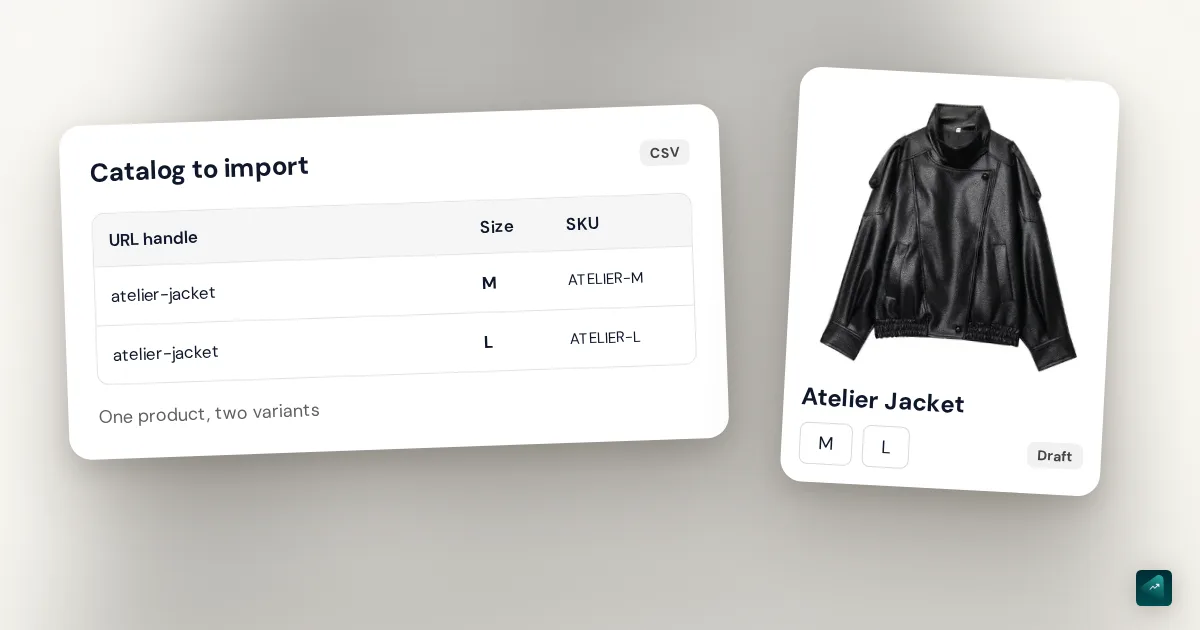
URL handle identifies the product in the file. Each variant has its own row with the same handle and its option values. The SKU is the variant’s reference; it does not replace the handle.
This fictional excerpt shows a jacket in two sizes. It explains how variants are grouped; it is not a complete import file.
| URL handle | Option1 name | Option1 value | SKU | Price |
|---|---|---|---|---|
| atelier-jacket | Size | M | ATELIER-M | 79.00 |
| atelier-jacket | Size | L | ATELIER-L | 79.00 |
The expected result is one Atelier Jacket product with two sizes. Put the title and shared product information on the first row. Shopify’s row and variant format.
Where do the images go?
Product image URL holds the direct address of a product image. Variant image URL links an image to a particular variant. These addresses must work without a login during the import. A path to a photo on your computer is not enough.
For an extra photo, add a row with the same handle and its own image URL. Shopify downloads the images into the destination store. Check they arrived before closing the original store. Videos and 3D models require a separate upload. Prepare images for a product CSV.
Import the file into Shopify
For your first check, prepare a file containing just one product with variants. Set its Status to draft to keep it as a draft. If the destination store already contains products, export its catalog before you begin.
- Open Products > Import in the destination store.
- Add your CSV file. Leave overwriting off when creating new products. Enable it only to update handles you have checked.
- Click Upload and continue, review the preview, then click Import products.
The product file limit is 15 MB. Split larger catalogs into separate files, keeping each product and all of its rows together. Shopify import steps.
Turning off publication to all sales channels does not make a product invisible: the online store remains a possible destination. Check that your test product has Draft status. Shopify product statuses.
Avoid clearing existing product details
The overwrite option matches products by handle, not SKU. Without overwriting, matching products are skipped. With overwriting, an included optional column with empty cells can clear existing values; an omitted column leaves them unchanged.
For example, empty Vendor cells can remove saved vendors. Leaving the column out preserves them. Variant columns also depend on each other: keep the option data required by the variants you are updating. Shopify’s overwrite rules.
An import cannot be canceled once it starts.
Check the result before moving the full catalog
For our fictional jacket, open the imported product and check:
- one product with sizes M and L;
- the correct SKU and price for each size;
- product images and any variant image assignments;
- Draft status while you review it.
If you hold inventory at multiple locations, use Shopify’s inventory CSV for those quantities. The product CSV alone does not transfer that allocation.
Once the small import is checked, prepare the rest of the catalog the same way. If product page addresses change, also plan the redirects to your new pages.