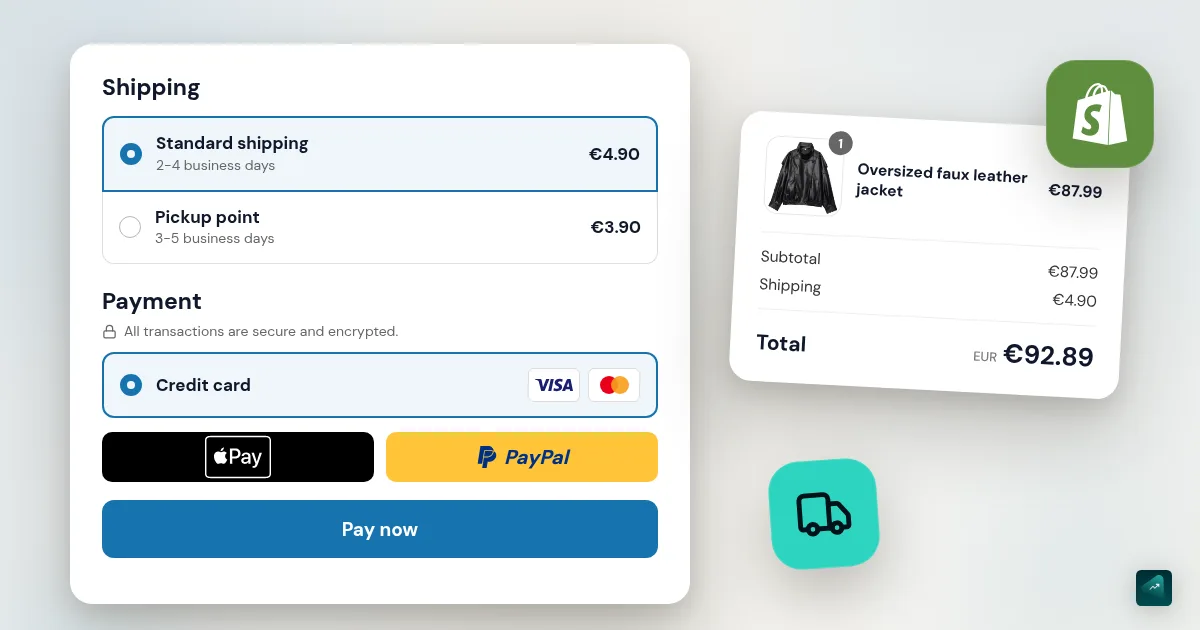
Your store is almost ready, and only these two screens are left. They're the ones nobody wants to open. Yet they decide whether a customer who already chose will actually pay. According to the Baymard Institute, 40% of shoppers who abandon at checkout leave because of extra costs. Another 20% leave because delivery is too slow, and 9% because their payment method is missing. Those figures come from a survey of US shoppers, on a page updated September 22, 2025.
We start with money, since that's often your first question. Then we set up shipping, and we check everything with a test order.
Shopify Payments fees for a store in France
On the Basic plan, Shopify Payments takes 1.5% + €0.25 on a standard European card payment. An American Express or international card costs 2.7% + €0.25. If you take payments through another provider, Shopify adds 2% on every order.
| Plan | Subscription (yearly / monthly) | Standard card online | Amex and international cards | Fee if you use another provider |
|---|---|---|---|---|
| Basic | €27 / €36 a month | 1.5% + €0.25 | 2.7% + €0.25 | 2% |
| Grow | €79 / €105 a month | 1.3% + €0.25 | 2.6% + €0.25 | 1% |
| Advanced | €289 / €384 a month | 1.1% + €0.25 | 2.4% + €0.25 | 0.6% |
| Plus | From €2,100 a month | 1% + €0.25 | 2.3% + €0.25 | 0.2% |
Rates checked October 29, 2026 on Shopify's pricing page for France.
Take a €40 order paid with a French bank card on Basic. Shopify Payments takes €0.85. With another provider, Shopify keeps €0.80 in transaction fees. Your provider then charges its own fees. To see what you really keep on each sale, the Shopify profit margin calculator runs the numbers with your prices.
Money reaches your bank on a 3-day cycle in France. Payments from Friday, Saturday, and Sunday go out as a single payout. A payout under €10 waits until more sales add up. The subscription and the €1 trial are covered in is Shopify free.
Shopify Payments: our verdict
For a new store in France, Shopify Payments is the right default. It costs less than any setup with another provider, and you manage everything in your admin. Its real drawbacks are that Google Pay isn't available in France and that checks can hold your money.
What works in its favor is mostly about fees. You don't pay the 2% transaction fee, and PayPal is exempt too when Shopify Payments is your main provider. Apple Pay and Shop Pay turn on by themselves. Klarna is included, and your refunds go out from the same screen as your orders.
The first drawback surprises a lot of merchants. Shopify's Help Center states it plainly. Google Pay isn't available with Shopify Payments for merchants located in France. Your Android customers will pay with their card, Shop Pay, or PayPal instead. Another limit is that Shopify Payments in France only covers mainland France. A store based in the French overseas territories needs another provider.
The second drawback drives most bad reviews of Shopify Payments. Shopify can ask you to prove your identity and your business at any time, and funds can wait during the check. On Shopify's own forum, a merchant wrote in October 2023 that his payments were cut off overnight, fifteen days after launch. Service came back four days later, after he sent his documents. Shopify can also put a reserve on your account. That's a share of your sales held for a set period when Shopify sees a risk. The listed signals include a sudden sales spike, high refund or dispute rates, and long delivery times.
You can't prevent a check, but you can make it short. Keep your ID, a proof of address, and your business registration ready. And don't launch a big ad campaign the day you activate your account. What merchants say on Trustpilot is covered in our full Shopify review.
Shopify Payments or Stripe?
For a Shopify store based in France, you don't really get to choose. Stripe is Shopify Payments' banking partner. The Help Center explains that Stripe can't be activated in countries where Shopify Payments is available, and France is one of them.
"Shopify Payments vs Stripe" comparisons are really comparing Shopify with Stripe used elsewhere, on WooCommerce or a custom site. The prices are close anyway. Stripe charges 1.5% + €0.25 for a standard card from the European Economic Area, the same rate as Shopify Payments on Basic. If Shopify Payments turns down your business, Stripe won't be offered instead. You'll need another provider that accepts your industry, with Shopify's transaction fee on top.
If you take payments through another provider
Shopify then charges its transaction fee on every payment that goes through that provider. It's 2% on Basic, 1% on Grow, and 0.6% on Advanced. That fee comes on top of the provider's own and applies even if Shopify Payments is also on. Payment methods added through an app can trigger it too, according to the Help Center.
Set up payments, step by step
Everything starts under Settings > Payments.
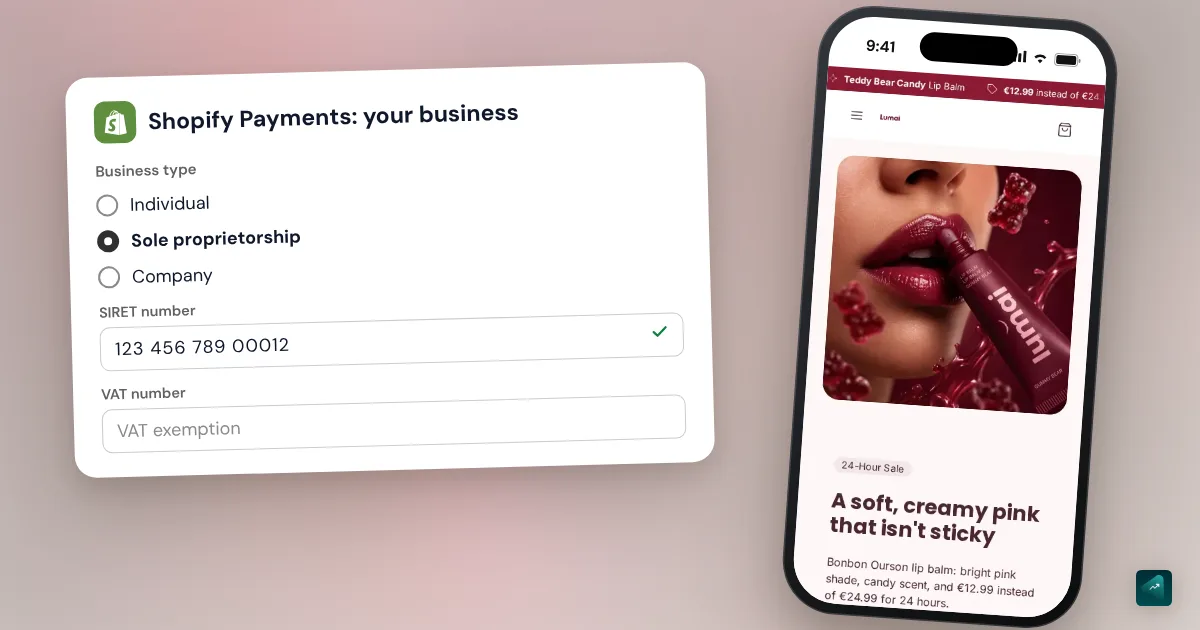
- Activate Shopify Payments. Shopify asks for your business details and your bank account for payouts. It can also request an ID, a proof of address, and a business registration document.
- Check Apple Pay and Shop Pay. In France, they turn on with Shopify Payments without any setting on your side.
- Check PayPal. In France, PayPal comes with Shopify Payments as PayPal Wallet. You have no PayPal account to connect. That's why it no longer shows up under Additional payment methods. You refund a PayPal order from the Shopify admin, just like a card payment. Just check that PayPal shows up on your checkout page.
- Look at Klarna. It's on by default for new eligible accounts. If it isn't, click Manage in the Shopify Payments section and select Klarna among the payment methods.
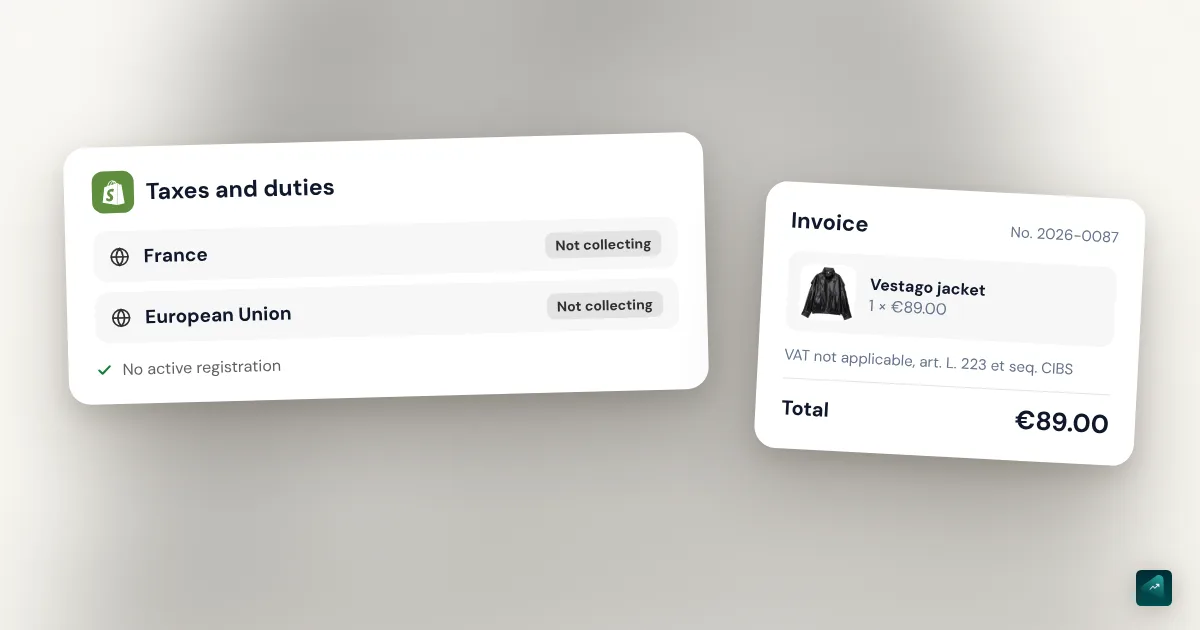
- Show tax-inclusive prices. In France, consumers must see prices with VAT included. Under Settings > Taxes and duties, check Include sales tax in product price and shipping rate, then save.
Pay in installments on Shopify
In France, you have three ways to offer pay in 3 or 4. Klarna goes through Shopify Payments and needs no app. PayPal offers its Pay in 4 to eligible customers. Alma installs as an app and goes up to 12 payments. Shopify's own installment plan, Shop Pay Installments, isn't open to French stores. It's limited to the United States, Canada, the United Kingdom, and Australia.
Klarna. Your customer can pay in 3 interest-free installments, with the first one charged at checkout. You get the money in your usual Shopify Payments payout. Klarna decides which option each customer sees, based on their history. Klarna only shows up for customers who check out with an email address. It also requires your store to show some information, including your delivery times and your return policy. The Help Center page doesn't publish a Klarna-specific rate. Check it in your admin before you turn it on.
PayPal Pay in 4. Your customer pays in 4 interest-free installments over 3 months, for purchases between €20 and €3,000. According to PayPal, the option comes with its checkout at no extra cost, with its usual transaction fees. According to PayPal, it shows up for eligible buyers when they choose PayPal. Shopify's help page on the PayPal wallet doesn't mention it, so check your checkout page. PayPal publishes a free app on the Shopify App Store to promote this option on your product pages.
Alma. This French company offers payment in 2, 3, 4, 10, or 12 installments. The 10 and 12 options depend on your eligibility. By default, its carts range from €50 to €2,000. There's one Alma app per option on the Shopify App Store. Alma first opens an account in your name and verifies your business. Its commission depends on your volume, and Shopify may add its transaction fee since Alma is an additional payment method.
If you're just starting, begin with Klarna and PayPal. You have nothing to install and nothing to negotiate. Alma makes sense once your average order passes a few hundred euros and paying in 10 can close a sale. Everything about PayPal, from setup to disputes, is in our Shopify PayPal guide.
How Shopify organizes shipping
Four ideas cover what you set under Settings > Shipping and delivery.
- The shipping zone groups the countries you ship to at the same price, for example "France" or "European Union".
- The shipping option is what your customer picks at checkout. It has a name, a price, and a delivery time.
- The shipping profile groups the products that follow the same rules. All your products sit in the general profile unless you create another one.
- The location is the address your parcels leave from. It's yours, or your supplier's.
A country can only sit in one zone of a given profile. That country must also belong to an active market. A customer in an inactive market can't place an order, even if their zone has a rate. If someone writes that they can't buy from their country, check your Markets page first. To sell in those customers' currency, set up a market for them with its own currency, as the Shopify multi-currency guide explains. And for their language, translate your Shopify store.
Shipping rates: which one to pick
To create a rate, open your shipping profile. Under Shipping zones, click Add zone if needed, then Add shipping option. The Rate type menu then gives you four ways to charge for shipping.
- A flat rate is a fixed price, for example €4.90 anywhere in France. It's the easiest for your customer to understand, and the right choice to start.
- A rate based on order price changes by tiers. You can make shipping cheaper on a bigger cart.
- A weight-based rate follows the parcel's total weight. It only works if every product has an accurate weight.
- A carrier-calculated rate shows at checkout the price the carrier charges you.
If you ship from France yourself, Shopify also sells Colissimo labels from your admin. They only cover shipments within France, with delivery announced in 2 business days. A parcel can weigh up to 30 kg to a home address and 20 kg to a pickup point.
Keep one zone for your country at first. Add a Europe zone only if you really ship there. Create a second profile only for products that are different, heavy, or shipped from another place. When a cart mixes two profiles, Shopify adds their rates together. The Help Center gives the example of two rates of 5 that become 10 at checkout. That's the most common reason shipping looks doubled.
Show the real delivery time
In the shipping option, the Transit time menu shows a delivery time to your customer at checkout. Pick Custom to enter your own range, for example 5 to 8 days. Use the time you measured with your test order, processing included. Your customer only sees one number, and that's the one they'll wait for.
Repeat that time on your product page, near the buy button. Your customer should know it before reaching checkout. If your catalog mixes products shipped from Europe and from Asia, that's the moment to create a separate profile with its own delivery time.
Free shipping on Shopify
You have two ways to offer free shipping over an amount. The simplest is a checkbox in your shipping option. The other uses an automatic discount, which you can limit by country and give an end date.
Method 1: in your shipping option
- Go to Settings > Shipping and delivery and open your profile.
- Under Shipping zones, open your option's menu and click Edit shipping option.
- Check Offer free shipping and enter the minimum order amount.
- Click Done, then Save.
Method 2: with an automatic discount
- In your admin, go to Discounts and click Create discount.
- Choose Free shipping, then Automatic discount in the Method section.
- Give it a title. Your customer sees it in the cart and at checkout, so write something like "Free shipping over €50".
- Pick the countries it applies to.
- Under Minimum purchase requirements, choose Minimum purchase amount and enter your threshold.
- Click Save.
With the discount, the minimum only counts product prices, without taxes. A product that's already discounted counts at its reduced price. Use method 1 for a permanent offer. Use the discount for a limited-time promotion or one reserved for some countries. Avoid using both at once, or you won't know where to change your threshold.
A "Free shipping over €50" line in your announcement bar doesn't apply anything on its own. The Shopify setting is what drops shipping to €0. Both must show the same amount. To pick that threshold, increase your average order value explains how to set it just above your usual cart. Once you've picked it, the Shopify announcement bar guide shows how to put that line in your theme.
The checkout form
Under Settings > Checkout, you control what your customer fills in. The Shipping address phone number setting is Optional by default. Switch it to Required only if your carrier needs it. Every extra required field loses a few customers on mobile.
Also check that your legal pages are live before you open. You need a returns policy, terms of sale, and a way to contact you. Klarna checks for them before it shows up. Your returns policy also has to state the 14-day right of withdrawal. Shopify legal pages for selling in France covers what it must include.
The end-to-end test order
This step checks everything else. Shopify Payments test mode simulates payments without charging anything. It only works once you've chosen a paid plan.
- Go to Settings > Payments and click Manage in the Shopify Payments section.
- In the Test mode section, select Enable test mode, then click Save.
- On your phone, add an amount just below your free shipping threshold to the cart. Check the rate and delivery time shown.
- Add an item to pass the threshold. Shipping should drop to €0.
- If you have two profiles, mix their products and look at the shipping total.
- Pay with the Visa test card 4242 4242 4242 4242, any future date, and any three digits. To test a French Cartes Bancaires card, use 4000 0025 0000 1001.
- Check that the confirmation email arrives.
- Turn test mode off. Otherwise your real customers pay nothing and you receive nothing.
Two traps to know about. Apple Pay goes through in test mode with a real card, but nothing is charged. The PayPal wallet can't be tested in test mode. If your supplier is connected through an app like DSers for AliExpress, check that the test order shows up there too.
Other ways to test and how to delete the order afterward are in the Shopify test order guide.
What Ova can set up for you
If your store is connected to Scale Ova, Ova creates your shipping zones and rates in your Shopify admin. It also creates the free shipping discount with its threshold. You could write: "Shipping at €4.90 in France in 3 to 5 days, free over €50, and €9.90 for Belgium and Switzerland." Ova doesn't configure payment methods. Shopify Payments, PayPal, and Klarna stay yours to activate, with your documents. If you don't have a store yet, you can generate it with Scale Ova and change it for free. The subscription is only needed to publish it on Shopify.
For the rest of your launch, the complete guide to building your Shopify store walks through every setting in order.
FAQ
Is Shopify Payments any good?
What are Shopify Payments fees in France?
Shopify Payments or Stripe, which should I choose?
Can I offer pay in 3 or 4 on Shopify?
How do I offer free shipping over an amount on Shopify?
Why does shipping double at checkout?
Why doesn't Google Pay show up on my store?
When does money from sales reach my bank account?
How do I test checkout on Shopify without paying?
Sources
- Shopify, pricing (France): subscriptions, card rates, and transaction fees by plan, checked October 29, 2026 (in French)
- Shopify Payments payment methods in France: cards, Apple Pay, Shop Pay, PayPal, Klarna, checked October 29, 2026
- Google Pay: unavailable with Shopify Payments for merchants in France, checked October 29, 2026
- Shopify Payments in France: mainland France only, checked October 29, 2026
- Shopify Payments payouts in France: 3-day cycle, €10 minimum payout, checked October 29, 2026
- Shopify Payments reserves: definition and risk signals, checked October 29, 2026
- Payment gateway availability: Stripe not offered where Shopify Payments is available, checked October 29, 2026
- Third-party payment providers: third-party transaction fees, PayPal exemption, checked October 29, 2026
- Additional payment methods: possible third-party transaction fees, checked October 29, 2026
- Stripe, pricing (France): 1.5% + €0.25 for a standard EEA card, checked October 29, 2026 (in French)
- Klarna with Shopify Payments: options, countries, requirements, activation, checked October 29, 2026
- Shop Pay Installments: eligible countries, checked October 29, 2026
- PayPal, "Paiement en 4X" page (paypal.com/fr): 4 payments over 3 months, purchases from €20 to €3,000, checked October 29, 2026 (in French)
- PayPal Pay Later Messaging on the Shopify App Store: free app made by PayPal, checked October 29, 2026
- Alma, "Paiement en plusieurs fois sur Shopify" page (almapay.com): 2 to 12 payments, carts from €50 to €2,000 by default, one app per option, checked October 29, 2026 (in French)
- PayPal Wallet for France: account received with Shopify Payments, not under additional payment methods, refunds and disputes in the admin, checked October 29, 2026
- Including taxes in product prices, checked October 29, 2026
- Setting up shipping zones and rates: rate types, transit time, free shipping, combined rates, markets, checked October 29, 2026
- Free shipping discounts: automatic discount and minimum amount, checked October 29, 2026
- Shipping with Colissimo: France only, weights, delivery time, checked October 29, 2026
- Checkout form options: phone number optional by default, checked October 29, 2026
- Testing Shopify Payments: test mode, test cards, limits, checked October 29, 2026
- Shopify Community, "Shopify payments une honte !": a merchant's account, October 19, 2023 (in French)
- Reasons for cart abandonment, Baymard Institute: page updated September 22, 2025, checked October 29, 2026