To sell pre-orders through Shopify purchase options, install a pre-order app and configure the product in that app. Shopify requires Shopify Payments or PayPal Express. Depending on the app and offer, customers can pay in full, pay a deposit or pay nothing when ordering. Shopify requirements.
Pre-orders need more than permission to oversell
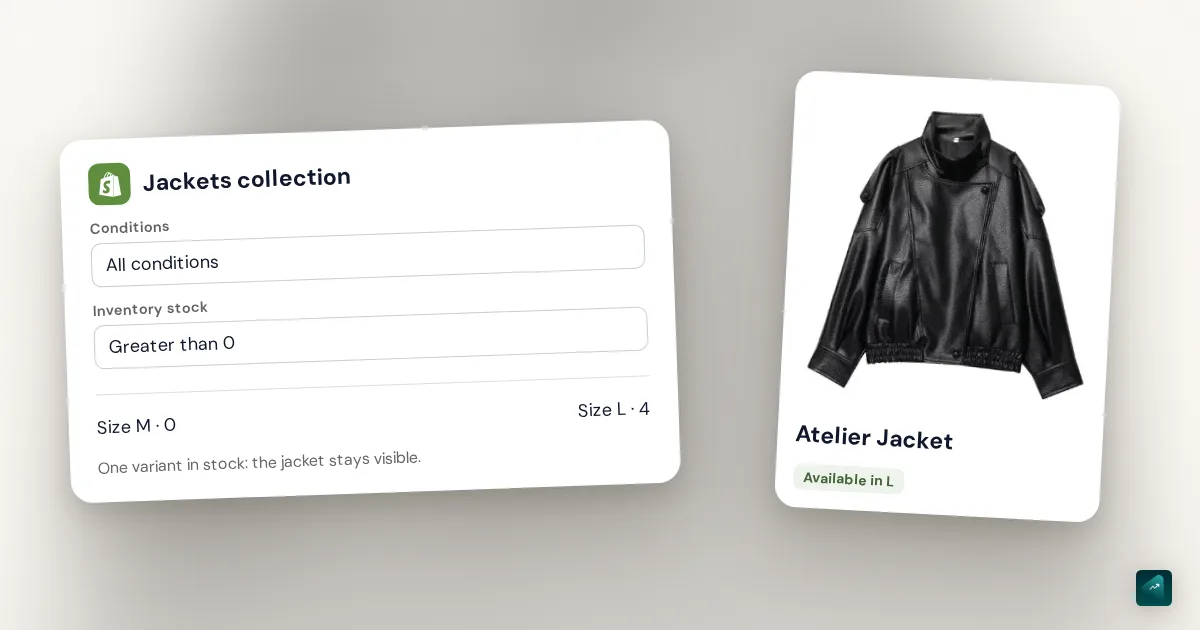
Allowing sales after inventory reaches zero keeps orders open. That setting alone does not define a deposit, a payment schedule or pre-order information. For inventory settings, see the Shopify variants and stock guide.
First decide what you are offering: a reservation for a future launch, or a sold-out item with a known restock date. If you cannot give a credible shipping timeframe, a back-in-stock notification is a better fit than a delivery promise.
Configure the product and payment
- Choose a pre-order app that supports your theme and intended payment arrangement. Check its cost and features before installing it.
- Select products or variants in the app, then configure the payment arrangement and due date.
- On the Shopify product page, decide whether to sell exclusively through the purchase option or also offer a one-time purchase.
- Read the product page and checkout as a customer. The buyer needs to understand the commitment.
Shopify pre-orders do not support Shop Pay, Apple Pay, Google Pay, local payment methods such as Klarna or buy-X-get-Y discounts. Check these restrictions before applying your usual promotions. Official setup instructions.
Example: a jacket that ships later
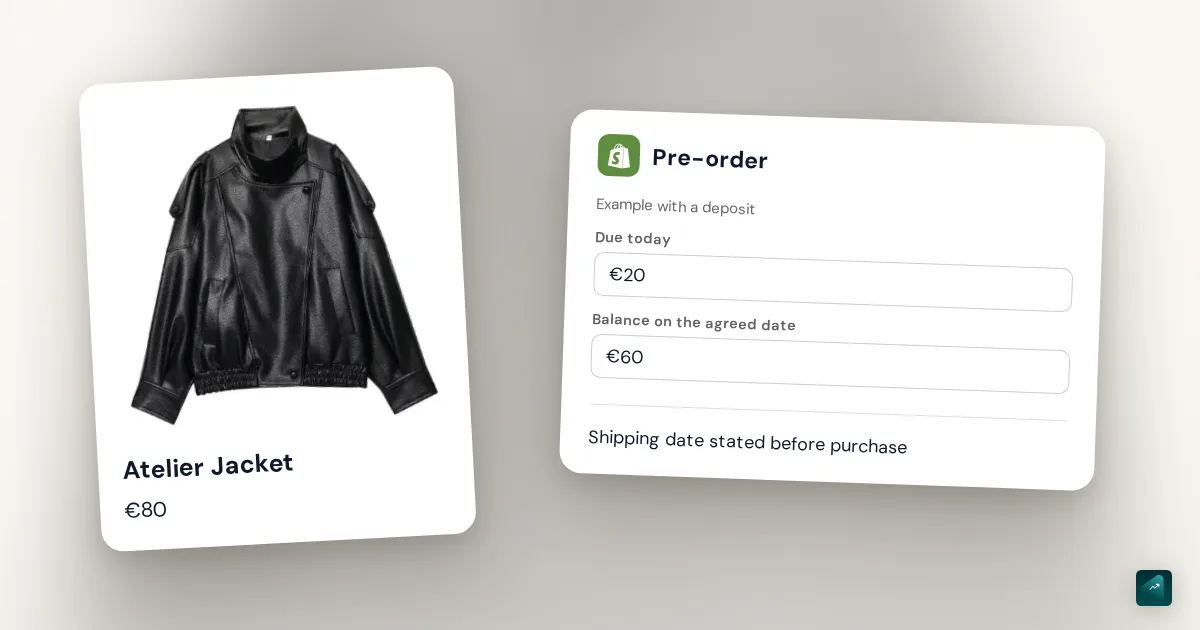
In this fictional example, a jacket costs €80: €20 at reservation and €60 on an agreed date. Before publishing, put these three details together:
- Today: the amount required to reserve it.
- Later: the remaining amount and when it will be collected.
- Shipping: the date or timeframe you can actually meet.
The chosen app’s settings need to produce that behavior. Adding “pre-order” to the title does not schedule collection of the balance.
Check before taking orders
Prepare a test order using your app’s testing procedure. Check the amount due immediately, the displayed balance, pre-order information at checkout and the confirmation received. Also test a cart containing an available item: the customer should understand what will arrive and when.
Configuration documented by Shopify, checked on November 12, 2026.