Your store is ready and you want to know if a customer can really buy. A test order answers that. It shows the shipping cost your customer pays and the email they receive. It also shows what lands in your admin. Shopify recommends placing at least one when you set up the store, then again whenever you change your payment settings.
There are three ways to do it. The right one depends on how you take payments.
Which method to pick
| Method | Who it's for | What it costs | What it doesn't test |
|---|---|---|---|
| Shopify Payments test mode | You take payments with Shopify Payments | Nothing | PayPal Wallet and Shop Pay Installments |
| Test payment gateway | You don't have Shopify Payments | Nothing | Your real payment provider |
| Real order, then refund | You want to check everything, or you use bank transfer or cash on delivery | Your provider's fees, which aren't always returned | Nothing, it's a real sale |
If you take payments with Shopify Payments, pick the first method. It's the simplest, because you don't have to deactivate anything first.
Before you start
Pick a paid plan. Shopify only lets you test a payment gateway once you've chosen a paid plan. While you're on a trial with no plan, your store's checkout stays inactive. The trial question is covered further down.
Turn off apps that fulfill on their own. If an app automatically sends your orders to a supplier or a fulfillment service, deactivate it before the test. Otherwise your test order may really ship. That's the case with DSers if you dropship from AliExpress.
Use an email ending in @example.com. Shopify recommends this domain for test orders. Its systems recognize it and it keeps your inbox clear. If you want to receive the confirmation email to read it, use your real address.
Put at least one product live. The test order goes through a real product in your store. If you don't have one yet, how to add a product on Shopify walks you through it.
Method 1: Shopify Payments test mode
- In your Shopify admin, go to Settings > Payments.
- In the Shopify Payments section, click Manage.
- In the Test mode section, select Enable test mode.
- Click Save.
Depending on your region, Shopify may ask for your business information before you can turn this mode on. Once it's on, customers can no longer pay with a real card. So don't leave it on any longer than the test.
At checkout, fill in the card fields with these test values.
- Card number: 4242 4242 4242 4242 for a Visa.
- Name on card: at least two words.
- Expiry date: any date in the future.
- Security code: any three digits.
Want to see what a customer sees when their card is declined? Pay with 4000 0000 0000 0002. Shopify then shows the decline message. The Shopify Help Center lists other numbers for insufficient funds or an expired card.
Method 2: the Test payment gateway, formerly Bogus Gateway
If you don't use Shopify Payments, Shopify provides a fake payment gateway. Older tutorials call it Bogus Gateway. In today's admin it's called Test payment gateway.
It can't run alongside another card provider. So you first deactivate the one you have.
- Go to Settings > Payments.
- Deactivate your current card provider. For a third-party provider, click Manage > Deactivate. For Shopify Payments, click Manage > Manage payment methods. Then, at the bottom of the page, click Switch to a third-party provider twice to confirm.
- Open the list of providers. Click See all other providers if Shopify Payments is available in your country, otherwise Choose a provider.
- Select Test payment gateway and activate it.
- Click Save.
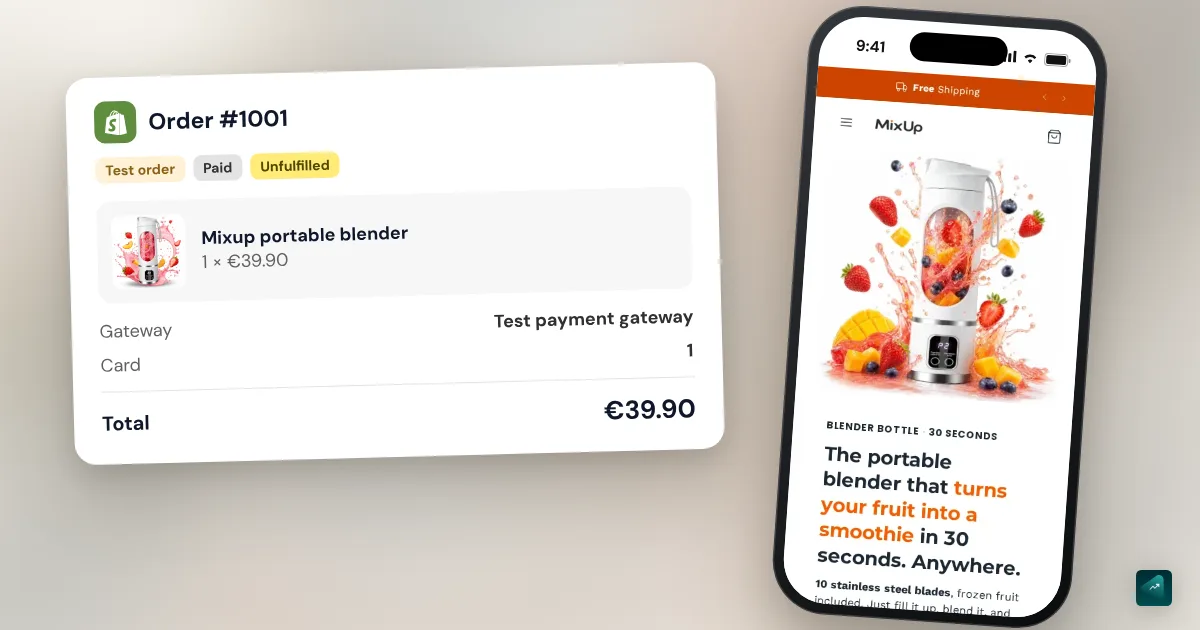
At checkout, type Test payment gateway as the name on the card. The card number is a single digit. Type 1 for an approved payment, 2 for a decline and 3 for a gateway failure. The security code is any three-digit number, like 111. The expiry date is any date in the future.
Two limits to know. The cart has to be worth more than the equivalent of 1 US dollar. And while this gateway is active, every order placed is a test order, including your real customers' orders.
Method 3: a real order, then a refund
You can also pay with your own card, then cancel and refund the order. It's the most complete test, since your real provider actually takes the money. Shopify warns, though, that some transaction fees aren't returned when you refund.
It's the only option for a manual payment method, like bank transfer or cash on delivery. Those methods have no test mode.
Refund as soon as the test is done. If you use a third-party provider, also check in its dashboard that the funds went through.
Place the order like a customer
With test mode on, open your store in a private browsing window, ideally on your phone. Add a product to the cart and go all the way to checkout. Pay with your method's test details, then open the order in your admin under Orders.
One order doesn't check everything. Shopify suggests testing several cases, and these are the ones that matter for a new store.
- Shipping costs shown for your country and a neighboring one. They come from your shipping settings and your product weights.
- A discount code, to see that the discount applies.
- Free shipping, with a cart just above your threshold.
- A declined payment, to read the message your customer will see.
- The confirmation email, its content and your logo.
- The shipping notification, by adding a tracking number to the test order.
- A refund, so you know how before your first unhappy customer.
After the test: cancel, archive or delete
A test order behaves like a real one in your admin. Shopify even presents it as a way to check your inventory tracking. If you track quantity for that product, its stock may have moved. Then clean up the order in three steps.
1. Cancel it to restock. Open the order, then click More actions > Cancel order. Leave Restock inventory checked, which it is by default. Uncheck Send a notification to the customer if you don't want a cancellation email.
2. Archive it if you just want it off the list. Open the order and click More actions, then Archive orders. It moves to the Closed orders view.
3. Delete it to make it disappear. An order has to be canceled or archived before you can delete it. Open it, click Delete order, then confirm. The test orders you can delete are the ones paid with the Test payment gateway or Shopify Payments test mode. Shopify also lets you delete a few other orders, like those paid by bank transfer. A real order paid by card can never be deleted. An order placed through another provider in test mode doesn't count as a test order. You'll be able to archive it, but not erase it.
Your numbers stay clean. Test orders and simulated payments don't show in your payouts or your reports. A refunded real order, on the other hand, is a real sale that got canceled. For a real order you need to cancel or refund, follow how to cancel an order on Shopify.
Finally, turn test mode off. Go back to Settings > Payments and turn off Shopify Payments test mode. If you used the Test payment gateway, deactivate it and reactivate your real provider. Until you do, no customer can pay with a real card.
Can you place a test order during the free trial?
Yes, as long as you pick a plan. During the trial, your store is in private mode or its checkout is inactive. Picking a plan turns checkout on. According to the Shopify Help Center, billing for that plan only starts when the trial ends, and the trial length doesn't change.
Keep one consequence in mind. If you pick a plan and then change your mind, you have to pause or deactivate the store yourself to avoid being billed. Trial details and prices are in is Shopify free.
The traps that keep coming back
Forgetting test mode. It's the most expensive one. Your store looks open, but no real card goes through. After every test, check under Settings > Payments that test mode is off.
Apple Pay and Google Pay in test mode. These buttons may stay available and use your real card. Nothing is charged, though. To be sure, check that the order carries the test mode banner.
PayPal. Shopify Payments test mode doesn't test PayPal Wallet. For PayPal, the safe test is still a real order that you refund. PayPal settings and fees are in the Shopify PayPal guide.
The order sent to the supplier. A fulfillment app left on treats the test order as a real one. Turn it off before the test, or cancel the fulfillment right after.
What Ova sets up before your test
Ova doesn't place orders, and it doesn't set up your payment methods. This test stays between you and Shopify. What Ova does prepare is everything the test order checks. It sets up your products and variants, your shipping zones and rates and your discount codes, right in your Shopify store. You could type "Offer free shipping in France on orders over €50 and create the code WELCOME10 for 10% off". Your test order then tells you whether it all shows up as planned. Generating and editing your store with Scale Ova is free, and the subscription unlocks publishing to Shopify.
If you're still at the early steps, the complete guide to building a Shopify store puts the test where it belongs, right before launch.
FAQ
How do I place a test order on Shopify without paying?
What card number do I use for a Shopify test order?
1 as the card number and Test payment gateway as the name.What is the Shopify Bogus Gateway?
Does a test order reduce my inventory?
Do test orders show up in my analytics?
How do I delete a test order on Shopify?
Can customers order while test mode is on?
Sources
- Shopify Help Center, activating a payment gateway in test mode: Test payment gateway, cards 1, 2 and 3, 1 USD minimum, accessed October 29, 2026
- Shopify Help Center, processing a test order: @example.com address, fulfillment apps, manual payment methods, real order, accessed October 29, 2026
- Shopify Help Center, testing Shopify Payments: test mode, test cards, Apple Pay and Google Pay, paid plan, accessed October 29, 2026
- Shopify Help Center, canceling, archiving and deleting orders: Restock inventory, which orders can be deleted, accessed October 29, 2026
- Shopify Help Center, free trial: private mode, a plan picked during the trial is billed when the trial ends, accessed October 29, 2026