A customer emails you that they picked the wrong size. Another ordered a product you no longer have. Or an order just looks off. In all three cases, Shopify gives you several buttons that look alike. They don't do the same thing to your money or your inventory.
This article takes each case in order. You'll know which button to use and what it costs you.
Cancel, refund, archive or delete
These four actions often get mixed up. Here's what each one does, according to the Shopify Help Center.
| Action | What it does | When to use it | The customer's money |
|---|---|---|---|
| Cancel | Stops the order from being processed | Nothing has shipped yet | Refunded now, as store credit or later, your choice |
| Refund | Returns all or part of the payment | Goodwill gesture, missing item, return received | Sent back to their payment method or as store credit |
| Archive | Moves the order off your open orders list | The order is done | Nothing moves |
| Delete | Removes the order from your admin and reports | Only some order types | Nothing moves |
So canceling doesn't mean refunding. You can cancel an order without returning the money right away. You can also refund an order without canceling it.
Cancel an order that hasn't shipped
This is the simplest case. The customer paid and nothing has left.
- In your Shopify admin, go to Orders.
- Click the order you want to cancel.
- Click More actions > Cancel order.
- In the Refund payment section, pick Original payment method, Store credit or Later.
- In the Reason for cancellation menu, pick the reason.
- If you want, add a Staff note.
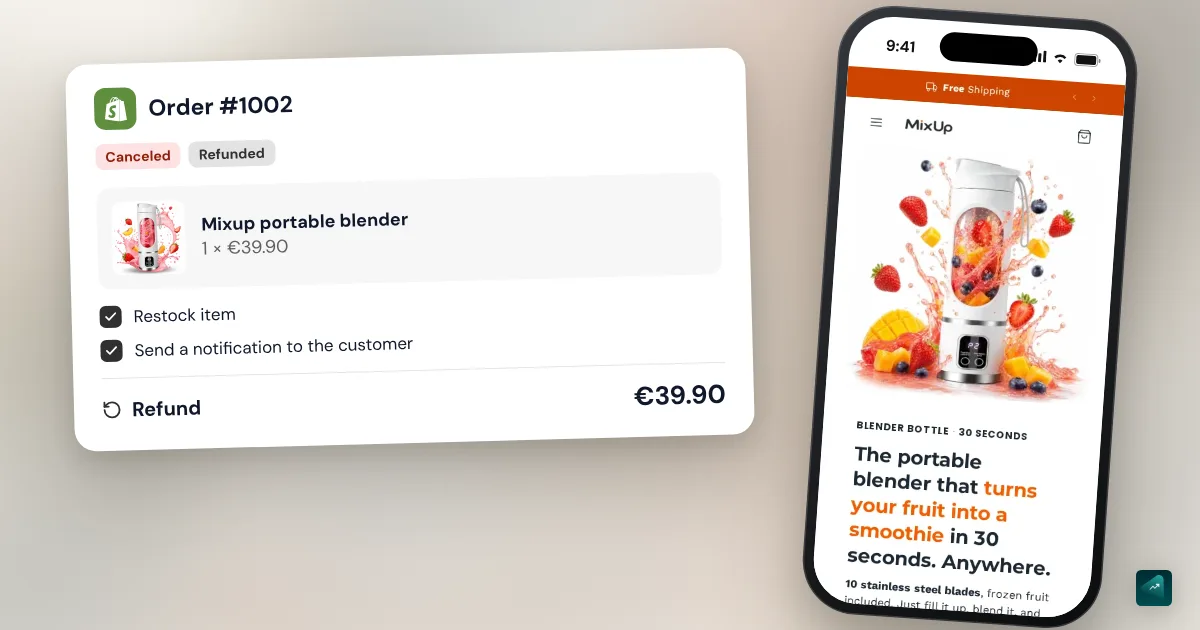
- Leave Restock inventory checked so the items go back into your stock.
- Leave Send a notification to the customer checked so they get an email.
- Click Cancel order.
The refund choice matters more than it looks. Original payment method is selected by default and returns everything to the customer. Store credit refunds them as credit in your store. In France, Service-Public says store credit instead of a refund needs the customer's express agreement. Don't pick it without asking them.
Later cancels without refunding anything. Shopify suggests it when you want to refund only part of the order, or look into it first. Keep track of that order somewhere. A customer who isn't refunded can dispute the charge with their bank, and that chargeback costs you more than a refund.
Everything you restocked and refunded is logged in the order's Timeline. You can go back to it if the customer disputes.
A suspicious order or an out-of-stock product
Shopify lists both as normal reasons to cancel. An order you suspect is fraudulent gets canceled before it ships, with a refund to the original payment method. So does a product you can no longer supply. Tell the customer first, so they don't find out from an automated email.
Why the Cancel button is missing
If Cancel order isn't in the menu, Shopify is blocking the cancellation. The most common reason is a partially fulfilled order. Shopify doesn't let you cancel an order once part of it is fulfilled. You can cancel that fulfillment to make the order cancelable, or go through a refund and a return.
An order created by a third-party app can also block cancellation. In that case, the app's developer knows how to handle it. If you can't tell why it's blocked, the order's Timeline often explains it.
Refund without canceling
A refund is for when the order carries on. An item arrives damaged and you make a gesture. Or one product out of three is missing and you refund that one.
- Under Orders, open the order.
- Click Refund.
- Enter the quantity of each item to refund. An item left at 0 isn't refunded.
- To refund shipping too, select Shipping in the Refund shipping section and enter the amount.
- If you want, write a Reason for refund. The customer doesn't see it.
- In the Summary section, pick the Refund method and check the Refund amount.
- Click Refund.
For a partial refund, you can also type a lower amount directly. The order then moves to Partially refunded. You can issue more partial refunds later, up to the total amount paid.
A refund can't be taken back. Shopify doesn't let you cancel or void a refund started from the admin. If you made a mistake, the only fix is to create a draft order and charge the customer again. So check the amount twice before you click.
One last point on partial refunds. The customer can still dispute the whole order with their bank. Shopify warns that the full amount can then be debited from you. Keep your messages with the customer and the refund record, since that's your evidence in a dispute.
Put the stock back
When you cancel, Restock inventory is checked by default. When you refund, the option is Restock items. That second one only shows up if you track inventory for the items in the order.
Uncheck it when the item can't be sold again. That's the case for a product that arrived broken. It's also the case in dropshipping, where you hold no physical stock.
Sometimes there's nothing to refund, like an order that was never paid. You can then restock the items with no return or refund. Open the order, click Restock, enter the quantity and click Restock items.
What a refund costs you
With Shopify Payments, you don't get the order's card fees back. Shopify says so plainly, whether the order shipped or not. The refund itself adds no new fees. Refunding a $40 order therefore costs you the card fees you paid on that $40. The rate depends on your plan and the customer's card.
With another payment provider, the rule depends on your country. If Shopify Payments is available where your store is based, Shopify's transaction fees aren't refunded either. If it isn't, the transaction fee is credited back in proportion to what you refund. Your provider also has its own rules on its fees.
The refund money comes out of your next Shopify Payments payout. The refund stays Pending for up to 2 business days. The customer may then wait up to 10 business days, depending on their bank. Shopify also says you can usually issue a refund up to 120 days after the order.
If your payout balance falls short, Shopify debits the difference from your bank account in most major markets, the US and the UK included. These rules were checked in the Shopify Help Center on October 29, 2026.
The order already shipped
Once the package is gone, canceling isn't the right tool anymore. The path is a return, then a refund once it comes back. Shopify recommends that order. A refund issued without a return records no return reason, and you can't create the return afterwards.
- Under Orders, open the order.
- Click Return. If the order still has unfulfilled items, use More actions > Return.
- In Select quantity to return, enter the items coming back.
- Pick a Return reason.
- In the Return shipping options section, upload a return label or pick No shipping required.
- Click Create return.
When the package comes back, you process the return and refund. If you bought a shipping label in Shopify and didn't use it, void it. Shopify requires that before you can delete an order anyway.
An order already placed with your supplier
In dropshipping, one sale creates two orders. There's your customer's order in Shopify and the one you place with your supplier. Canceling the first doesn't settle the second.
Shopify says as much about third-party fulfillment services. An order they handle sometimes has to be canceled on their side before you cancel it in Shopify. So first check where the order stands with your supplier. If it isn't paid or shipped yet, cancel it on their end. If it already left, the customer will get the package and you'll go through a return.
With DSers, AliExpress orders are placed and paid from the orders tab. The full flow is in the DSers tutorial for Shopify. Get into the habit of checking for cancellation requests before you pay your supplier, not after.
Can your customer cancel on their own?
Not by default. Your customer emails you, and you do the canceling. Shopify even tells customers looking for a refund that they need to contact the store.
You can open a door for them. Shopify offers self-serve returns and cancellations. Your customer then requests a cancellation from their order status page, for items that haven't shipped. It stays a request. The order doesn't change until you approve it.
To turn it on:
- Go to Settings > Customer accounts.
- In the Customer accounts section, turn on Self-serve returns and cancellations.
- In the request type menu, pick Return and cancel requests or Cancel requests only.
You then set the window under Settings > Policies, in the Return and cancellation rules section. Under Cancellation rules, you choose how long your customer can still cancel:
- No cancellations;
- Until item is fulfilled;
- 15 minutes, 1 hour or 24 hours after the order.
For customers in the European Union, Shopify suggests Until item is fulfilled.
This feature doesn't work with Shopify's legacy customer accounts. Your customer also needs to sign in to their account to send the request.
The EU 14-day withdrawal right
If you sell to consumers in the European Union, they have 14 days to change their mind without giving a reason. For a product, the clock starts the day after delivery. In France, you then have 14 days from their decision to refund them, original shipping included. You can wait until you get the product back or see proof that they shipped it.
Refusing a cancellation doesn't remove that right. Since June 19, 2026, an EU rule also requires an online withdrawal function on your store. What to put in your policies is covered in Shopify legal pages.
Archive or delete an order
Archiving tidies up a finished order. By default, Shopify automatically archives most orders you're done with. To do it by hand, open the order and click More actions > Archive orders. It moves to the Closed orders view.
Deleting is far more limited. A deleted order disappears from your admin and your reports. Shopify only allows it for these orders:
- test orders;
- orders paid with a manual payment method, like bank transfer;
- orders that started as a draft and were then marked as paid;
- orders imported through the Shopify API;
- draft orders.
So a real order paid by card can't be deleted. You cancel it or archive it, and it stays in your history. An order paid with a gift card can be archived but not deleted either.
For an order you can delete, cancel or archive it first. Open it, click Delete order, then confirm. If it's a test order you want gone, the full cleanup is in Shopify test order.
What Ova does around your orders
Ova doesn't place or cancel orders. Those actions stay in your Shopify admin. What Ova can do is write your return and refund policy and save it straight to Shopify. You could type "write my return policy: 14-day withdrawal, return shipping paid by the customer, refund within 14 days to the original payment method". Read the text before you publish it. Generating and editing your store with Scale Ova is free, and the subscription unlocks publishing to Shopify. For the rest of your setup, the complete guide to building a Shopify store picks up from here.
FAQ
How do I cancel an order on Shopify?
Does canceling a Shopify order refund the customer?
How do I issue a partial refund on Shopify?
Can I delete a Shopify order?
Do I get Shopify fees back when I cancel an order?
Can I undo a refund on Shopify?
Can a customer cancel their own Shopify order?
I'm a customer. How do I cancel my order from a Shopify store?
Sources
- Shopify Help Center, canceling orders: steps, refund options, orders that can't be canceled, archiving, which orders can be deleted, accessed October 29, 2026
- Shopify Help Center, refunding orders: full and partial refunds, restocking, fees not returned, refunds can't be undone, accessed October 29, 2026
- Shopify Help Center, Shopify Payments refunds: card fees not refunded, 2 and 10 business days, 120 days, insufficient balance, accessed October 29, 2026
- Shopify Help Center, creating returns and exchanges: return steps, accessed October 29, 2026
- Shopify Help Center, setting up self-serve returns and cancellations: activation, requests to review, customer accounts, accessed October 29, 2026
- Shopify Help Center, return and cancellation rules: cancellation windows, EU recommendation, accessed October 29, 2026
- Shopify Help Center, EU right of withdrawal: electronic withdrawal function in force since June 19, 2026, accessed October 29, 2026
- Service-Public (France), distance purchases and the right of withdrawal (in French): 14 days, refund within 14 days, shipping costs, store credit only with consent, page checked January 1, 2026, accessed October 29, 2026