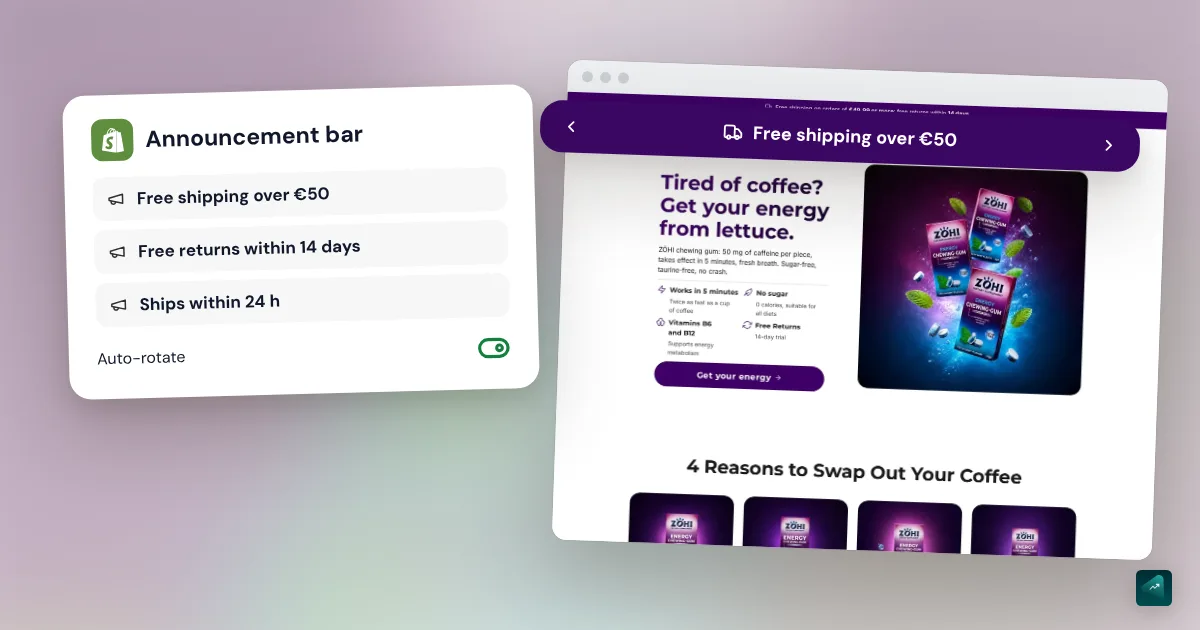
You've seen that thin strip at the very top of stores, with "Free shipping over $50." You want one, and Google mostly shows you apps. For one message or a few that rotate, your theme is almost always enough. Dawn and Horizon, Shopify's free themes, both have a built-in announcement bar. The longest part is deciding what to write in it.
Where the announcement bar lives on Shopify
The announcement bar is a section of your theme. Shopify calls it Announcement bar. In the theme editor, it sits in the Header area, right above the section that holds your logo and menu.
That area has one quirk. According to the Help Center, the header is shared across all of your store's pages. So your bar shows on the home page and on every product page alike. Neither Dawn nor Horizon has a setting to limit it to a single page.
To check whether your theme has one, open the editor and look at the list of sections. The Help Center names two possible places. The Announcement bar shows up as its own section, or inside the Header settings. If you can't find it in either, your theme's documentation will tell you whether it offers one.
How to add a message, step by step
- In your Shopify admin, go to Online Store.
- Click Edit theme next to your theme.
- In the Header area, open the Announcement bar section.
- Click Add Announcement.
- In the Text field, type your message.
- If you want, fill in the Link field. You can paste an address or pick a page of your store from the list.
- Click Save.
The link makes the message clickable. A free shipping message can lead to your main collection. A returns message can lead to your return policy.
The Help Center limits a theme to one announcement bar. It takes up to 12 announcements, which is also the limit written in Dawn's code. To take a message down without losing it, hover over its block and click the eye icon. It disappears from the store but stays in the editor. Remove block deletes it for good.
Announcement bar settings in Dawn and Horizon
Click the Announcement bar section itself to see its settings. In Dawn, you'll find these:
- Auto rotate announcements cycles your messages on their own.
- Change every sets how long each message shows, from 3 to 10 seconds. It's set to 5 seconds by default.
- Color scheme picks the background and text color from your theme's colors.
- Separator line adds a line under the bar.
- Social media icons, Country/region selector, and Language selector add those tools to the bar. Dawn notes that they only appear on large screens.
Without auto-rotate, Dawn shows arrows. Your customer then moves from one message to the next themselves. The Help Center still describes these settings with older names, like "Change slides every." The labels in the list come from Dawn's code as of October 29, 2026.
Horizon works a little differently. As soon as you have two announcements, they rotate on their own, with arrows to skip to the next one. The Time to next announcement setting goes from 2 to 10 seconds. You pick any color with Background color. Each announcement also has its own Font and text Size.
Making the bar scroll
When people say a scrolling announcement bar, they often mean two different things. The first is rotation. One message shows, then the next one replaces it a few seconds later. Dawn and Horizon do this natively with the settings above.
The second is text that slides continuously from one edge to the other, like a news ticker on TV. Dawn's announcement bar can't do that, and neither can Horizon's. Horizon does have a separate Marquee section. Its code blocks it from the header and the footer. So you can place it in the body of a page, under your home page banner for example. It can't go at the very top of the site.
Before you chase continuous scrolling, think about your customer. Sliding text is hard to read. They have to wait for the sentence to come back around to finish it. For information you want them to remember, rotation is easier to read.
What to put in your announcement bar
Free shipping, with your real threshold. It's the most common message. Write the exact amount, for example "Free shipping over $50." That line doesn't apply anything on its own. Your shipping setting is what drops shipping to $0 at checkout. To pick that threshold, increase your average order value explains how to set it just above your usual cart.
A welcome code. "10% off your first order with WELCOME10" gives people a reason to buy now. The trap is in the code's settings. If you limit it to new customers, Shopify turns it down for a visitor who doesn't have a customer profile yet. According to the Help Center, that visitor only joins the segment after their first order. A code shown on your site is seen by everyone anyway. So open it to all customers and limit it to one use per customer.
Your shipping time. "Ships within 48 hours" answers a question your customer asks before paying. Only write a delay you actually keep. If your supplier takes ten days, a bar that promises 48 hours will earn you worried emails.
Your returns. "Free returns within 30 days" reassures a customer who's unsure about a size. The bar has to say the same thing as your return policy. If the customer pays for the return shipping, don't write "free."
Timely news. The Help Center gives a shipping delay or a current promotion as examples. A message like "Orders after December 18 arrive after Christmas" saves you disappointed customers.
Two or three messages are enough. At 5 seconds per message, the fourth one only shows up after 15 seconds. By then, your visitor has often scrolled down the page.
The announcement bar on mobile
On a phone, the bar shows one message at a time. A long text wraps onto two lines and pushes your page down. Aim for a sentence that fits on one line of a phone screen. Check it in the editor's mobile preview before saving.
In Dawn, the social icons and the country and language selectors only show on large screens. On a phone, only your messages remain. That's one more reason not to rely on the bar for those tools.
When an app is worth it
The Help Center says it itself. An app takes over when your theme has no bar or lacks a setting you want. Three needs really justify one, and they're the ones Dawn and Horizon don't cover.
A countdown timer. Neither Dawn nor Horizon shows one in the announcement bar. An app like Essential Countdown Timer Bar adds a timer at the top of the page. Save it for a real end date, like the last day of your sale. A timer that resets on every visit lies to your customer, and they end up noticing.
A different message per country. The built-in bar shows the same text to every visitor. Hextom: Quick Announcement Bar and Essential Announcement Bar list location targeting on their Shopify App Store pages. Hextom adds page and device targeting.
Continuously scrolling text at the very top. That's the case Horizon's Marquee section doesn't cover. Apps like Fab Marquee Scrolling Text or BL Barre d'Annonces Défilante are built for it.
These listings were checked on October 29, 2026. Each app has its own pricing, so read its listing before installing. If you stop using one, uninstall it rather than leave it running.
The traps that keep coming back
- The bar's threshold doesn't match your shipping. The bar says $50 and your shipping setting says $60. Your customer reaches checkout with a $55 cart and sees a shipping fee. Fix one or the other so they show the same amount. Free shipping over an amount is set up as explained in Shopify shipping and payments.
- The code in the bar doesn't work. Most often, it's limited to new customers, or its end date has passed. The settings and error messages are covered in how to create a Shopify discount code.
- The sale is over, the bar still announces it. The announcement bar has no end date in Dawn or Horizon. The day your code expires, take the message down too. A customer whose code gets rejected is unlikely to finish their order.
- Too many messages. Past three, the last ones rarely reach your visitor's eyes. Keep the ones that answer a real buying question.
- The text is unreadable. Light text on a light background disappears, especially on a phone in bright sunlight. Pick a color scheme or background color with strong contrast.
- You can't see the bar on the live store. First check that you edited the published theme, not a copy. Then check that the section isn't hidden with the eye icon. If your store is still password protected, visitors see the password page. In Dawn and Horizon, that page doesn't show the header, so it doesn't show the bar either.
Doing it in one sentence with Ova
If your store is built with Scale Ova, its theme also has an Announcement bar at the top of every page. It can rotate your messages or slide them continuously. Each message can carry a small icon, like a truck for shipping. You can also let visitors close it. Instead of hunting for those settings, you write to Ova. For example: "Add to the announcement bar: free shipping over $50, and make the messages scroll." Ova adds the message to the bar and sets its display mode. It can also create the free shipping over $50 in your Shopify admin, so the bar and checkout say the same thing. Generating and editing are free, and the subscription is what lets you publish to Shopify. For the rest of the store, the complete guide to building a Shopify store walks through every setting in order.
FAQ
How do you add an announcement bar on Shopify?
Do you need an app for a Shopify announcement bar?
How do you make the Shopify announcement bar move?
How do you put free shipping in the Shopify announcement bar?
How do you add a countdown timer to the Shopify announcement bar?
Why isn't my announcement bar showing?
How do you remove the announcement bar on Shopify?
Sources
- Shopify Help Center, Add an announcement bar: steps, one bar per theme, 12 announcements, hiding or deleting, banner apps, checked October 29, 2026
- Shopify Help Center, Customizing sections in the theme editor: Header area, header shared across all pages, checked October 29, 2026
- Shopify Help Center, Discount codes FAQ: a new customer only joins a segment after their first order, checked October 29, 2026
- Dawn, Announcement bar section and English settings translation file: 12 announcements, rotation from 3 to 10 seconds, tools limited to large screens, checked October 29, 2026
- Horizon, Announcement bar section, Marquee section, and English settings translation file: rotation from two announcements, 2 to 10 second delay, Marquee kept out of the header, checked October 29, 2026
- Shopify App Store listings for Essential Countdown Timer Bar, Hextom: Quick Announcement Bar, Essential Announcement Bar, Fab Marquee Scrolling Text, and BL Barre d'Annonces Défilante: features as stated by their developers, checked October 29, 2026