You've added your first products and they show up in one big pile. Your customer would like to see the candles in one place and the diffusers in another. On Shopify, that grouping is called a collection. It's a page that gathers products under its own title and address.
The Shopify Help Center describes every button. This guide mostly helps you pick the right kind of collection. It also shows how to make it visible, because a new collection shows up nowhere until you place it.
Manual or automated collection
A manual collection holds the products you pick one by one. It only changes when you edit it. That's the right choice for a small selection, like "Our favorites" or a gift idea.
An automated collection fills itself based on conditions. A product that meets the conditions joins the collection. A product that stops meeting them leaves it. That's the right choice whenever the collection should follow your catalog without you thinking about it.
Here are some real examples of conditions.
- Candles: the product type is equal to "Candle." Every new candle joins on its own.
- Sale: the compare-at price is set. A product with a strikethrough price joins, then leaves when you remove that price.
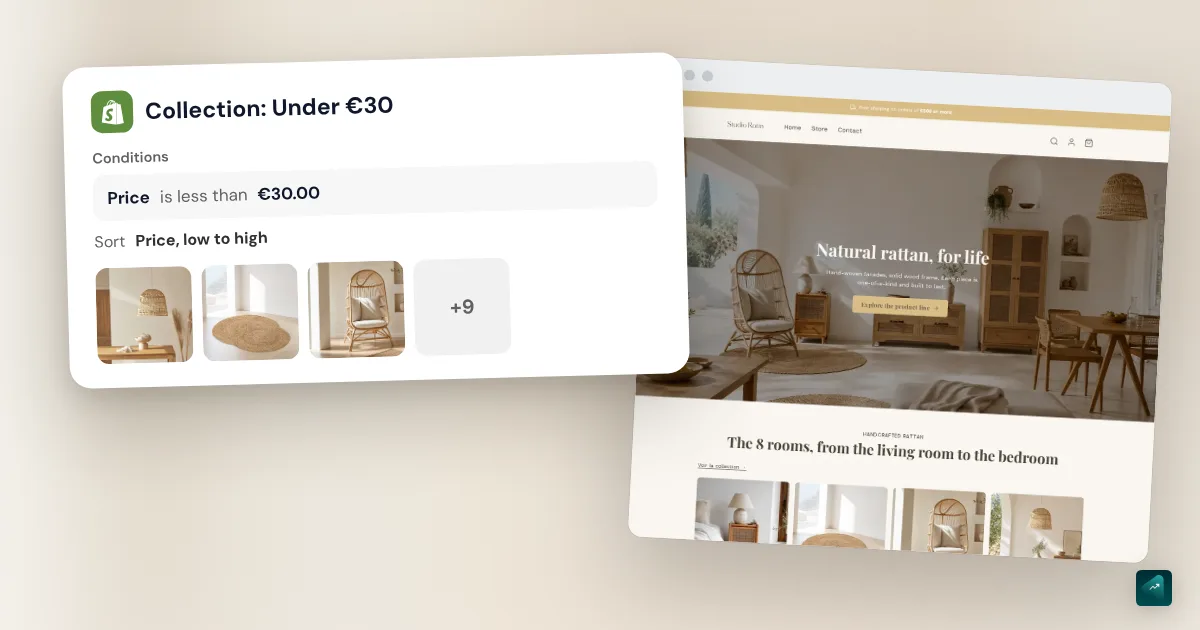
- Under $30: the price is less than $30.01.
- Summer 2026: the tag includes "summer-2026." You add the tag on the product page and the collection follows.
- A brand: the vendor is equal to the brand name.
As your catalog grows, automated collections save you time. You tag a product once, on its own page, and every collection it belongs to updates.
Two screens depending on your store
Shopify rebuilt its collections in 2026. The new model reached the Shopify API on July 1, 2026. On the new screen, you no longer choose between manual and automated. One collection can mix hand-picked products and conditions. It can also exclude products or pull in those from another collection.
The Help Center still describes the old screen, under the name "legacy" collections. You'll recognize it by its Collection type section, which offers Manual or Smart. Shopify now calls automated collections smart collections. For a new store, both screens do the same job. Follow the part that matches what you see.
You also need the right plan. According to the Help Center, the Starter plan doesn't support collections. You need the Basic plan or higher.
How to create a collection, step by step
- In your Shopify admin, go to Products > Collections.
- Click Add collection.
- Click Add title and type the collection name, for example "Candles."
- Click Add description and write a few lines about what's inside.
- Click the image icon to add a featured image, then click Done.
- In the Products source, click Add products to pick them one by one. To have them join on their own, click Add condition instead.
- If you set several conditions, choose Match all conditions or Match any conditions.
- Set the sort order for the products.
- Check the sales channels. The collection needs to be available on the Online Store.
- Click Save.
- Add a link to the collection in your store's menu.
A new collection comes with an empty Products source. You can add more sources, for example one that pulls in another collection. A product brought in by two sources shows only once.
On the old screen
- Go to Products > Collections and click Add collection.
- Enter a title and a description.
- In the Collection type section, choose Manual or Smart.
- For a smart collection, say whether products must meet all the conditions or just one. Then set each condition with the drop-down menus.
- Click Save.
- For a manual collection, add your products in the Products section, with the search or the Browse button.
- Add the image in the Collection image section, then save.
On this screen, the type can't be changed later. The Help Center says a manual collection can't become automated. The fix goes through a tag. Add the same tag to every product in the manual collection. Then create an automated collection with that tag as its condition.
Conditions that pull in the right products
Match all conditions means the product has to meet every condition. Match any conditions means one is enough. Take two conditions, the tag "organic" and a price under $30. With the first option, you get organic products under $30. With the second, you get every organic product and every product under $30.
A price range takes two conditions. The Help Center's example is a price greater than $49.99 and less than $150.01, with all conditions matched. Text conditions like "contains" need a value at least three characters long. A collection accepts up to 60 conditions, and one or two are almost always enough.
Beginners often look for one condition that isn't there. Shopify has no condition based on the date a product was created. The Help Center's list doesn't include one as of October 29, 2026. For a New arrivals collection, you have two options.
The first uses a tag. Add the tag "new" to each recent product and make it the condition. Remove the tag when the product isn't new anymore. The second uses sorting. Sort a broad collection from newest to oldest. A homepage section that shows its first products will then always show your latest arrivals.
Image, description, and SEO
In many themes, the featured image shows at the top of the collection page. It also serves as the thumbnail when the collection appears in a list. Dawn, the free Shopify theme, has a Collection banner section. Its Description and Image checkboxes show or hide those two elements.
The description matters for Google. A collection answers a broad search, while a product page answers a precise one. Write two or three useful sentences at the top of the page. Say what the collection holds and who it's for.
Further down, the Search engine listing section controls what Google shows. The Page title becomes the clickable link in the results. The Meta description becomes the text below it. The Help Center warns that a title over 70 characters might get cut off. The limit is 320 characters for the description.
The URL handle is the end of the collection's address. Don't change it often. If you do, keep the option that creates a redirect from the old address. The rest of a store's SEO is covered in the guide to Shopify SEO.
How to sort products in a collection
A new collection sorts its products by Most relevant, based on sales. To change that order, open the collection and go to the Collection items section. The Default sort menu offers these orders:
- most relevant, based on sales performance;
- best selling, based on the total number of orders;
- title, from A to Z or Z to A;
- price, from low to high or the reverse;
- creation date, from newest to oldest or the reverse;
- a manual order.
With no sales yet, best selling sorts products from newest to oldest. Manual sorting lets you put your hero product first. Choose Manually, then drag the products. The Move menu can also send a selection To the beginning or To the end.
This sort is only the default order. Customers can often change it on the page if your theme shows a sort menu. In Dawn, that's the Sorting checkbox in the Product grid section.
Adding the collection to your menu
A published collection doesn't join your menu by itself. The Help Center spells it out. Making it available on the Online Store doesn't create any link to it.
Go to Content > Menus and open your main menu. Add an item that points to the collection, then save. To group several collections under a "Shop" tab, follow the guide to the Shopify dropdown menu.
Showing a collection on your homepage
The homepage is set up in the theme editor, not in the collection.
- In your Shopify admin, go to Online Store.
- Next to your theme, click Edit theme.
- The editor opens on the homepage. In the sidebar, click Add section.
- Choose the Featured collection section.
- In its settings, pick your collection.
- Click Save.
The section has that name in Dawn and in Horizon, two Shopify themes. In Dawn, the Product count setting limits what shows. A "View all" button then leads to the full collection. To show several collections as thumbnails, use the Collection list section instead. Paid themes each use their own names, so look for a similar section in yours.
Adding filters to the collection page
Filters let customers narrow down a collection, by price or by size. You set them up in the Shopify Search & Discovery app. If it isn't in your apps, you'll find it on the Shopify App Store.
- In your Shopify admin, go to Apps > Search & Discovery.
- Click Filters, then Add filter.
- In the Source field, choose what to filter by, like price or a product option.
- Click Save.
Price, availability, and vendor are among the standard filters. Your product options, like size, give you custom filters. A store can have up to 25 filters. A collection with more than 5,000 products doesn't show any.
Your theme also has to display the filters. In Dawn, that's the Filters checkbox in the Product grid section. If your theme doesn't support them, a message shows in Content > Menus, in the Collection and search filters section.
Making subcollections
For Shopify, a subcollection is a collection like any other. The link between parent and child works in two ways.
On the new screen, a collection can pull in the products of other collections. Open the parent collection, for example "Accessories." In a source, switch the drop-down menu from Products to Collection. Click Connect a collection and choose "Belts," then do it again with "Hats." The Help Center caps a store at 50 collections that contain another one.
On the old screen, you go through tags. Belts carry the tag "belt" and hats the tag "hat." The "Accessories" collection takes both tags with any condition matched.
What customers see as a subcategory mostly comes from the menu. An "Accessories" tab that drops down "Belts" and "Hats" is set up in Content > Menus.
How many collections to start with
Start from your menu. Each main product family deserves its own collection. Then add one or two featured collections, like New arrivals or Sale. For menus, the Help Center suggests keeping seven items at most in the bar. That's a good ceiling for your main collections too.
Avoid a collection with a single product. It makes an almost empty page that helps nobody. If two collections hold nearly the same products, merge them.
A collection can also stay offline. The Help Center mentions an unpublished collection used only to target a discount. For that use, see the guide to Shopify discount codes.
Why your collection is empty or doesn't show
- The collection isn't in any menu. It exists at its address, but nothing leads to it. Add it to the menu or to a homepage section.
- The collection isn't available on the Online Store. Check its sales channels. A duplicated collection starts out in no sales channel.
- The product isn't published on the Online Store. Changing a collection's channels doesn't change its products' channels. Open the product page and check its Publishing section.
- The product is Draft or Unlisted. A draft isn't for sale yet. An unlisted product doesn't show on collection pages. The tutorial on how to add a product on Shopify covers these statuses.
- The condition matches nothing. One typo in a tag is enough. The "is equal to" condition needs the exact, complete value.
- The collection pulls in too many products. The condition "title contains bow" also catches a product called "Elbow pad." Also check that you didn't pick any condition by mistake. In that mode, a product status condition adds every product with that status.
- You can't remove a product from its own page. It came in through a condition. Change the condition, or exclude the product in the source's Exclude section.
- A link vanished from your menu. Deleting a collection also removes its links from your menus.
Or ask Ova to do it
If your store is connected to Scale Ova, Ova creates your collections right in your Shopify admin. It can build a hand-picked collection or one based on conditions. It also sets the sort order, the description, and the SEO fields. Since it also handles the menu and the theme, one sentence covers the whole job. For example:
Create a Budget picks collection with every product under $30, from cheapest to most expensive. Add it to the main menu and feature it on the homepage.
Like Shopify, Ova has no date condition. For a New arrivals collection, ask it to tag your recent products.
FAQ
How do you create a collection on Shopify?
What's the difference between a manual and an automated collection?
How do you add a product to a collection?
How do you show a collection on the Shopify homepage?
How do you sort products in a Shopify collection?
Can you make an automated New arrivals collection?
Why can't I create a collection on Shopify?
How do you make a subcollection on Shopify?
Sources
- Shopify Help Center, Collections: plans, sources, examples of collections, checked October 29, 2026
- Shopify Help Center, Creating collections and adding products: new screen steps, sources, 50 nested collections limit, adding from the product page, deleting, checked October 29, 2026
- Shopify Help Center, Understanding conditions for collections: condition types, 60 conditions, three characters for "contains," price ranges, the product status trap, checked October 29, 2026
- Shopify Help Center, Legacy manual collections: old screen, Starter plan, checked October 29, 2026
- Shopify Help Center, Creating and editing smart collections: old screen, replacing a manual collection, checked October 29, 2026
- Shopify Help Center, Automated collection examples: sale collection, accessories by tags, checked October 29, 2026
- Shopify Help Center, Editing collection details and layout: sort orders, manual sorting, checked October 29, 2026
- Shopify Help Center, Managing collection settings: sales channels, menu links, search engine listing, 70 and 320 characters, URL handle, checked October 29, 2026
- Shopify Help Center, Sections and blocks: adding a section to the homepage, checked October 29, 2026
- Shopify Help Center, Adding filters with Shopify Search & Discovery: steps, standard filters, 25 filters, 5,000 products, checked October 29, 2026
- Shopify Help Center, Set up drop-down menus: seven top-level items, checked October 29, 2026
- Shopify.dev, Introducing the new collections API: new collections model released July 1, 2026, checked October 29, 2026
- Dawn, English settings translation file: Featured collection, Collection list, Collection banner, and Product grid sections, checked October 29, 2026
- Horizon, English settings translation file: Featured collection section, checked October 29, 2026