You opened your Shopify store, typed its name into Google, and it isn't there. Or it shows up, but none of your products appear when you search for what you sell.
That is normal at the start. Shopify's Help Center lists four ranking factors. Three of them come with time, like links from other sites or the age of your domain. The fourth is the structure and content of your store. On a new store, the first three take months. You can fix the fourth one this week in your admin, for free.
This guide follows the order in which the settings matter. Menu names come from Shopify's Help Center, checked on October 29, 2026.
What Shopify already does for your SEO
A good part of technical SEO is handled for you. Shopify generates your store's sitemap.xml and robots.txt files. It adds canonical tags, which tell Google which URL to keep when a page exists twice. The SSL certificate is on by default, so your store runs on https.
Shopify themes also add structured data to product pages. Google can then show the price, availability or reviews under your result. You don't need to add any code for that, per Shopify's Help Center.
So your work comes down to two things. You open the door to Google, then you give it pages that answer what your customers type.
1. Take your store out of private mode
A new Shopify store starts in private mode. In this mode, every page is hidden from visitors and search engines. As long as it is on, Google can't index anything. You can't even verify your domain in Search Console.
To make the store public:
- In your Shopify admin, go to Online Store.
- Click Private.
- Select Public.
- Click Update.
If you aren't ready to sell, you can make it public just long enough to verify your domain. You then switch it back to private. But nothing gets indexed while it stays closed.
2. Connect Google Search Console and submit your sitemap
Google Search Console is Google's free tool for tracking your site. It shows the searches that display your store and the pages Google has indexed. It is also where you send your sitemap.
Your sitemap already exists. It sits at the root of your domain, at yourdomain.com/sitemap.xml. Shopify updates it on its own whenever you add content.
Start by proving to Google that the domain is yours:
- In Search Console, open the ≡ menu and choose Add property.
- Select URL prefix and enter your primary domain with the https://.
- In the Verify ownership window, choose HTML tag and click Copy.
- In your Shopify admin, go to Online Store.
- Open your theme's … menu and click Edit code.
- In the Layout section, open theme.liquid and paste the tag on a blank line right below the head tag.
- Click Save, then go back to Search Console and click Verify.
Then submit the sitemap:
- In Search Console, open Sitemaps in the Indexing section.
- Enter sitemap.xml in Add a new sitemap.
- Click Submit.
Use the domain your customers see, not the myshopify.com address. If you have several domains and don't sell internationally, Shopify recommends redirecting them all to your primary domain.
Google promises no timeline for crawling your store. After an important change, you can open Search Console's URL Inspection tool. It lets you request indexing for that page.
3. Write a title and meta description for every page
The title is the blue clickable link in Google's results. The meta description is the short text below it. Together, they decide whether people click on your store or the one next to it.
Shopify recommends a title of 60 characters or fewer, with the main keyword at the start. For the meta description, it suggests around 160 characters in natural sentences. Every page needs its own.
For a product:
- Go to Products and click the product.
- In the Search engine listing section, click the pencil icon.
- Fill in the Page title field, then the Meta description field.
- Click Save.
For a collection, go to Products > Collections and open the collection. For a page like "About us", go to Online Store > Pages. The same section sits at the bottom of the screen, with the same pencil.
For the homepage, go to Online Store > Preferences. Fill in the title and description in the Social sharing image and SEO section, then save. To get your icon next to your site in Google, see the Shopify favicon guide.
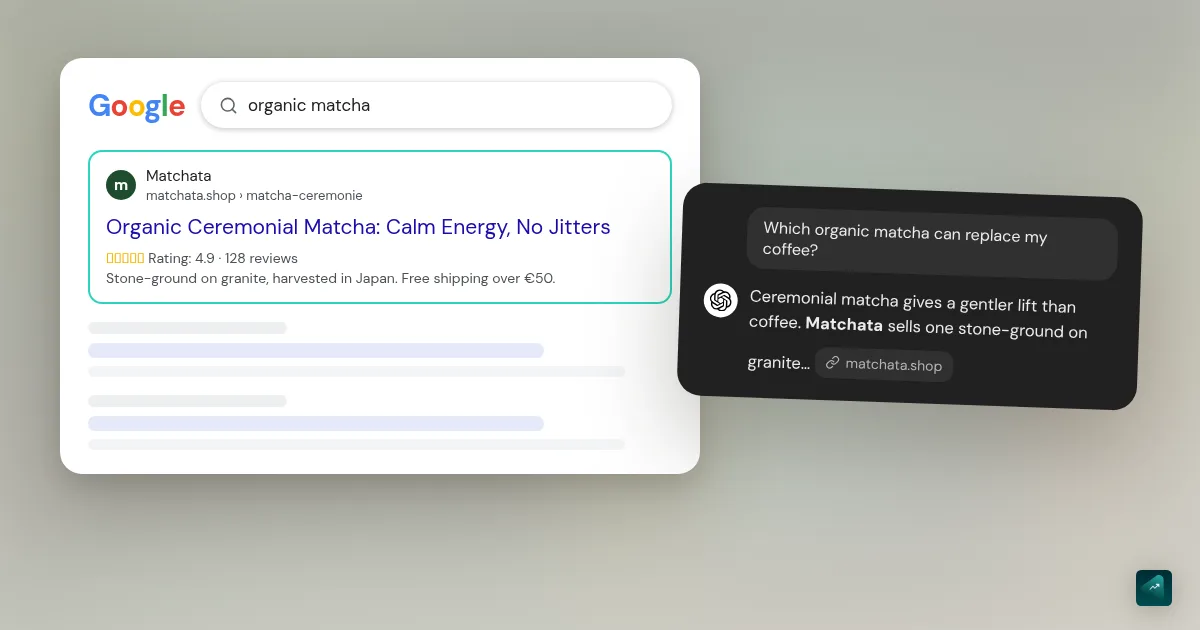
An example beats a rule. Take a product called "Premium Matcha". As a Google title, "Organic Ceremonial Matcha, 30 g Pouch | Matchata" says what it is and who it's for. The description can cover the taste and the delivery time. Nobody searches for "Premium Matcha", while people do search for "ceremonial matcha".
If you leave the field empty, your theme uses the product title followed by your store name. That isn't a mistake. But you miss the spot for the words your customers actually type.
Google sometimes rewrites your titles and descriptions. If the result it shows differs from what you entered, open the page's source code. If the title tag matches what you wrote, your setting is right and Google chose different text.
4. Keep clean URLs and redirect every change
Each product has a URL like yourdomain.com/products/ceremonial-matcha. The last part is called the URL handle. Shopify creates it from the title, and you edit it in the same section as the Google title, in the URL handle field.
Pick simple words separated by hyphens. Do it once, at the start. Shopify warns that a handle edited too often can make the product drop out of search results.
When a URL changes, the old one returns a 404 error. Links pointing to it are lost, and so is Google. For a page, Shopify offers a Create a URL redirect option, preselected when you change the URL. For a deleted product, create the redirect yourself. After a handle change, check that it appears in the list:
- Go to Content > Menus.
- Click View URL Redirects.
- Click Create URL redirect.
- Enter the old URL in Redirect from and the new one in Redirect to.
- Click Save redirect.
The redirect works right away. It only works if the old URL is actually broken. For a discontinued product, point to a similar product or to its collection, not to the homepage. For CSV imports, the URLs Shopify won't redirect, and redirects after a migration, see the guide to Shopify 301 redirects.
5. Describe your images with alt text
Google doesn't see your photos. It reads the alt text you give them. That text also helps people with visual impairments, whose screen reader reads it aloud.
For a product image:
- Go to Products and open the product.
- Click the image, then click Edit alt text.
- Describe what the photo shows.
- Click Save alt text.
For a collection or blog post image, click Update under the image, then Edit image. Write what you see, like "whisked matcha bowl on a wooden table". Don't write what you want people to think of it.
6. Write copy that answers what your customers search for
Settings open the door. Your copy is what brings visitors in. Start from the words your customers type, not the ones you use internally.
On Shopify, the title you give a product becomes the main heading of its page. Google uses it to understand the topic. Put the name people search for in it.
Don't copy your supplier's description. Other stores already have the same text, and Shopify advises against it for that reason. Write your own, around the questions your customer has. The guide on a product page that converts covers how.
Shopify's Help Center suggests 250 words per product page and 500 words per blog post as a benchmark. To write and publish those posts, follow the step-by-step to set up a Shopify blog. Treat it as a hint. Google itself says it has no preferred word count. A short page that answers everything beats a padded one.
Your collections often matter more than your products. A page for "organic matcha tea" answers a broad search, while a product answers a precise one. Give each collection a real intro and organize them in a clear menu from Content > Menus. Link your pages together too, for example from a blog post to the collection it covers.
7. Check speed, without chasing a score
Shopify measures your store's speed on real visitors. The summary appears when you go to Online Store. The details are in Analytics > Reports. This data only exists if your store is public.
The report tracks three Google metrics, the Core Web Vitals. The first is how long the main element of the page takes to show, rated good under 2.5 seconds. The second is how fast the page reacts after a click, rated good under 200 milliseconds. The third is layout stability.
Shopify notes that every app, image or video you add can slow the store down. The report marks each app install and theme update on its chart. You can see what moved your speed. Uninstall the apps you no longer use.
What really matters for a small new store
Agency guides talk about tag pages to deindex or theme code to rework. That helps on a large catalog. For a twenty-product store, it is time taken from what matters.
What matters fits in a few lines. Your store has to be public and known to Search Console. Every product and collection needs a title with what people search for. And no URL should end in a 404.
Aim first for long, precise searches. "Matcha" is out of reach for a three-month-old store. "Organic Japanese ceremonial matcha pouch" is within reach. After a few weeks, Search Console shows the searches that already display your store. Rework the pages that show up there first.
Links from other sites come next. Shopify's Help Center mentions press and blogs in your niche, for example. It warns that low-quality links can hurt. Don't buy links.
SEO is slow. It won't pay for your first month. For your first sales, you need other channels, like the ones in your first sales.
The mistakes that keep a Shopify store off Google
Staying in private mode. The store looks live to you, since you are logged in. For Google, it doesn't exist.
Verifying the myshopify.com address instead of your domain. Search Console then shows data for a URL your customers never see.
Changing a URL handle without a redirect. Shared links land on an error page. The product starts from zero in Google.
Deleting an out-of-stock product without a plan. If it's coming back, keep it online with a sold-out label. If it isn't, redirect its URL to a similar product.
Giving every page the same title. Google no longer knows which one to show, and neither does the customer.
Stacking SEO apps. Two apps can edit the same fields or add the same data twice. They also slow the store down.
Judging after one week. Google takes several days to a few weeks to pick up a change. Measure over a month or two in Search Console.
Do you need an app or AI for Shopify SEO?
Not to start. Everything above happens in the Shopify admin and in Search Console, for free. An app becomes useful when you have hundreds of product pages to rework and doing it one by one takes days.
AI mostly helps with writing. Shopify's Help Center says Sidekick, the assistant built into the admin, can draft a page title and meta description for you to review. Either way, proofread what comes out. A wrong title or an invented claim costs you more than an empty field.
For the role of AI in the rest of the store, the AI for Shopify guide covers the tools.
Where Ova can help
Ova, the Scale Ova assistant, works directly in your Shopify store. It can write the copy for your products and collections. It also fills in their Google titles and meta descriptions, and those of your pages. It adds alt text to photos and creates redirects. It can also write and publish blog posts and fill in your metafields.
You might type "Write a Google title and meta description for every product in the Green Teas collection, 60 characters max for the title". Or "The matcha-premium product is now matcha-ceremonial, redirect the old URL". It doesn't connect Search Console for you. It doesn't pick your keywords without you either.
You can generate your store and edit it for free on Scale Ova. A subscription is only required to publish it to Shopify. If you're starting from scratch, the complete guide to building a Shopify store walks through every step.
FAQ
Is Shopify good for SEO?
How long does it take for a Shopify store to show up on Google?
How do I connect Google Search Console to Shopify?
Where is my Shopify store's sitemap?
Why isn't my Shopify store showing up on Google?
Do I need to pay an agency or an SEO app for Shopify?
Why doesn't Google show the title I entered?
Sources
- Shopify Help Center, SEO overview, ranking factors, built-in SEO features, links, checked October 29, 2026
- Shopify Help Center, adding keywords for SEO, recommended lengths, homepage, time to update, checked October 29, 2026
- Shopify Help Center, adding and updating products, Search engine listing section, Sidekick drafts, URL handle warning, checked October 29, 2026
- Shopify Help Center, collection settings, checked October 29, 2026
- Shopify Help Center, adding and editing pages, Create a URL redirect option, checked October 29, 2026
- Shopify Help Center, finding and submitting your sitemap, Search Console verification and sitemap submission, checked October 29, 2026
- Shopify Help Center, URL redirects, checked October 29, 2026
- Shopify Help Center, restricting access to your online store, private mode, checked October 29, 2026
- Shopify Help Center, web performance reports, Core Web Vitals and thresholds, checked October 29, 2026
- Google Search Central, creating helpful, reliable, people-first content, no preferred word count, checked October 29, 2026