You get the same message about delivery times every week. That's a good sign you need an FAQ page. On Shopify, you can build one without an app, using a section your theme already has. This guide shows the steps in Dawn and in Horizon, Shopify's two free themes. Then it covers which questions to include, with a full example for a small store.
Create the FAQ page in your Shopify admin
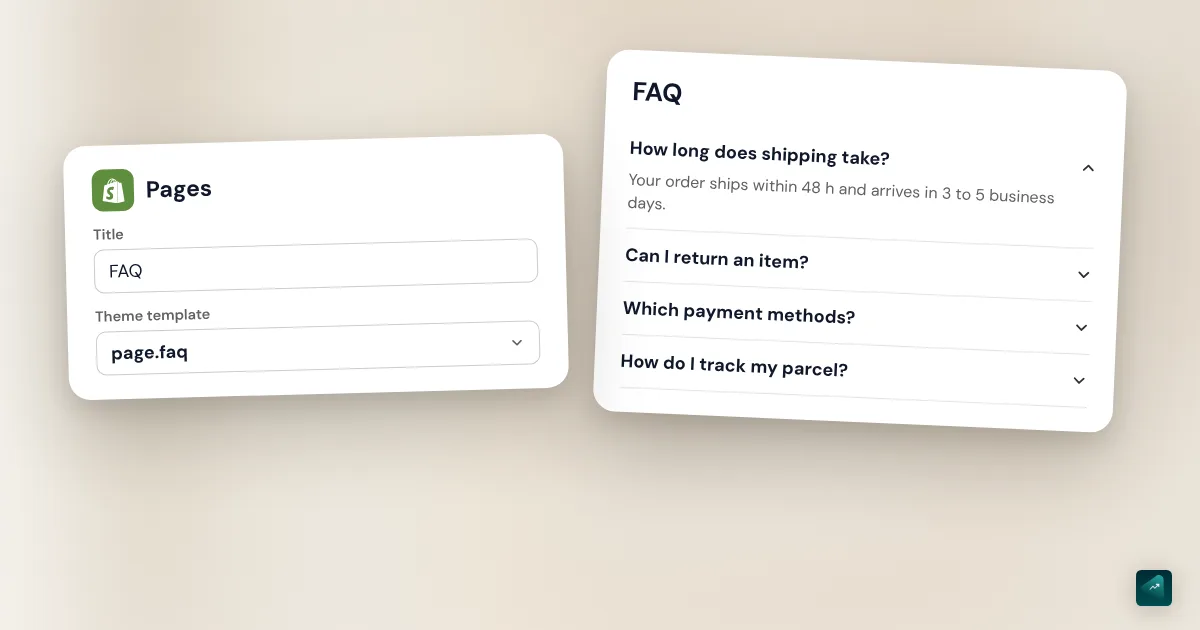
- In your Shopify admin, go to Online Store > Pages.
- Click Add page.
- In the Title field, type "FAQ" or "Frequently asked questions."
- In the Content section, write one intro sentence. The questions will come further down, with your theme's section.
- In the Visibility section, keep Visible selected.
- Click Save.
Pick the title with care. Shopify shows it in the browser tab and in search engine results. "FAQ" is short and fits well in a menu. "Frequently asked questions" is clearer for anyone who doesn't know the acronym.
Just want a simple list? Then write your questions straight into the Content box. Put each question in bold with its answer below. That works with any theme. Past a handful of questions, though, the page gets long to scroll. An accordion fixes that. Your customer only sees the questions and opens the one they care about.
Turn your questions into an accordion with your theme
Most tutorials send you to an FAQ app. Shopify's free themes already have an accordion section, though. You only need to place it on a page template of your own.
Why a separate template? The Help Center spells it out. Any change to a template affects every page that uses it. If you add your questions to the default page template, they show up on your About Us page too. An "faq" template only serves your FAQ page.
In Dawn: the Collapsible content section
- Go to Online Store and click Edit theme next to your theme.
- At the top of the editor, click the Home page drop-down menu. Pick the pages template type, then click Create template.
- In the Name field, type "faq." Keep your existing page template in the Based on drop-down menu. Then click Create template.
- In the sidebar, click Add section and pick Collapsible content.
- The section comes with four rows. In each Collapsible row, write the question in Heading and the answer in Row content.
- Add one row per extra question with the add block button under the section.
- Click Save.
Three section settings are worth a look. The section's Heading field shows a title above your questions. The Open first row option expands the first answer when the page loads. Each row can also get an Icon, like a truck for shipping.
In Horizon: the FAQ section
Horizon organizes its sections differently. In the sidebar, click Add section and pick FAQ. It comes with a heading and an Accordion block. Each question is an Accordion row. You type the question in its Heading field. The answer goes in the text block placed inside the row.
The rows come filled with sample questions, like "What is the return policy?" Their answers are vague and say nothing about your store. Replace all of them before you save.
Assign the template to your FAQ page
- Go back to Online Store > Pages and open your FAQ page.
- In the Online store section, open the Theme template drop-down menu and pick faq.
- Click Save.
Then open your store on your phone. That's where the accordion helps most. It's also where you'll spot an answer that runs too long.
Keep one thing in mind. The questions you write in the section are saved in the template. That template is a file in your theme. If you switch themes one day, your questions won't come with you. Keep a copy of your questions and answers in a separate document.
Add the FAQ to your menu or footer
A saved page doesn't show up in any menu on its own. You have to add it.
- Go to Content > Menus.
- Click the title of the menu you want to edit, for example your footer menu.
- Click Add menu item.
- Click the Search or paste a link field, pick Pages, then your FAQ page.
- Click Add, then Save menu.
The footer is the usual spot, next to your contact page and policies. Customers scroll there when they look for practical details. If your customers ask a lot before they buy, a link in the main menu makes sense too. You can group your FAQ, contact page, and About Us page under a "Help" tab. The guide to the Shopify dropdown menu shows how to build that submenu.
Think about your contact page as well. A link to the FAQ above the form answers part of the messages before they're sent. The guide on how to create a Shopify contact page covers that form.
An FAQ on your product pages
The question that stops a purchase often comes up on the product page. The customer wonders how it fits or when it will arrive. The answer can wait for them right there, so they don't have to leave the page.
In Dawn, open the products template in the theme editor. Add a Collapsible row block to the Product information section. You'll find the same Heading and Row content fields. In Horizon, the block to add is an Accordion, in the Product information section.
That text applies to every product that uses this template. It's perfect for shipping or returns, which don't change from one product to the next. For a question about a single product, create a separate product template. Then assign it to that product from its page in the admin.
Dawn's block has a handy option. The Row content from page field shows the text of a page from your store. Write your shipping answer once, on a page of its own. Every product page then shows that text. The day your delivery time changes, you only fix it in one place.
Which questions to put in a small store's FAQ
Start with your inbox. A question you've received twice already deserves a spot in your FAQ. If your store is new, think of what you'd ask before paying a stranger online.
For a small store, five topics come up almost every time.
- Shipping: delivery time, cost, and the countries you ship to.
- Tracking: how to track a parcel and what to do if it doesn't arrive.
- Returns: the deadline, who pays for the return, and when the refund comes.
- Payment: the payment methods you accept.
- Sizing or use: how to pick the right product and how to care for it.
Write each question in your customer's words. "When will I get my order?" beats "Shipping times." Answer in two or three sentences, with a number whenever you can. If the answer needs more, link to the page with the details.
Then sort the questions in the order of the purchase. The ones people ask before paying go first, like shipping and sizing. The ones that come after the purchase follow, like tracking and returns. With many questions, split them into one section per topic, each with its own heading.
A sample FAQ for a small store
Here are eight questions for a made-up store, Maison Ortie, which sells linen clothing. The delivery times and prices are the example's. Replace them with yours.
When will I get my order? I pack orders within 2 business days. Pickup point delivery then takes 3 to 5 business days in mainland France.
How much is shipping? Pickup point delivery costs €4.90. It's free on orders over €80.
How do I track my parcel? You get an email with the tracking link as soon as your parcel ships. No news after 7 days? Write to me from the contact page.
Can I return an item? Yes. You have 14 days after delivery to cancel your purchase, with no reason needed. Return shipping is on you. I refund you within 14 days of your request.
How do I exchange a size? Write to me from the contact page with your order number. I'll send the new size as soon as I get the item back.
How do I choose my size? Each product page has a size chart in centimeters. Measure a piece you already wear and compare. If you're between two sizes, take the larger one, because my cuts are fitted.
Which payment methods do you accept? You can pay by card or with PayPal. Payment happens on Shopify's checkout page.
How do I care for linen? Wash your clothes at 30 °C, turned inside out. Let them air dry rather than using a dryer.
Look at how the example is built. Each answer fits in two or three sentences. The numbers are precise, and the returns answer uses the deadline set by French law. The payment methods you list must be the ones your store really accepts. An FAQ that mentions PayPal when PayPal isn't turned on creates messages instead of preventing them.
Your FAQ must not contradict your terms of sale
Your FAQ sums up rules written elsewhere. Your refund policy and terms of sale already set your deadlines. If the FAQ says 30 days and the refund policy says 14, your customer will remember the number that suits them. And in a dispute, you'll have a hard time proving them wrong.
So write the FAQ after your policies, and reuse their numbers. The day you change a rule, update both texts at the same time.
Some numbers come from the law. If you sell online to consumers in France, they have 14 days to cancel with no reason needed. For a product, that period starts the day after delivery. If you don't state a delivery date, you have to deliver within 30 days of the order. These rules come from Service-Public Entreprendre, the French government's business portal. They were checked on October 29, 2026. Your FAQ can be more generous than the law, never less. The guide to Shopify legal pages covers what your policies need to include.
FAQ structured data: what Google does with it in 2026
You'll come across FAQ apps that promise "rich results" in Google. That name meant the questions that expanded under a link in search results. That display doesn't exist anymore.
Google first limited it in September 2023 to well-known, authoritative government and health websites. In May 2026, it announced the feature would no longer appear in Search starting May 7, 2026. It then removed the documentation for this markup on June 15, 2026. These results no longer show. That's what the Google Search Central changelog says, checked on October 29, 2026.
So don't install an app for its FAQ markup. Your FAQ page is still useful to your customers, and they're who you write it for.
Common mistakes
- The page isn't in any menu. It exists, but nobody lands on it. Add it in Content > Menus.
- Questions on the default page template. They then show on all your pages, About Us included. Create an "faq" template and assign it to your FAQ page only.
- The theme's sample questions left in place. Your customer reads a generic answer that says nothing about your store. Check every row before you save.
- An answer that contradicts your policies. A return deadline that differs from your policy leads to disputes. Copy the numbers from your terms of sale word for word.
- Answers that run too long. On a phone, a fifteen-line answer pushes the other questions off the screen. Trim it, or link to a page with the details.
- The FAQ as your only contact option. An FAQ doesn't replace a way to reach you. End it with a link to your contact page.
- Mixing up the knowledge base and your FAQ. Shopify has a Knowledge base page under Sales channels > Agentic. Its answers are a source for AI agents that answer questions about your store. Your FAQ page is created in Online Store > Pages.
Do it in one sentence with Ova
If your store is built with Scale Ova, you can ask Ova for the FAQ instead of building it by hand. For example: "Create an FAQ page as an accordion with questions about shipping, returns, and payment, and add it to the footer." Ova creates the page in your Shopify admin and adds the link to the menu. It writes the questions and answers in an accordion FAQ section of the Scale Ova theme, on a separate page template. It can also place that section on your product pages. Give it your real delivery times and your real return policy in the message, because it can't guess them. It can also read your Shopify policies so the FAQ reuses their numbers. Generating is free, and a subscription unlocks publishing the theme to Shopify. To introduce your brand next to the FAQ, the guide to the Shopify About Us page follows the same approach.
FAQ
How do I create an FAQ page on Shopify?
Go to Online Store > Pages and click Add page. Title it "FAQ" or "Frequently asked questions" and click Save. Then add the page to your footer in Content > Menus.
How do I make an accordion FAQ on Shopify without an app?
Create an "faq" page template in the theme editor. Add the Collapsible content section in Dawn, or the FAQ section in Horizon. Write one question per row, then assign the template to your page with the Theme template menu.
Do I need an app to make an FAQ on Shopify?
No. Shopify's free themes have an accordion section. An app is only worth it for a feature your theme lacks, like a search box for your questions.
Where should I put my FAQ page?
In the footer, next to your contact page and policies. If your customers ask a lot before buying, add a link to the main menu too. A link above your contact form heads off part of the messages.
How do I add an FAQ to a Shopify product page?
In Dawn, add a Collapsible row block to the Product information section of your products template. In Horizon, add an Accordion block to the Product information section. The text shows on every product that uses that template.
What questions should an online store FAQ answer?
Start with the questions your customers already send you. For a small store, shipping and returns top the list. Payment and sizing come right after. Answer in two or three sentences, with numbers.
Does FAQ structured data help SEO in 2026?
It no longer gets any special display in Google. Google stopped showing FAQ rich results on May 7, 2026. It removed their documentation on June 15, 2026. Write your FAQ for your customers.
Why do my questions show on all my pages?
You added them to the default page template, which all your pages use. Create an "faq" template, move the section there, then remove it from the default template.
Sources
- Shopify Help Center, Creating and editing pages: steps, title shown in browsers and search engines, visibility, accessed October 29, 2026
- Shopify Help Center, Templates: creating a template, changes affect every page using the template, assigning a template to a page, accessed October 29, 2026
- Shopify Help Center, Sections and blocks: adding a section in the theme editor, accessed October 29, 2026
- Shopify Help Center, Adding, removing, or editing menu items: menu editor labels, accessed October 29, 2026
- Shopify Help Center, Managing your store FAQs using the Shopify Knowledge Base app: knowledge base under Sales channels > Agentic, answers used by AI agents, accessed October 29, 2026
- Shopify.dev, JSON templates: a template is a theme file that stores its sections and their settings, accessed October 29, 2026
- Dawn, English section names and Collapsible content section: Collapsible content, Collapsible row, Open first row, Row content from page, Product information, four default rows, accessed October 29, 2026
- Horizon, English section names and section with its FAQ preset: FAQ, Accordion, Accordion row, Product information, sample questions, accessed October 29, 2026
- Google Search Central, changelog: FAQ rich results limited in September 2023, deprecation announced in May 2026 effective May 7, 2026, documentation removed on June 15, 2026, accessed October 29, 2026
- Service-Public Entreprendre, online sales rules: 14-day withdrawal period, its starting point, refund within 14 days, delivery within 30 days when no date is stated (in French), reviewed June 19, 2026, accessed October 29, 2026