Your store is almost ready and you still need a simple way for customers to write to you. On Shopify, there's nothing to install for that. Every Shopify theme already includes a contact form. You just need a page that uses it. The real work comes after, when you check that the messages actually reach you.
Create the contact page, step by step
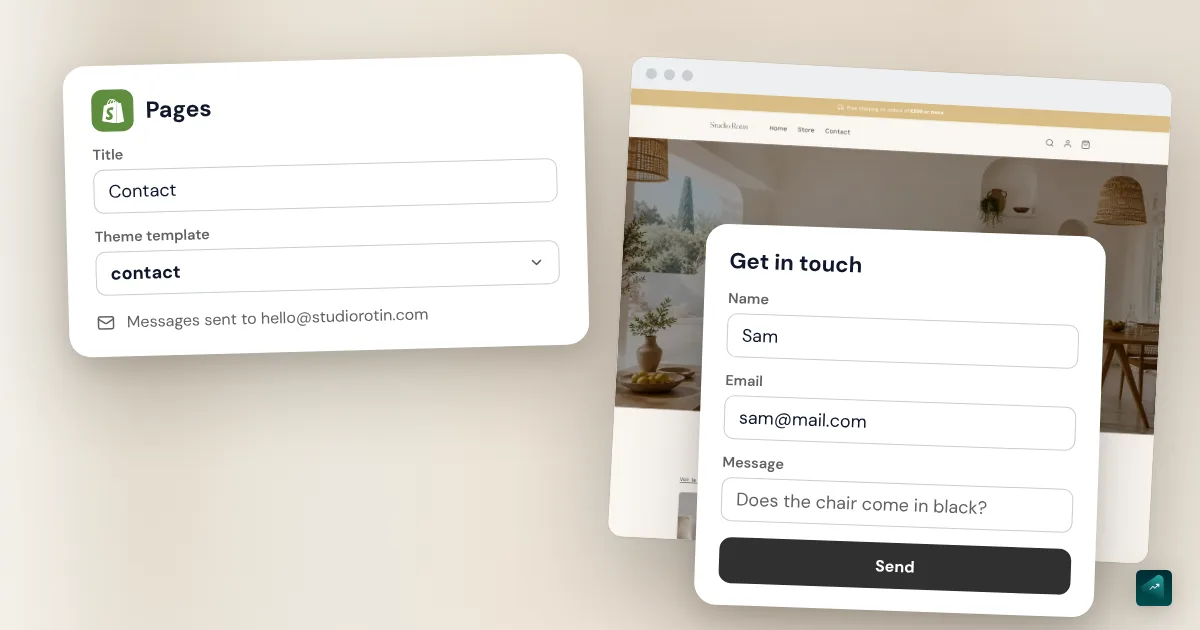
- In your Shopify admin, go to Online Store > Pages.
- Click Add page.
- In the Title box, type the page name, for example "Contact us" or "Get in touch."
- In the Content box, write the text that will show above the form. You can also leave it blank.
- In the Online store section, pick
contactfrom the Theme template drop-down menu. - Click Save.
Step 5 does all the work, because the contact template is what adds the form under your text. With the regular page template, your page only shows your text. And if you leave the Content box blank, customers only see the form.
You can do the same from the Shopify app on your phone. Tap Online Store in the Sales channels section, then Pages. The steps are the same after that.
Put the page in your menu or footer
A new page doesn't show anywhere on your store until it's in a menu. The Help Center is clear about it.
- Go to Content > Menus.
- Open your footer menu, or your main menu.
- Click Add menu item.
- In the Name field, type "Contact."
- In the Search or paste a link field, find your Contact page and select it.
- Click Add, then Save menu.
Put the link in the footer at least, next to your policies. If your main menu has room, a Contact link at the top doesn't hurt either. You can also group Contact and FAQ under a Help tab. The guide to the Shopify dropdown menu shows how to build that submenu. Your About Us page goes in the same place, and the guide to the Shopify About Us page covers what to write on it.
Where form messages go
Every message sent from the form reaches you by email. It goes to your store's Sender email address. You set it in Settings > Notifications, in the section with that name.
Don't mix it up with the Store email in Settings > General. Shopify uses that one to contact you about your account. Your customers' messages don't go there.
The sender email is also the address your store sends from. Your order confirmations come from it, and your customers see it. So pick an address you read every day. To create that address on your domain, follow the Shopify business email guide.
If that address is on your own domain, you need to authenticate the domain. Without that, Shopify rewrites your address as store+123@shopifyemail.com. You start the authentication from the Sender email section. A domain bought through Shopify is authenticated automatically. Also avoid addresses that contain "noreply" or "no-reply." The Help Center warns that some email providers reject them outright.
Don't have an address on your domain yet? Shopify can forward an address like contact@your-store.com to your usual inbox. The article on Shopify domain names explains what it offers and its limits.
Once the page is live, send yourself a message through the form from a different address than the store's. You'll see whether the message arrives and whether it lands in spam. Then reply to it to see what your customer will get.
What to put on a contact page
The form alone does the bare minimum, and the text above it cuts down useless messages and reassures people. A few lines are enough.
- Your response time. "We reply within one business day" reassures more than "as soon as we can." Only promise a delay you can keep.
- A link to your FAQ and your return policy. Customers often find their answer there without waiting for yours. To build that FAQ, follow the Shopify FAQ page guide.
- A note about orders. Ask for the order number in the message so you find the order faster.
- A phone number, only if you pick up. The Help Center suggests it if you want customers to call. A number that rings out does more harm than no number.
That leaves your postal address. To sell in France, your address and contact details have to appear in your legal notice. That isn't the contact page's job. The article on Shopify legal pages covers what's required. If you work from home, think twice before copying your home address here. The Help Center only mentions an address on the contact page for a physical store.
Add fields to the form
In Dawn and Horizon, two free Shopify themes, the form has four fields. Customers enter their name, email, phone, and message. Only the email is required for the form to send. The theme editor changes how the form looks, but not its list of fields.
To add an order number or a request type, you have three options.
- The theme code. First duplicate your theme to keep a copy. Then open the theme's … menu and click Edit code. In Dawn, the form lives in the
sections/contact-form.liquidfile. Each field you add gets a name likecontact[order_number]. That name then shows in the email you receive. Shopify's developer docs give examples of a drop-down list and checkboxes. - Shopify Forms. This is the forms app made by Shopify, free on the Shopify App Store on October 29, 2026. The Help Center lists it for support contact forms. Go to Apps > Forms, click Create form, then pick Inline form. To get an email for each message, select Send an email for each submission to this form. The app can create its own page with Create landing page. Then put that page in your menu instead of the other one.
- An external form. The Help Center mentions Jotform and Wufoo. You build the form on their site and embed it in your contact page. Messages then go through their service, not through Shopify.
Paid form apps on the Shopify App Store add file uploads or fields that depend on an answer. Shopify Forms doesn't support those conditional fields. For a small store, an "order number" field is often enough. Keep the form short, since customers usually fill it in on their phone.
Change the contact page layout
The contact page follows a template that you edit in the theme editor. You can add sections to it, like featured collections or images.
- In your admin, go to Online Store.
- Next to your theme, click Edit theme.
- From the drop-down menu at the top of the editor, pick Pages > Contact.
- Click + Add section and pick a section.
- Drag a section's ⋮⋮ icon to move it up or down.
- Click Save.
A short FAQ under the form answers questions before people ask them. In Dawn, the Collapsible content section works well for that. Each question opens on click, and the page stays short.
Contact form spam
Shopify protects the form in two ways. The first is called hCaptcha, and it's on by default in every store. It watches how the visitor behaves without asking them anything. If a submission looks suspicious, the visitor has to solve a challenge, like checking "I'm a human." The setting is in Online Store > Preferences, in the Spam protection section. Leave it checked.
The second is a filter on the message text. When Shopify flags a message as spam, the email still arrives, with [SPAM] at the start of the subject. Shopify sends you everything so you don't lose a real customer flagged by mistake. Set up a rule in your inbox to file those emails separately. Check that folder from time to time.
Be careful with apps that add their own CAPTCHA. The Help Center says hCaptcha isn't compatible with another CAPTCHA added by an app or by custom code. If you install one, turn off its CAPTCHA.
The traps that keep coming back
- The page shows without a form. Its Theme template isn't
contact. Reopen the page in Online Store > Pages and change the template. - Nobody finds the page. It isn't in any menu, so add it to the footer in Content > Menus.
- Messages don't arrive. First check the address in Settings > Notifications, then look in your spam folder. If the address is on your own domain, check that the domain is authenticated.
- Messages arrive with [SPAM] in the subject. That's Shopify's filter, so read them anyway before deleting them.
- You added Shopify Forms and the page shows two forms. You placed the app on the contact template, which already has its own. Use the landing page the app creates instead.
Doing it in one sentence with Ova
If your store is built with Scale Ova, you can ask Ova for the page instead of creating it by hand. For example: "Create a Contact page with the form, our response hours, and a link to the FAQ, then add it to the footer." Ova creates the page in your Shopify admin and writes the text above the form. It also adds the link to the menu. You still set the address that receives messages yourself, in Settings > Notifications. For the rest of the store, the complete guide to building a Shopify store walks through every setting in order.
FAQ
How do you create a contact page on Shopify?
contact from the Theme template drop-down menu. Click Save, then add the page to a menu.Where do Shopify contact form messages go?
Do you need an app for a contact form on Shopify?
How do you add a field to the Shopify contact form?
contact[field_name]. Without code, the free Shopify Forms app builds a form with your own fields.How do you stop spam on the Shopify contact form?
Why doesn't my contact page show on my store?
contact.Sources
- Shopify Help Center, Add a Contact Us page to your store: steps, contact template, adding to a menu, theme editor, where submissions go, [SPAM] filter, Jotform and Wufoo, checked October 29, 2026
- Shopify Help Center, Setting up your email: sender email, store email, domain authentication, noreply addresses, checked October 29, 2026
- Shopify Help Center, Setting your online store preferences: hCaptcha on by default, Spam protection section, conflict with another CAPTCHA, checked October 29, 2026
- Shopify Help Center, Create forms: Shopify Forms, inline forms, email notifications, landing page, no conditional logic, checked October 29, 2026
- Shopify App Store, Shopify Forms: app made by Shopify, free, checked October 29, 2026
- Shopify Help Center, Add, remove, or edit menu items: menu editor labels, checked October 29, 2026
- Shopify.dev, Add a contact form to your theme: required email field, added fields named contact[…] and shown in the email, checked October 29, 2026
- Dawn, contact form section and Horizon, contact form block: the four fields and the settings offered in the editor, checked October 29, 2026