You've heard that a blog helps with SEO, and you're wondering where to start. On Shopify, there's nothing to install, because the blog is part of your admin next to your pages. The technical part takes a few clicks. The real work starts when you have to figure out what to write with a handful of products. This guide covers that part too.
Your store already has a blog
Every Shopify store comes with a blog, which the Help Center calls News. You can rename it and post to it right away without creating anything else.
On Shopify, a blog is a container that holds your posts. Most stores only need one. A second blog makes sense when you want two very different sections, like tips on one side and recipes on the other. To sort topics inside one blog, tags are enough and we'll get to them below.
Create a blog or rename the default one
- In your Shopify admin, go to Content > Blog posts.
- Click Manage blogs.
- Click Add blog. To rename the existing blog, click its name instead.
- Give your blog a title. Shopify allows up to 255 characters, but one or two words are enough, like "Tips" or "Journal."
- Choose how to manage comments. The three options are explained below.
- Click Save.
You can also create a blog without going through this screen. When you write a post, the Blog menu in the Organization section lets you create a new one.
Write and publish your first post
- Go to Content > Blog posts.
- Click Add blog post.
- Type the title. Shopify won't save a post without one.
- Write the content. The editor handles formatting and links. You can also insert an image, a table, or a video.
- In the Organization section, pick the Author and then the Blog to post to.
- In the Image section, click Add image to choose the featured image.
- In the Visibility section, select Visible.
- Click Save.
Then open the post on your store, on a computer and then on a phone. Since Shopify hides posts by default, skipping step 7 leaves the post saved but invisible to everyone.
Author, date, and scheduled posts
The Author menu doesn't take a free-text name. It lists the store owner and staff members with admin access. To credit a guest writer, you have to add them as staff. The Help Center says they need both the Blog posts and pages and Home permissions.
To publish later, click the calendar icon in the Visibility section and pick the date and time. Once saved, the post goes live on its own at that moment. The same calendar also lets you backdate a post.
To take a post down without deleting it, set its visibility back to Hidden. From the list of posts, you can select several at once. The Make visible and Hide buttons then change their visibility together.
The excerpt and tags
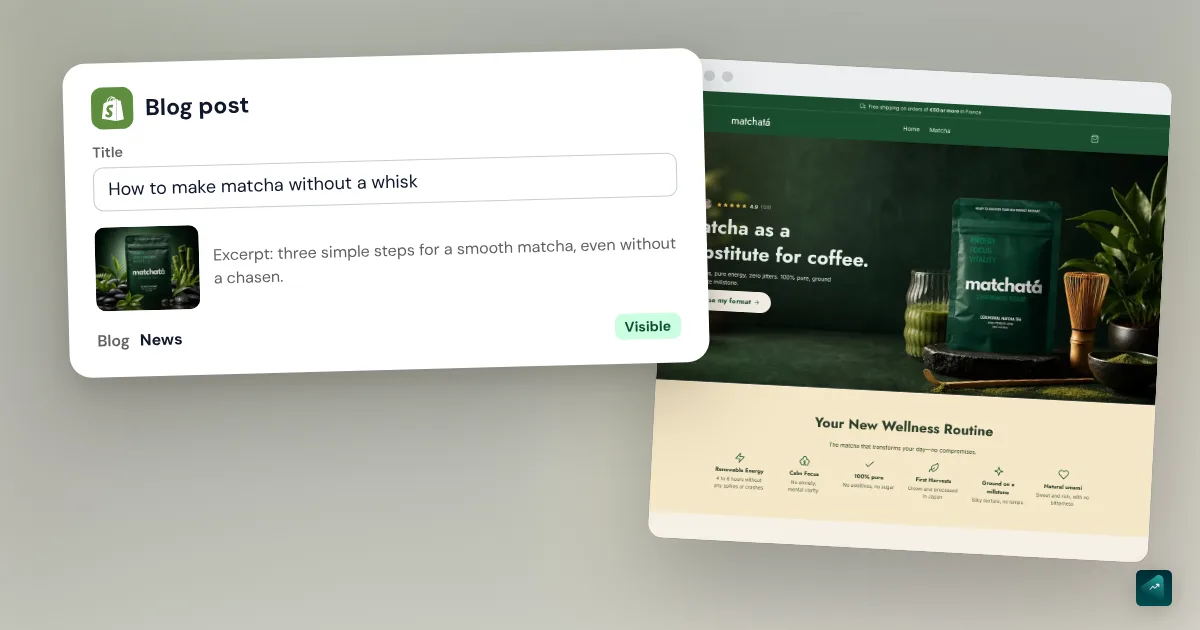
The excerpt is the short text shown under the title in the list of posts. You add it in the Excerpt section, with Add Excerpt. If you leave it empty, Shopify shows the start of the post without images or links. Two sentences that say what the reader will learn beat an opening cut off mid-sentence.
Tags sort your posts by topic, and you add them in the Tags section. A customer who clicks a tag sees the other posts that carry it. Those posts also show up when they search for that word in your store. Keep a few tags like "Care" or "Guides" and reuse them. A different tag on every post doesn't sort anything anymore.
Shopify blog image size
Shopify doesn't set any dimensions for a blog post image. Stay under 20 MB and 20 megapixels, the limit every Help Center page accepts. Some pages allow 25 megapixels. The Shopify product image size guide explains the gap. The Help Center recommends JPEG for blog post photos, and the rest depends on your theme.
In Dawn, Shopify's free theme, the image shows in full at the top of the post. That's the Image height setting on Adapt to image, the default. With the default page width, the image takes up 1100 px at most on a computer. A high-resolution screen asks for twice that. So a photo about 2200 px wide covers every screen.
On the home page, though, the image gets cropped. In Dawn, the Blog posts section shows each image in a fixed landscape format. In Horizon, another Shopify theme, the post card image is square by default. So put the subject of your photo in the center to keep it visible however the image gets cropped.
Don't forget the alt text, which describes the image for Google and for screen readers. In the post, click Update under the image and then Edit image. Then write what the photo shows.
SEO for a blog post
Each post has its own listing for Google. In the post, find the Search engine listing preview section and click the pencil icon to open three fields.
- Page title: the title shown as a link in Google results. Past 70 characters, it might get cut off.
- Meta description: the text shown under that title. The Help Center page on blog posts mentions a possible cutoff past 320 characters. The page on keywords recommends about 160 characters instead.
- URL handle: the end of the post's web address. Use dashes between words, never spaces.
Pick the handle before you publish, because changing it later creates a new address. Shopify then pre-selects Create a URL redirect so the old address leads to the new one. Leave that box checked.
For length, Shopify's Help Center gives a benchmark of 500 words per blog post, to treat as a hint. A short post that really answers the question beats a long one that goes in circles. The rest of your store's SEO settings are in the Shopify SEO guide.
Make your blog visible
Publishing isn't enough. As long as no page links to the blog, your visitors will never land on it.
Start with the menu, in Content > Menus. Open your main menu and click Add menu item. In the Search or paste a link field, pick your blog and then click Save menu. The guide to creating a dropdown menu on Shopify shows how to tuck it under a tab.
You can also show your latest posts on the home page. Go to Online Store and click Edit theme, then Add section. Pick the blog posts section, which is called Blog posts in Dawn. Its Blog and Post count settings choose what it shows, and all that's left is to save.
Comments
A new blog starts with comments turned off. The setting lives in the blog's Comments section. To open it, go to Content > Blog posts > Manage blogs, then click the blog's name. The setting offers three options.
- Comments are disabled: nobody can comment.
- Comments are allowed, pending moderation: you approve each comment before it shows.
- Comments are allowed, and are automatically published: they show without review.
For a small store, moderation is the safest choice. Shopify flags spam on its own, but an off-topic or rude comment still gets past that filter. With moderation, you decide what shows under your posts.
Pending comments land in Content > Blog posts > Manage comments. Select them, then click Approve or Mark as spam. A deleted comment can't be recovered. To reply to comments, the Help Center suggests a blog app from the Shopify App Store.
Writing with Shopify's AI
The admin has a built-in writing tool, which the English Help Center calls Sidekick. In a new post, click the AI icon in the Title field or in the content editor. Describe the topic and submit it. The more precise your prompt, the closer the text fits your store.
Read everything before you publish, because the Help Center warns that generated text can list product benefits you never gave. You're still responsible for what goes live.
What to write when your store is small
Creating the blog takes a few clicks, but the hard question comes next in front of the blank page.
Start from your customers' questions, the ones they send you or ask before they buy. Every question that keeps coming back is a topic for a post. A customer who asks you how to care for a rattan armchair will type the same question into Google. Your post can be the answer, with a link to the armchair.
For a small store, these topics come up often.
- Care. How to clean, store, or make last what you sell.
- Choosing between your products. Which model for which use, or which size to get.
- How-to. How to prepare, assemble, or use the product.
- Origin. Where the material comes from and who makes the product, with facts you can show.
Avoid generic content like "10 fall decor ideas," which looks like thousands of other posts. It has no reason to rank above them on Google. A post about your exact product, with your photos, has far fewer competitors.
Every post should lead somewhere, with a link to the product or collection it covers. It works the other way too, and a product page can link to the care guide. Where the product page ends and the post begins is covered in a Shopify product page that converts.
As for pace, pick what you can keep up. One useful post a month for a whole year beats four posts in the first week and then nothing. SEO is slow, so don't judge your blog after three weeks.
The traps that keep coming back
- The post doesn't show on the store. It's still Hidden, or scheduled for a future date. Check the Visibility section.
- The name you want isn't in the Author menu. That person isn't store staff, or they're missing a permission. They need Blog posts and pages and Home.
- You can't turn on comments. The Help Center requires a published post in that blog first.
- The image is cropped on the home page. The section crops based on your theme. Center the subject of the photo, or change the section's image format if your theme offers it.
- Nobody finds your blog. It's neither in the menu nor on the home page. Add it to the main menu.
Writing and publishing a post with Ova
If your store is built with Scale Ova, you can ask Ova for the post. For example: "Write a post on how to care for a rattan armchair with a link to the Armchairs collection and publish it on the blog." Ova writes the post with its excerpt and tags, then publishes it in your Shopify admin. It can add a featured image or keep the post hidden if you'd rather read it first. It can also create a new blog, edit a post that's already live, and add the blog to your menu. Read the text anyway, as with any AI. You can generate your store and edit it for free on Scale Ova, and the subscription is what lets you publish it to Shopify. The complete guide to building a Shopify store covers the other settings.
FAQ
How do you create a blog on Shopify?
How do you add a blog post on Shopify?
Why isn't my blog post showing on my store?
What size should a Shopify blog image be?
Is the Shopify blog included with the store?
Does a Shopify blog help with SEO?
Sources
- Shopify Help Center, Manage blogs for your online store: default News blog, creating a blog, search engine listing fields, linking from the menu, checked October 29, 2026
- Shopify Help Center, Adding and managing blog posts: steps, posts hidden by default, author and permissions, excerpt, tags, search engine listing, 70 and 320 character limits, JPEG recommended, checked October 29, 2026
- Shopify Help Center, Advanced publishing: publish date, bulk visibility, blog templates, checked October 29, 2026
- Shopify Help Center, Managing comments on blog posts: three options, comments off by default, moderation, spam, checked October 29, 2026
- Shopify Help Center, Automatically generating blog posts: Sidekick, accuracy warning, checked October 29, 2026
- Shopify Help Center, theme images: 20 MB and 20 megapixel limits, formats, checked October 29, 2026
- Shopify Help Center, adding keywords for SEO: 500-word benchmark for blog posts, 160-character meta description, alt text, checked October 29, 2026
- Shopify Help Center, Templates: Edit theme, Add section, checked October 29, 2026
- Shopify Help Center, Add, remove, or edit menu items: menu labels, checked October 29, 2026
- Dawn, Blog post section and home page Blog posts section: image height, displayed width, landscape crop, checked October 29, 2026
- Dawn, English settings translation file: Image height, Blog posts, Post count labels, checked October 29, 2026
- Horizon, home page blog post image block: square format by default, checked October 29, 2026