This tutorial assumes your store is live with no password, and with shipping and payments set up. If not, start by setting up shipping and payments.
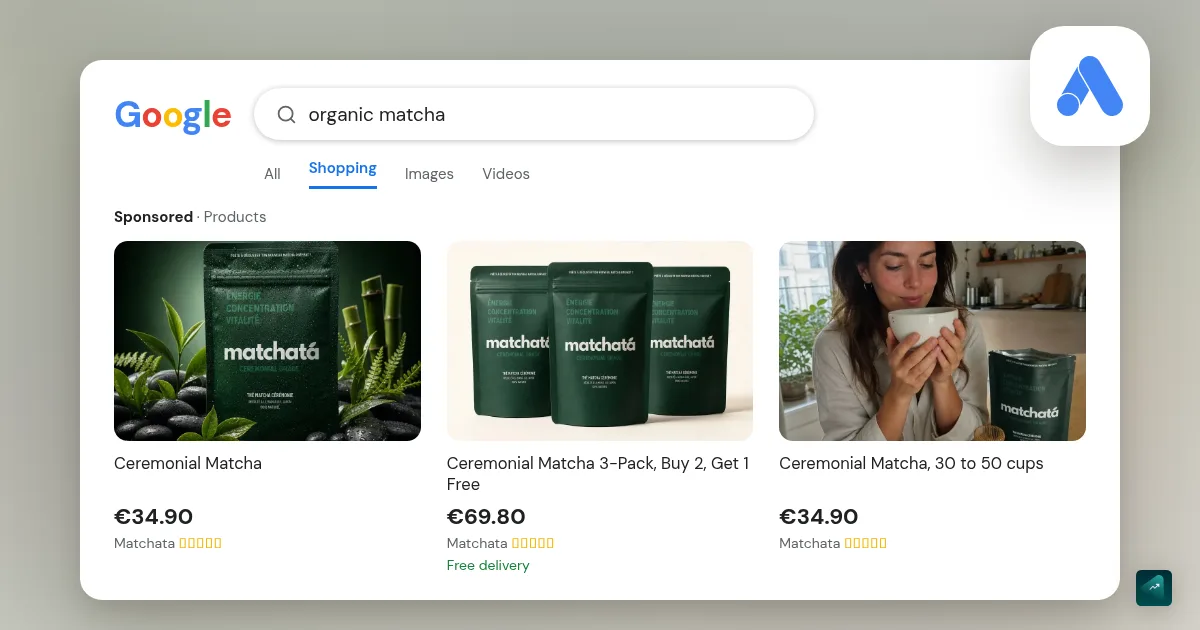
On Meta or TikTok, you go after people who weren't thinking about your product. On Google, it's the other way around, because they're already looking for it. They type "fig scented candle" or "adjustable laptop stand." Google then shows them products with the photo, the price and the store name. Showing up in those results means meeting someone who's ready to buy.
The catch is that the whole setup nudges you to let Google's AI make the calls. The Shopify app offers you Performance Max first. And Performance Max turns on settings by default that rewrite your text and swap your landing pages. It even makes videos for you. This tutorial takes the route that shows you where every dollar goes.
The Google and Shopify screens and rules quoted here were checked against their help pages on September 23, 2026.
Is Google Shopping right for your product?
Search Google for the words your customer would use to find your product. If Shopping ads show up with products like yours, the demand exists and Google is a good channel. If nothing shows up, or only very different products, your product has to create its own demand. Meta or TikTok will fit better then. Choosing your channel based on your product walks through that reasoning.
On Google, your customer compares. Your price, photo and title sit right next to your competitors'. So look at the prices shown. If yours is much higher and neither the photo nor the title explains why, work on your offer first.
Step 1: get your store ready before Google sees it
Google reviews your whole store, not just your products. According to Shopify's help center, the Google & YouTube channel requires four things.
- A store with no password and an active payment provider.
- A refund policy and terms of service linked from your footer menu.
- A page with your contact information that customers can see. You need at least an email address, a phone number, a mailing address or a contact form.
- Shipping rates for the country you sell to. Only the rates in your general shipping profile sync. A custom profile causes errors in Merchant Center.
Merchant Center adds its own guidelines. It wants a return policy stated, even if you don't accept returns. It also asks for at least one conventional payment method and terms of sale shown before purchase. And the checkout has to work all the way through. The most dreaded suspension is the one for "misrepresentation." To avoid it, Merchant Center's help center recommends an About us page that explains what your business does.
Step 2: connect Shopify to Google Merchant Center
- In the Shopify App Store, install the Google & YouTube app. It's free, and your ads are billed by Google.
- Connect your Google account, then create or link your Google Merchant Center account. Your store's domain is claimed automatically. If the account you link already had a product feed, the app overwrites it to avoid conflicts.
- Verify your identity with the 6-digit code you get by text message.
- Under Countries and languages, pick what syncs from Shopify Markets.
- Import your shipping rates from Shopify automatically.
- Fill in what Google requires on your products. It needs the Google product category, and the GTIN if your product has one. Without a GTIN, add an MPN (manufacturer part number) and a brand. Shopify's help center also notes that product options must be in English to sync, variants included.
Google then reviews your products. Expect three to five business days for Shopping ads, and sometimes a few weeks for free listings. The app sums up where they stand.
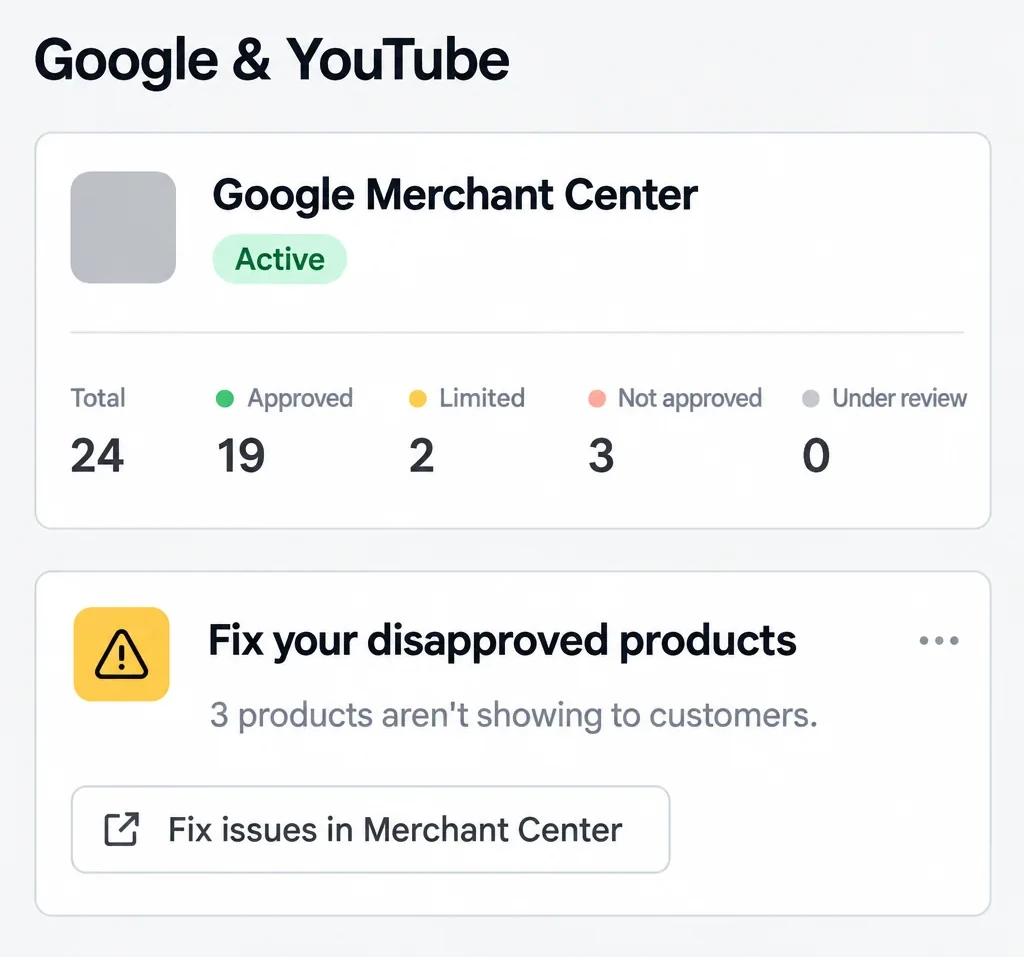
- Approved. The product can show on Google.
- Limited. It shows, but not everywhere or without all its information. It might show in one country and not in another, for example.
- Not approved. It doesn't show anywhere. The reason is in Merchant Center's Needs attention tab. Fix it in Shopify and the app syncs again.
A case from r/shopify shows a quiet trap. A UK merchant who sells online only saw almost their whole catalog turn "limited" without changing a thing. Google support had them uncheck free local listings in Merchant Center's Shopify data source. The products were back to green within 24 hours. If you don't have a physical store, check that box.
Step 3: show up on Google Shopping for free
Yes, Google Shopping can be free. With the Google & YouTube app, your products are automatically opted in to free listings. Once approved, they can show up at no cost per click on the Shopping tab, Google Search, Google Images and YouTube. That traffic comes from people looking for your product. Keep it on, even if you're not planning to advertise. Paid ads take the top spots and also appear at the top of search results.
Selling in the EU? A CSS stands between Google and you. In the European Union, Shopping ads and free listings go through a Comparison Shopping Service (CSS). Google Shopping is one of them. You can use others alongside it from Merchant Center. Google states that a merchant never bids against itself, however many CSSs represent it. This setup came out of the Google Shopping case. In 2017, the European Commission fined Google for favoring its own comparison shopping service. The Court of Justice of the European Union upheld the €2.4 billion fine on September 10, 2024. If you only sell in the US, this doesn't apply to you.
Step 4: a product feed Google understands
On Google Shopping, you don't pick keywords. Google reads your product listings to decide when to show them. So your feed is your campaign.
| Element | What works |
|---|---|
| Title | The words your customer types: product type, key feature, size, color. 150 characters max, the essentials first. "Fig Scented Candle, Soy Wax, 40-Hour Burn" rather than "Aurora Candle" |
| Image | The product alone and sharp, on a white or transparent background, or in use. No promotional text, watermarks, logos or borders |
| Price | Identical to your product page, to the cent |
| Availability | Up to date: an out-of-stock product listed as available causes problems |
| Shipping | The same rates and times as your store |
| Identifiers | The GTIN if there is one, otherwise the MPN and brand |
Your Shopify titles are often written for the brand. For Google, they need to describe the product. The app lets you set title and description preferences for Google without touching your store. It also offers Product Studio to edit a photo. Keep in mind that Google may show AI-optimized titles in your Shopping ads. It does this even when you turn text customization off. A clear title from the start limits those rewrites.
Step 5: avoid a "misrepresentation" suspension
It's every new store's nightmare. Google treats misrepresentation as an egregious violation. It can suspend your account upon detection, without prior warning. Your products then disappear from both ads and free listings. For most other issues, Google sends a warning first, which gives you 7 or 28 days to fix things.
On r/shopify, the stories sound alike.
- One thread is about a home decor store stuck for three months. A very active commenter points out that a product problem would get the product disapproved, not the whole account. So you need to look at your policies and contact details.
- In the same thread, another merchant says everything was fine with free listings. The suspension hit when they launched paid ads, which trigger a deeper review.
- A third checked every box on the official list. A Google contractor then listed what was still missing for them, an FAQ page and a display of accepted payment methods.
Here's what protects your store.
- An About us page that says who you are, where you ship from and what you sell.
- Your own identity, not photos and copy lifted from a supplier or another store.
- Promises you keep. State real delivery times, with no fake compare-at prices and no made-up reviews.
- The same information everywhere. Prices, availability and shipping should be identical in your store and in Merchant Center.
- An FAQ page and your payment methods on display. They cost nothing, and they reassure your customers as much as Google.
If Google disapproves your products or suspends your account, fix everything on your store first. Only then request a review from Merchant Center. For disapproved products, go to Products > Needs attention, then click Request review. Merchants describe a waiting period before you can ask again. So don't waste the first one.
Step 6: your first paid campaign, in Standard Shopping
The Google & YouTube app offers to launch a Performance Max campaign. It's Google's version of Meta's Advantage+ or TikTok's Smart+. You hand over your feed and a budget, and Google's AI decides where to show your ads. That "where" covers all of its channels: the Shopping tab, Search, YouTube, Display, Gmail, Discover and Maps.
For a first campaign, pick a Standard Shopping campaign, created directly in Google Ads.
| Standard Shopping | Performance Max | |
|---|---|---|
| Where your products show | Shopping tab, Google Search, Google Images, plus search partners if you leave them on | Every Google channel, YouTube and Display included |
| What you pay for | Clicks only | Clicks, plus impressions for YouTube videos |
| What you control | Bidding, max cost per click, networks, negative keywords | Budget, goal, negative keywords; Google decides the rest |
| Bidding with no sales history | Maximize clicks, which doesn't need conversions | Maximize conversion value |
On r/PPC, advertisers say the same thing. An auto parts seller had set up a "feed-only" Performance Max campaign, with no creative and auto-created assets turned off. It still spent on Display. Another advertiser replied that feed-only Performance Max isn't a thing anymore, because Google serves on every network. In another thread, a similar campaign got about 60% of its clicks from YouTube. According to one of the forum's most active commenters, Standard Shopping is great for starting out, or when you have few conversions.
Here's how to create the campaign.
- In Google Ads, click the + button, then New campaign.
- Choose the Sales objective, then the Shopping campaign type. Google offers to switch you to Performance Max, but continue with the Shopping campaign.
- Select your Merchant Center account and name the campaign. The account can't be changed later.
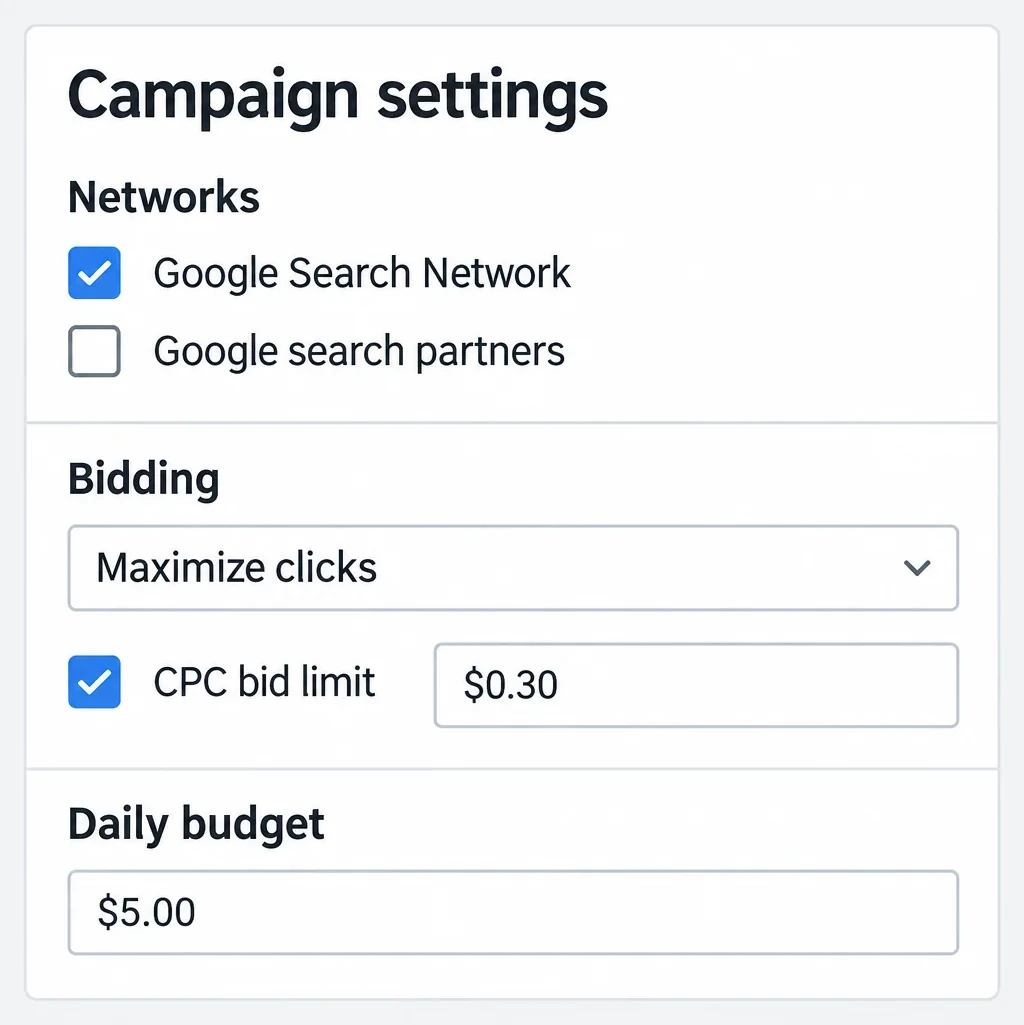
- On the Budget and bidding optimization page, choose Maximize clicks. Check the CPC bid limit and enter your cap, which we work out right after. Set a daily budget of $5. Leave customer acquisition at its default, bidding the same for new and existing customers. Don't touch campaign priority either.
- On the Campaign settings page, set the location to your country. Open More settings, then Networks. Keep Google Search Network and uncheck Google search partners. If you only sell online, leave local inventory ads turned off.
- Create just one ad group, with all your products or only the ones with similar margins. The ad group bid only applies to Manual CPC, so you can skip it.
- Check the summary, then click Publish campaign.
If Maximize clicks doesn't show up during setup, create the strategy under Tools > Budgets and bidding > Bid strategies. Then apply it to your campaign.
Why uncheck search partners? They're third-party search sites, and you don't get to choose which ones. Your small budget works harder on Google itself. You can test search partners later, in a separate campaign.
How much should you budget for Google Shopping?
Google doesn't list a minimum budget. For a Performance Max campaign, Merchant Center tells beginners to start small. Its example is $15 a day. The real math, though, starts from your margin.
Your max cost per click. Take the example from your first Meta campaign, a product that sells for $31 and leaves you about $18 of margin before ads. Say one visit in 60 ends in a purchase. That's a starting assumption, to replace with your real rate as soon as you have it. A click is then worth at most $18 ÷ 60 = $0.30, and that's your CPC bid limit. The break-even ROAS calculator works out your margin with all your costs.
Your daily budget. At that rate, you need about 180 clicks to see your first three sales, or $54 at your cap. Spread over two weeks, that's under $4 a day. So set $5.
What you'll actually pay. The daily budget is an average. Google can spend up to twice that amount on a given day, but never more than 30.4 times it over the month. At $5 a day, your monthly max is $152.
If the campaign barely spends, Google says it itself. A limit that's too low keeps it from finding clicks. That doesn't mean the campaign is broken. It means that on those searches, a click costs more than your margin allows. Rather than raising the cap at random, grow your margin per order with the average order value levers. You can also push a product with a better margin.
Then let the campaign run for two weeks without changes. Google advises giving Maximize clicks a few days or weeks before judging it.
Step 7: if you go with Performance Max, turn these off
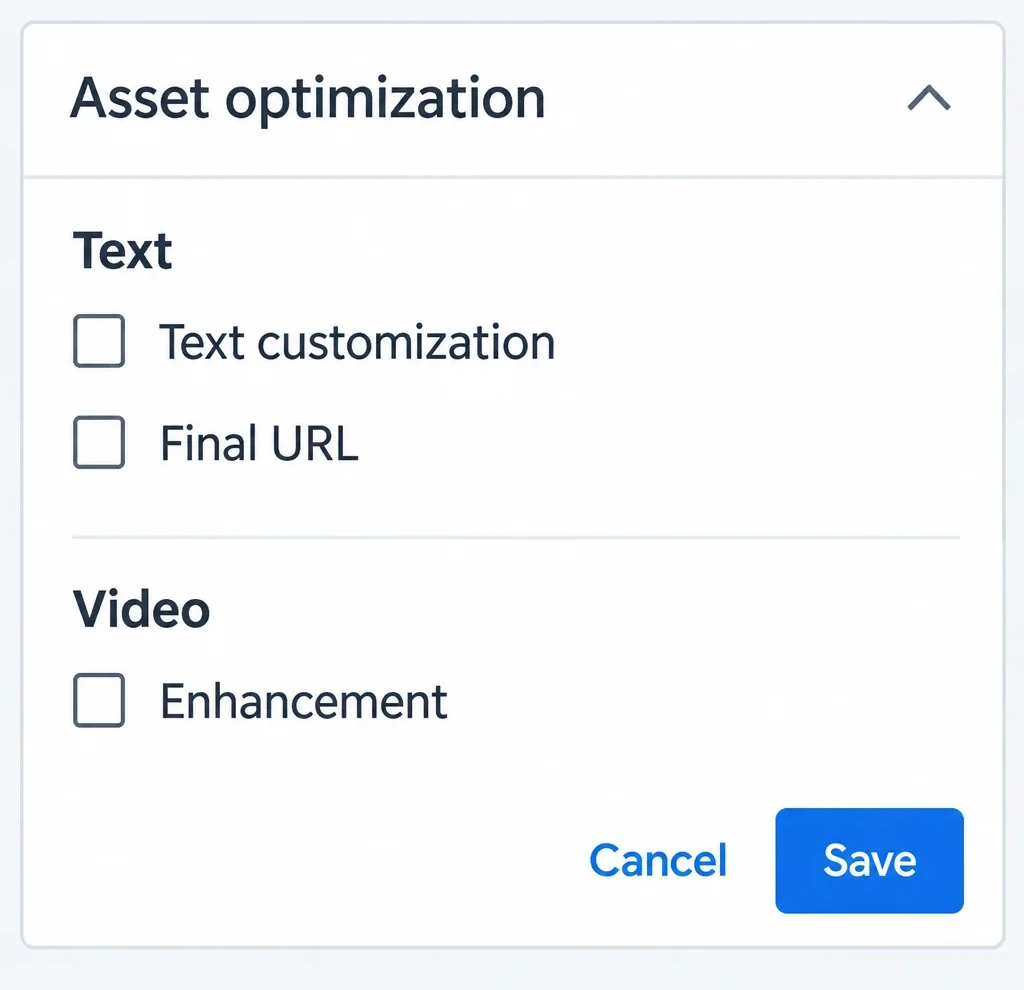
If you launch from the app, the path is short. In Google & YouTube, the Performance Max card sends you to Merchant Center, which only asks for a daily budget and a name. Bidding is set to Maximize conversion value. Ads can take up to 48 hours to start. Google then recommends waiting at least 14 days before changing settings. For everything else, open the campaign in Google Ads and go to Settings, then Asset optimization. That's where the default-on settings get turned off.
1. Text customization, formerly "automatically created assets." This setting is on by default. It writes headlines and descriptions from your landing page, your domain and your ads. Uncheck it under Text.
2. Final URL, meaning Final URL expansion. It's on by default too. It can send your customer to a different page on your site than the one you picked. The ad's headline and description are then generated for that page. Uncheck it in the same place.
3. Video enhancement. Uncheck it under Video. If you don't upload any video, Performance Max makes some from your text, images or Merchant Center feed. So upload your own, even a simple one.
4. Negative keywords and brand exclusions. Add the searches you don't want to pay for. In Performance Max, negative keywords only apply to Search and Shopping inventory.
5. Recommendations. Don't apply them in bulk, and don't turn on auto-apply. On r/PPC, an advertiser lowered their target ROAS as Google suggested. Spend went up 60% and ROAS dropped 30%. The most upvoted reply joked "if I had a dime for every time one of these posts started with following one of Google's recommendations."
There are two limits to know. First, some other AI enhancements to your ads can't be switched off in the interface, and Google's help center points you to support. Second, to see where your money goes, open Campaigns > Insights and reports > Channel performance. It breaks spend down across Shopping, Search, YouTube and Display. It also flags feed or Merchant Center account issues. Finally, don't put the same products in a Performance Max campaign and a Standard Shopping campaign. Advertisers on r/PPC advise against it, since both campaigns fight over the same searches.
Step 8: read your results and exclude bad searches
After a week, open Campaigns > Insights and reports > Search terms. That's the upside of Standard Shopping. You see every search that triggered clicks, and what it cost you.
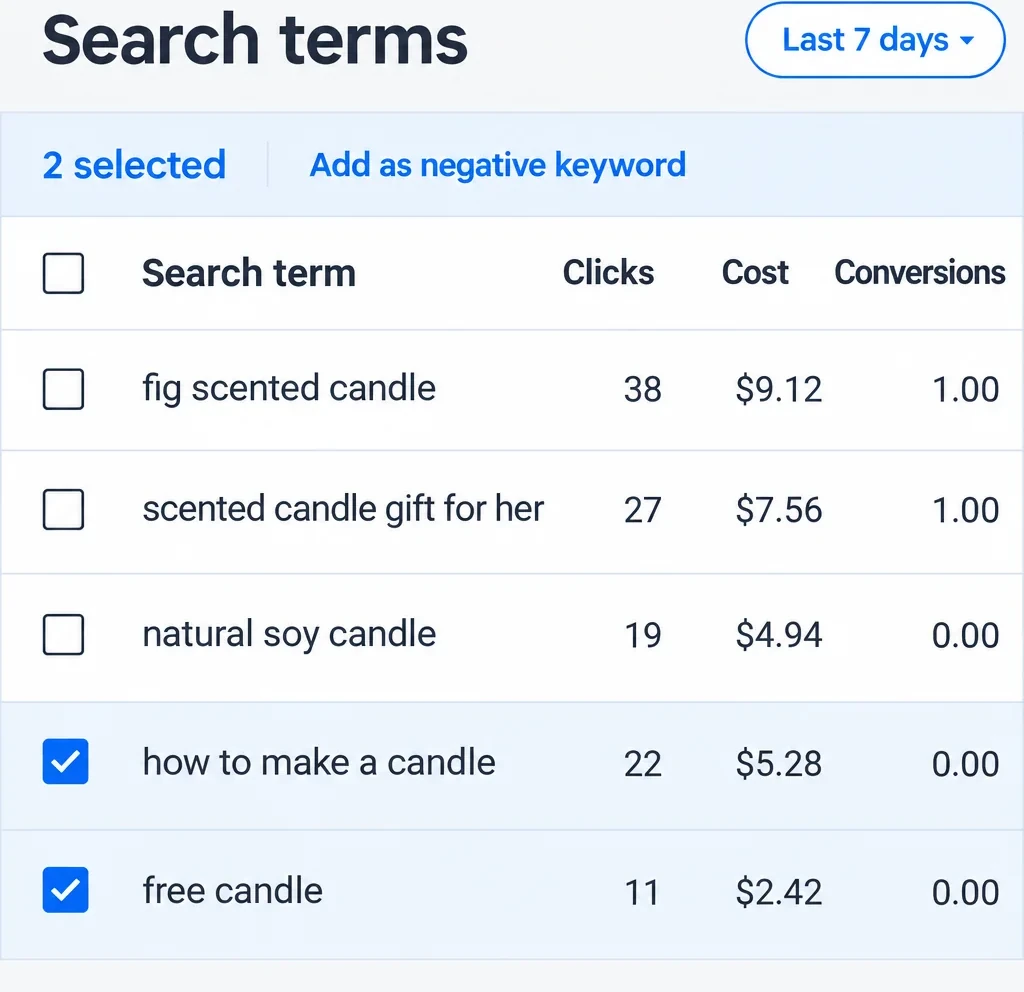
Read the example with the $31 candle and its $18 of margin.
- Cost. The 117 clicks cost $29.32, or $0.25 on average, under the $0.30 cap.
- Profitability. The 2 sales at $31 bring in $62 in revenue. ROAS comes to 62 ÷ 29.32 = 2.11, above this product's 1.72 minimum. So the campaign makes a little money, since 2 × $18 of margin minus $29.32 leaves $6.68.
- Searches to exclude. "how to make a candle" and "free candle" cost $7.70, more than a quarter of the budget. They came from people who weren't looking to buy a candle. Check them, then click Add as negative keyword. Without them, the week would have cost $21.62 for the same two sales, leaving $14.38 of margin.
- The search to keep. "natural soy candle" got 19 clicks and no sales. It's too early to tell, and the intent is right. Look at it again next week.
Exclude a search for its intent, not for its results over a handful of clicks.
The other numbers tell you where to look.
- Few impressions. Check Merchant Center for disapproved or limited products before raising the budget.
- Impressions but few clicks. Your title, photo or price is losing to the competitors shown next to you.
- Clicks but no sales. Compare with visits in Shopify. Then look at your product page, your shipping costs and your checkout.
The full diagnosis is in reading your campaign numbers.
When should you change bidding? For a Shopping campaign, Target ROAS needs at least 15 conversions in the past 30 days. Until then, keep Maximize clicks and your cap. After that, you can switch to Target ROAS, set at your minimum ROAS. You can then raise your budget in steps.
Costly mistakes
- Paying before your store is compliant and your feed is clean.
- Forgetting free listings, which cost nothing.
- Launching the app's Performance Max with its default settings.
- Leaving Google search partners checked on a small budget.
- Putting the same products in a Performance Max campaign and a Standard Shopping campaign.
- Never opening the search terms report.
- Applying Google's recommendations without redoing your margin math.
- Judging before two weeks, or on a handful of clicks.
No store yet? You can generate one with Scale Ova from your product. You look at it and edit it for free, and you only pay when you publish it to Shopify.
FAQ
How do I get my Shopify products on Google Shopping?
Is Google Shopping free?
How long does it take to show up on Google Shopping?
Why was my Merchant Center account suspended?
What's the minimum budget for Google Shopping?
Performance Max or Standard Shopping for beginners?
How do I turn off automatically created assets in Performance Max?
What is a CSS for Google Shopping?
Is a "limited" product in Merchant Center a problem?
Sources
- Google & YouTube channel requirements, Connecting the Google & YouTube channel and Google Performance Max campaigns, Shopify Help Center, accessed September 23, 2026
- Google & YouTube, Shopify App Store, accessed September 23, 2026
- Check product visibility and status in Merchant Center, Google Merchant Center Help, accessed September 23, 2026
- Follow Merchant Center guidelines to keep your account approved, Google Merchant Center Help, accessed September 23, 2026
- Misrepresentation, Google Merchant Center Help, accessed September 23, 2026
- Title [title] and structured title [structured_title] and Image link [image_link], Google Merchant Center Help, accessed September 23, 2026
- Show your products for free on Google and Free listings for products, Google Merchant Center Help, accessed September 23, 2026
- About advertising with Comparison Shopping Services, Google Merchant Center Help, accessed September 23, 2026
- Press release No 135/24, Case C-48/22 P Google and Alphabet v Commission (Google Shopping), Court of Justice of the European Union, September 10, 2024, accessed September 23, 2026
- Advertise your products using Shopping ads (for Shopify users) and Create a Performance Max campaign in Merchant Center, Google Merchant Center Help, accessed September 23, 2026
- About Shopping ads and Create a Shopping campaign, Google Ads Help, accessed September 23, 2026
- About automated bidding for Shopping campaigns and Set up Maximize clicks for Standard Shopping campaigns, Google Ads Help, accessed September 23, 2026
- About average daily budgets, Google Ads Help, accessed September 23, 2026
- About Performance Max campaigns and Understanding costs in Performance Max campaigns, Google Ads Help, accessed September 23, 2026
- About text customization in Performance Max campaigns, Controlling text customization in Performance Max campaigns and About Final URL expansion in Performance Max, Google Ads Help, accessed September 23, 2026
- About video enhancements, Google Ads Help, accessed September 23, 2026
- Negative keywords in Performance Max campaigns and Use negative keywords for a Shopping campaign, Google Ads Help, accessed September 23, 2026
- About applying recommendations automatically, Google Ads Help, accessed September 23, 2026
- About the channel performance report for Performance Max, Google Ads Help, accessed September 23, 2026
- About the search terms report and Get negative keyword ideas using the search terms report, Google Ads Help, accessed September 23, 2026
- About Target ROAS bidding, Google Ads Help, accessed September 23, 2026
- r/PPC threads accessed September 23, 2026: feed-only Performance Max still spending on Display, feed-only PMax, Search or Standard Shopping, target ROAS lowered on Google's recommendation, the same products in Performance Max and Standard Shopping
- r/shopify threads accessed September 23, 2026: misrepresentation suspension when ads launched, checklist and missing FAQ, limited products and free local listings